
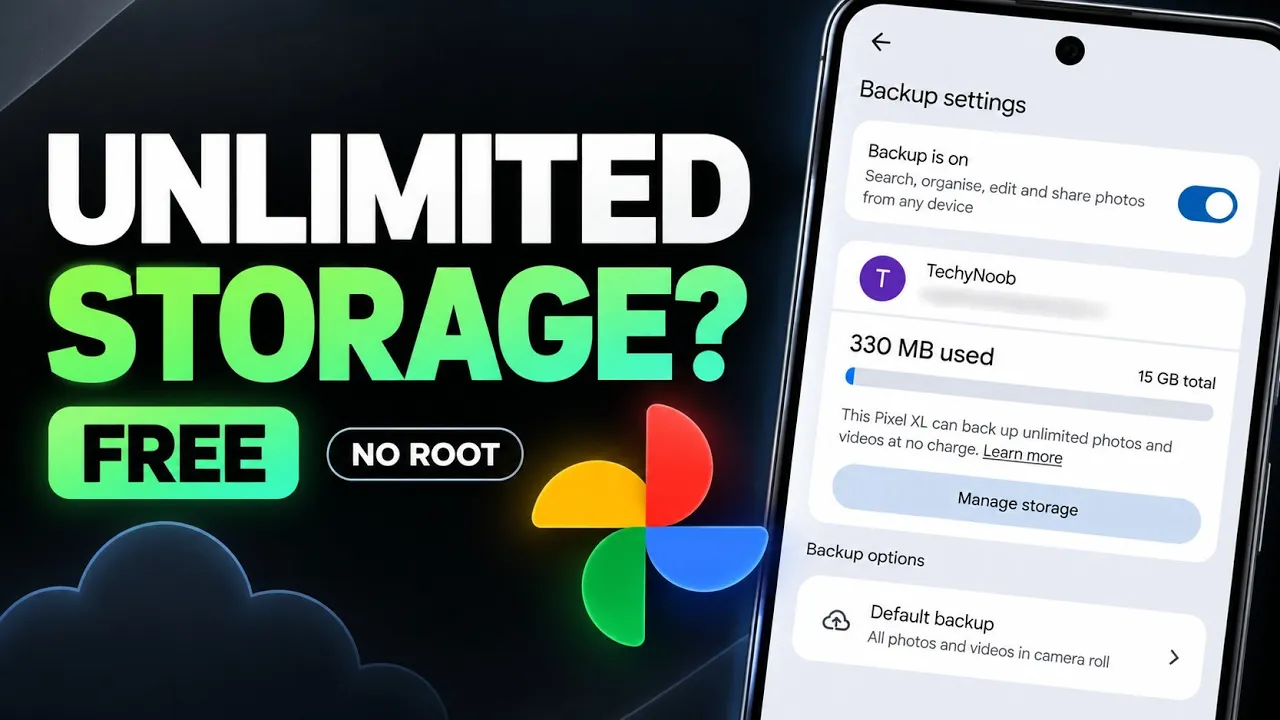
This TechyNoob guide follows the non-root Google Photos ReVanced method shown in the video. It uses two APK files: a modified Google Photos app and MicroG. The tutorial installs ReVanced Google Photos first, installs MicroG before opening Photos, and then adds a Google account through MicroG.
The video reports that the modified app displays an unlimited-storage message in backup settings. This is an unofficial workaround, not an official Google storage plan, and continued availability is not guaranteed. Keep independent copies of important photos and videos.
What You Need
- Compatible Android phone.
- ReVanced Google Photos non-root APK.
- MicroG APK supplied for this setup.
- File manager and internet connection.
- Independent backup of important media.
APK compatibility may vary by Android version and release. Use project instructions where available and install files only from sources you trust.
Watch the Full Video
Step-by-Step Installation
1. Download both APKs
Download ReVanced Google Photos and MicroG from the links below. Open your file manager and check that both files have finished downloading.
2. Install ReVanced Google Photos
Tap the modified Google Photos APK and follow Android's installer prompts. If required, allow installation from that source. When installation completes, tap Done. As emphasized in the video, do not open ReVanced Google Photos yet.
3. Install MicroG
Return to Downloads and install the MicroG APK. Wait for installation to finish before proceeding.
4. Add your Google account in MicroG
Open MicroG and follow its account setup flow to add the account you intend to use. Complete the sign-in prompts. Never share your password or verification codes with third parties.
5. Open ReVanced Google Photos
After both apps are installed and the account is configured, open ReVanced Google Photos and check the backup settings. In the video, the app reports unlimited storage; the creator explains that the modification presents the app as a Google Pixel 1. Results may differ by app version, device, account, or changes to Google's services.
Troubleshooting and Safety
- App does not open: Check APK compatibility and follow the installation order shown above.
- Account setup fails: Review MicroG compatibility and its documentation.
- Unlimited storage does not appear: Check the current project status; do not assume the method is supported permanently.
- Two Photos icons appear: The video shows both the Play Store version and the modified version. Confirm which app you are opening before changing settings.
Because this is an unofficial modification, do not rely on it as your only archive. Keep local copies or another independent backup and periodically confirm that files are actually backed up.
Download
Credits / Official Developer
Related Guide: Rooted Method
Final Thoughts
The non-root method uses ReVanced Google Photos and MicroG without requiring root access. Follow the installation order, check the backup settings on your device, and keep separate copies of important media. Since the method is unofficial, behavior and availability may change over time.
Discussion (0)
Post a Comment
No comments yet. Be the first to share your thoughts!