
Welcome back to Techynoob! If you are an avid mobile gamer, you already know the struggle of intense, competitive gaming sessions. After twenty minutes of heavy action, your phone starts feeling like a toaster, your frame rates plummet, and your battery drains faster than you can find a charger. Thermal throttling and lag can easily ruin an otherwise perfect match, leaving you frustrated and looking for solutions.
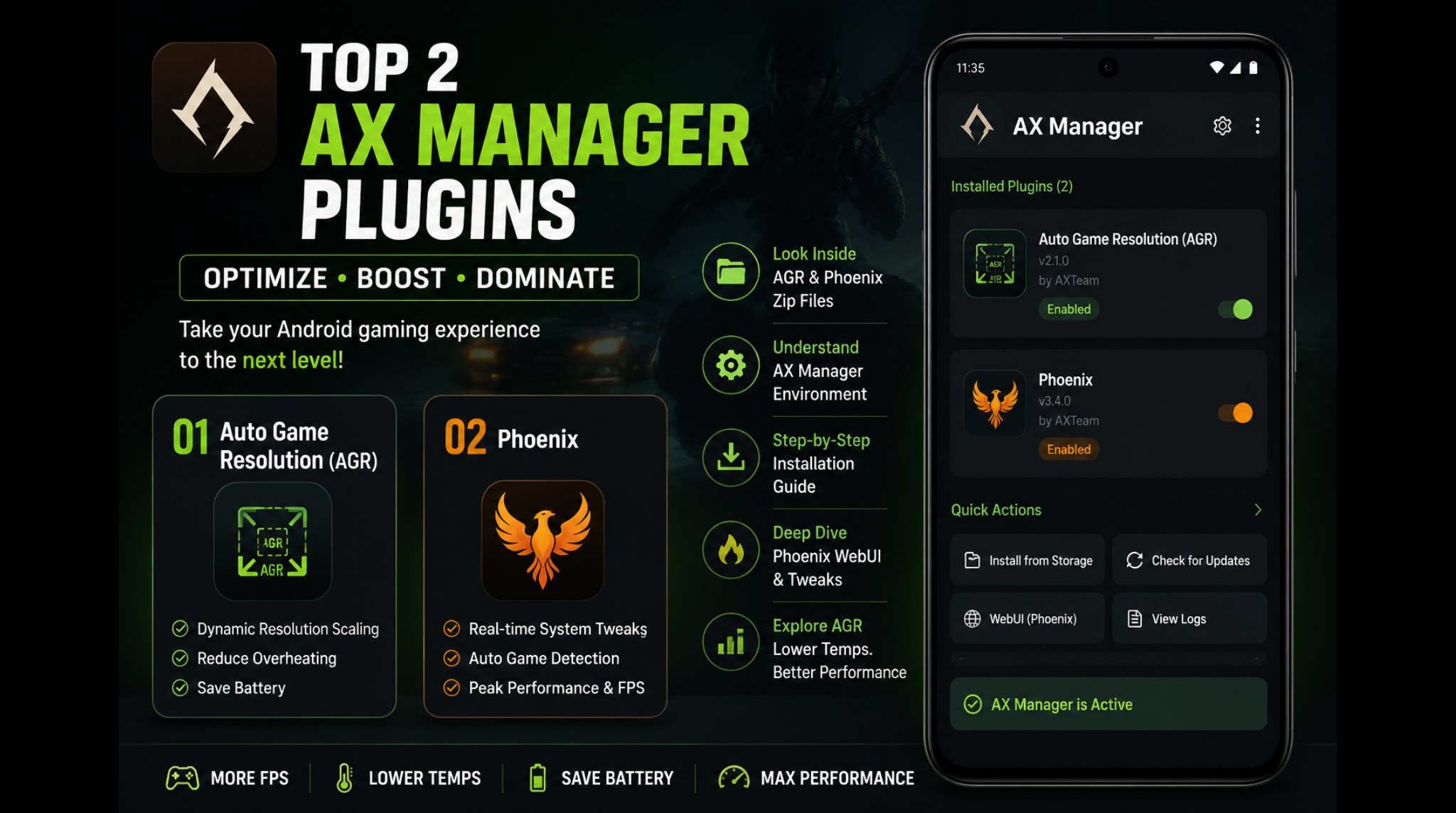
But do not worry, I have been testing some incredible optimizations that can push your Android gaming performance to the absolute limit while keeping your system stable and cool. Today, we are diving deep into the world of Android gaming enhancements, specifically focusing on two absolute game-changers: the Phoenix module and the Auto Game Resolution (AGR) module. These two are currently the best AX Manager plugins available, and they will completely transform how your device handles demanding 3D games.
Watch the full tutorial here on our Youtube channel:
What Exactly is AX Manager?
Before we get into the specifics of the plugins, let us talk about the platform running them. AX Manager is a powerful, lightweight environment that allows you to load and manage various performance modules and system tweaks on your Android device. Think of it as a central control hub that makes executing advanced gaming modifications incredibly easy and accessible. Whether you are using a non-root environment or a fully rooted device with Magisk, KernelSU, or APatch, AX Manager handles the heavy lifting, providing a seamless interface to optimize your hardware safely and efficiently.
Plugin 1: Phoenix – The Ultimate Non-Root Enhancer
The first plugin on our list is Phoenix, an incredible non-root gaming performance module. What makes Phoenix stand out is its intelligent automation. It automatically detects the exact moment you launch a game and instantly applies peak refresh rates and system tweaks in real time.
The moment you close the game, everything reverts perfectly back to your normal settings without you having to lift a finger. There is no manual switching or clunky apps running in the background. It also includes a beautifully designed full WebUI where you can manage your game list, configure specific refresh rates for different titles, and apply deep system tweaks like modifying DNS settings, adjusting system animations, and utilizing built-in memory management tools. Right out of the box, it comes pre-configured for twenty-four popular games and works flawlessly on any device running Android 8.0 or higher.
Plugin 2: Auto Game Resolution (AGR) – The FPS Savior
Next up is the Auto Game Resolution module, or AGR. This is a highly efficient background daemon tailored for users with root access (supporting Magisk, KernelSU, and APatch). AGR constantly tracks your foreground applications and automatically scales down the screen resolution and DPI specifically for games from a predefined list. For example, it can seamlessly drop your game’s rendering resolution from 1080p to 720p the exact moment it launches.
Why is this so important? Pushing fewer pixels massively reduces the computational load on your GPU. This directly prevents overheating, eliminates thermal throttling, and saves a significant amount of battery life, especially in graphic-heavy 3D games. You get to maintain a smooth framerate while keeping your native resolution perfectly intact for everyday tasks like browsing, reading, and messaging.
Step-by-Step Installation Guide
Installing these plugins via AX Manager is incredibly straightforward. Ensure you have the necessary zip files downloaded to your device's internal storage before beginning.
- Open AX Manager: Launch the AX Manager app on your Android device.
- Navigate to Module Installation: Find the section dedicated to adding or flashing new modules.
- Select Storage: Choose the "Install from storage" option.
- Install Phoenix: Locate the downloaded Phoenix zip file and select it. The installation script will unpack and run automatically.
- Ignite the Module: This is a crucial step! Once the installation finishes, you must click the Ignite button to apply the system changes.
- Repeat for AGR: Follow the exact same process for the Auto Game Resolution module. Select the AGR zip file, let it flash, and hit that Ignite button one more time.
Once both are installed, you are ready to jump into the settings and configure your games for maximum performance.
Why I Use This Module Daily
As someone who constantly tests new hardware and games for Techynoob, maintaining consistent performance is vital. I use the AGR module daily because it completely changed how my primary device handles heavy titles like Genshin Impact and high-tier battle royales. Before, I would experience severe frame drops after fifteen minutes due to the GPU running too hot. By having AGR automatically scale the game to 720p, the device stays comfortable in my hands, and the frame rate stays locked. Phoenix, on the other hand, makes everything feel snappy without requiring me to constantly jump into settings to tweak my refresh rate before opening a game.
Battery Impact and Performance Analysis
Let us talk about the real-world battery impact. Running games at a native 1080p or 1440p resolution with high refresh rates is the absolute fastest way to kill your battery. With AGR active, I noticed an average of 15% to 20% better battery retention during hour-long gaming sessions. Because the GPU is not constantly maxed out, the system draws much less power. The performance analysis is night and day; the thermal throttling threshold takes much longer to hit. This means those critical late-game moments stay smooth and responsive instead of turning into an unplayable slideshow.
Potential Bugs and How I Fixed Them on My Device
No optimization is completely flawless, and I did run into a few minor hiccups during my testing. Initially, with the Phoenix module, a couple of my lesser-known indie games were not being recognized by the automatic launcher. I fixed this easily by accessing the Phoenix WebUI and manually adding the game's package name to the supported list.
For AGR, I noticed that switching out of a game to quickly reply to a message and jumping right back in sometimes confused the DPI scaler, causing the user interface to look slightly stretched. The simple fix for this was ensuring the game was properly paused, or simply navigating to the home screen first before switching apps. This allows the background daemon to properly register the exit and re-entry, keeping the resolution perfectly balanced.
If you want to take back control of your device's gaming capabilities, these two AX Manager plugins are essential tools for your arsenal. They deliver serious performance boosts, keep your thermals in check, and extend your play sessions. Give them a try, and let me know in the comments how your gaming experience improves!
Subscribe to our YouTube channel for daily Android tips, tricks, and tutorials: TechyNoob
Discussion (0)
Post a Comment
No comments yet. Be the first to share your thoughts!