
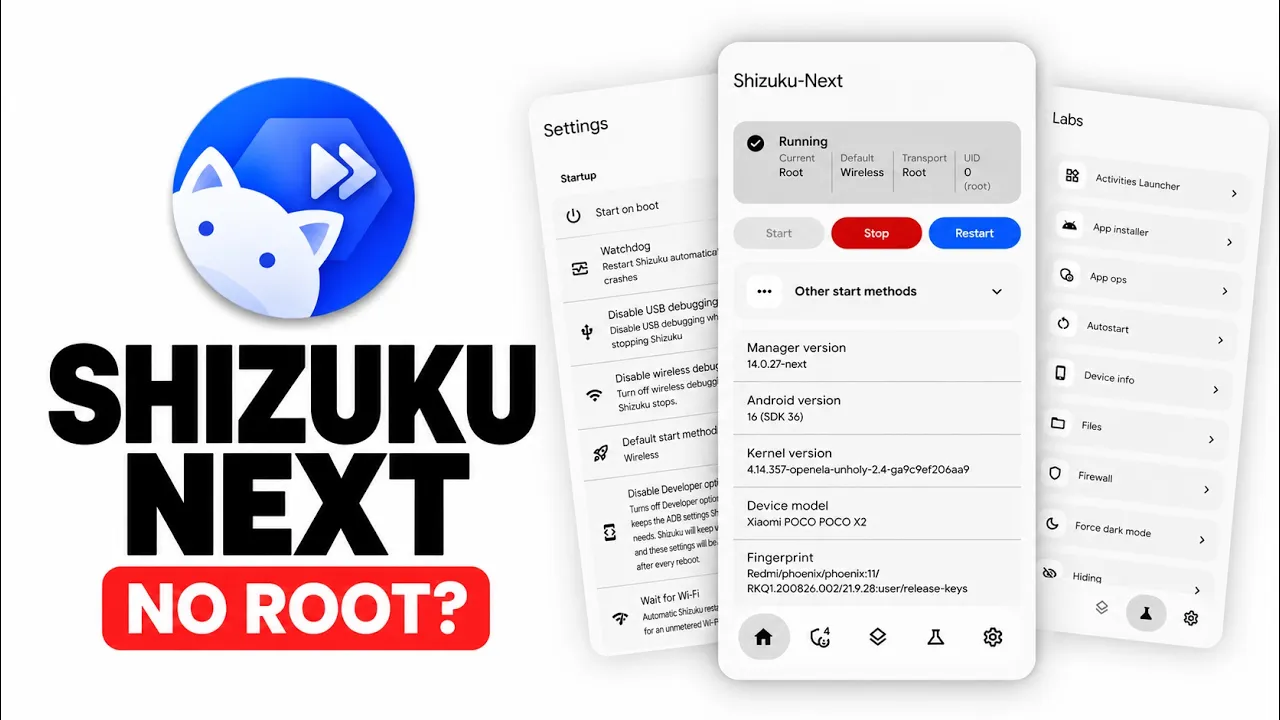
Shizuku Next is presented in the supplied video as a custom fork of the original Shizuku app, designed to make advanced Android permissions and system-level workflows easier to manage. The video highlights a refreshed Material 3 interface, automated wireless ADB pairing, batch permission management, a built-in terminal, a firewall, an autostart blocker and several background-service improvements.
The installation shown uses an APK downloaded from the project's GitHub repository, then starts the service through Wireless Debugging. Because this is a powerful system utility, install releases from the project source and review requested permissions before use.
What Is Shizuku Next?
Shizuku lets compatible apps use certain system APIs through a service running with the Shizuku UID, without requiring full root access for every supported operation. Shizuku Next is described in the video as a fork with quality-of-life changes, automation and a redesigned interface. Capabilities depend on Android version, vendor behaviour, available privileges and each feature's requirements.
Key Features
- Material 3 interface with a modern layout and a battery-optimization warning card.
- Wireless ADB startup flow that the video says reads the pairing code from the system dialog and pairs automatically, avoiding manual code and port entry.
- Detailed service status showing server state, real UID and transport method.
- Batch app permission management: long-press an app to grant or revoke permissions for multiple apps at once, as demonstrated.
- Built-in terminal shell that runs commands as the Shizuku UID, with quick commands for battery, storage and app operations.
- Saved command library for frequently used terminal commands.
- Firewall described in the script as blocking app traffic through the platform's own chain.
- Autostart blocker intended to deny background execution for selected apps.
- Samsung-specific Start as System feature, described by the video as using a vendor exploit to launch under UID 1000.
- Improved start-on-boot behaviour, a watchdog service that attempts to restart Shizuku after a crash, TCP port rebinding and cleanup of stale duplicate server processes.
Requirements and Preparation
- An Android device compatible with the current Shizuku Next release.
- The APK downloaded from the project's official GitHub repository.
- Access to Developer Options and Wireless Debugging.
- A working Wi-Fi connection for the wireless-debugging startup flow shown in the video.
- File-manager permission to access the downloaded APK.
- Review time for requested permissions and any security warnings.
Watch the Full Video
How to Install Shizuku Next
1. Download the APK. Open the official Shizuku Next GitHub repository linked below and download the latest release APK appropriate for the project.
2. Find the file. Open your file manager and navigate to Downloads. Verify that the APK came from the expected project source.
3. Install the APK. Tap the APK and follow Android's package installer prompts. The video reports that Play Protect may flag or block installation.
4. Handle warnings carefully. Do not disable Google Play Protect by default. Verify the source and release and review the warning and project documentation instead of automatically bypassing protection.
5. Open the app. Launch Shizuku Next and review the interface and battery-optimization prompt.
6. Review battery optimization. The video recommends exempting the app from battery optimization to reduce the chance that Android stops its background service. The settings path varies by device.
7. Enable Developer Options. Open Settings, go to About phone and tap Build number seven times, or follow the manufacturer's equivalent steps. Enter your PIN if prompted.
8. Enable Wireless Debugging. Open Developer options and turn on Wireless debugging. The video says to ensure the phone is connected to Wi-Fi.
9. Start Wireless ADB. Return to Shizuku Next and tap Start for Wireless ADB. The script says the app reads the pairing code from the system dialog and completes pairing automatically.
10. Verify the service. Check the status label, server UID and transport method to confirm the service has started.
11. Explore features gradually. Try permission management and terminal commands only after understanding their effects. Use firewall, autostart and Samsung-specific features cautiously.
Understanding the Interface
The home screen reports how the server is running, including its UID and transport method. The Apps tab provides batch permission management. The Labs tab contains the terminal shell and quick-command options. The video presents these features as ways to reduce the need to switch between separate Android settings pages and tools.
Terminal, Firewall and Autostart Controls
The built-in terminal runs commands as the Shizuku UID, not full root by default. Its quick commands cover battery, storage and app operations, and users can save commands to a library. The script also describes a firewall that uses the platform's own chain to block app traffic and an autostart blocker that denies background execution. Exact behaviour can depend on Android version and device implementation; verify each control before relying on it.
Troubleshooting and Safety
Wireless Debugging does not start
Confirm Wireless Debugging is enabled, the device is connected to Wi-Fi and the system pairing dialog appears. If automatic pairing fails, restart the flow and consult the project's current instructions. Steps vary between Android versions.
Android stops the service
Review the manufacturer's battery-management settings and consider exempting Shizuku Next from battery optimization if persistent operation is needed. Battery restrictions vary by device.
Play Protect displays a warning
Treat the warning seriously. Verify the APK came from the official repository, check release information and review project documentation. Avoid disabling security protections to install an APK you cannot verify.
Commands or app operations fail
Commands run as the Shizuku UID do not automatically have root privileges. An operation may be unavailable because of Android restrictions, missing permissions, vendor changes or a requirement for a different privilege level.
Conclusion
Shizuku Next builds on the Shizuku workflow with a redesigned interface, automated wireless pairing and additional management tools. The most notable features in the supplied video are batch permission controls, the terminal command library, firewall and autostart controls, watchdog recovery and the Samsung-specific Start as System option. Compatibility and privileges vary, so verify current release notes and use security-sensitive features carefully.
Discussion (0)
Post a Comment
No comments yet. Be the first to share your thoughts!