
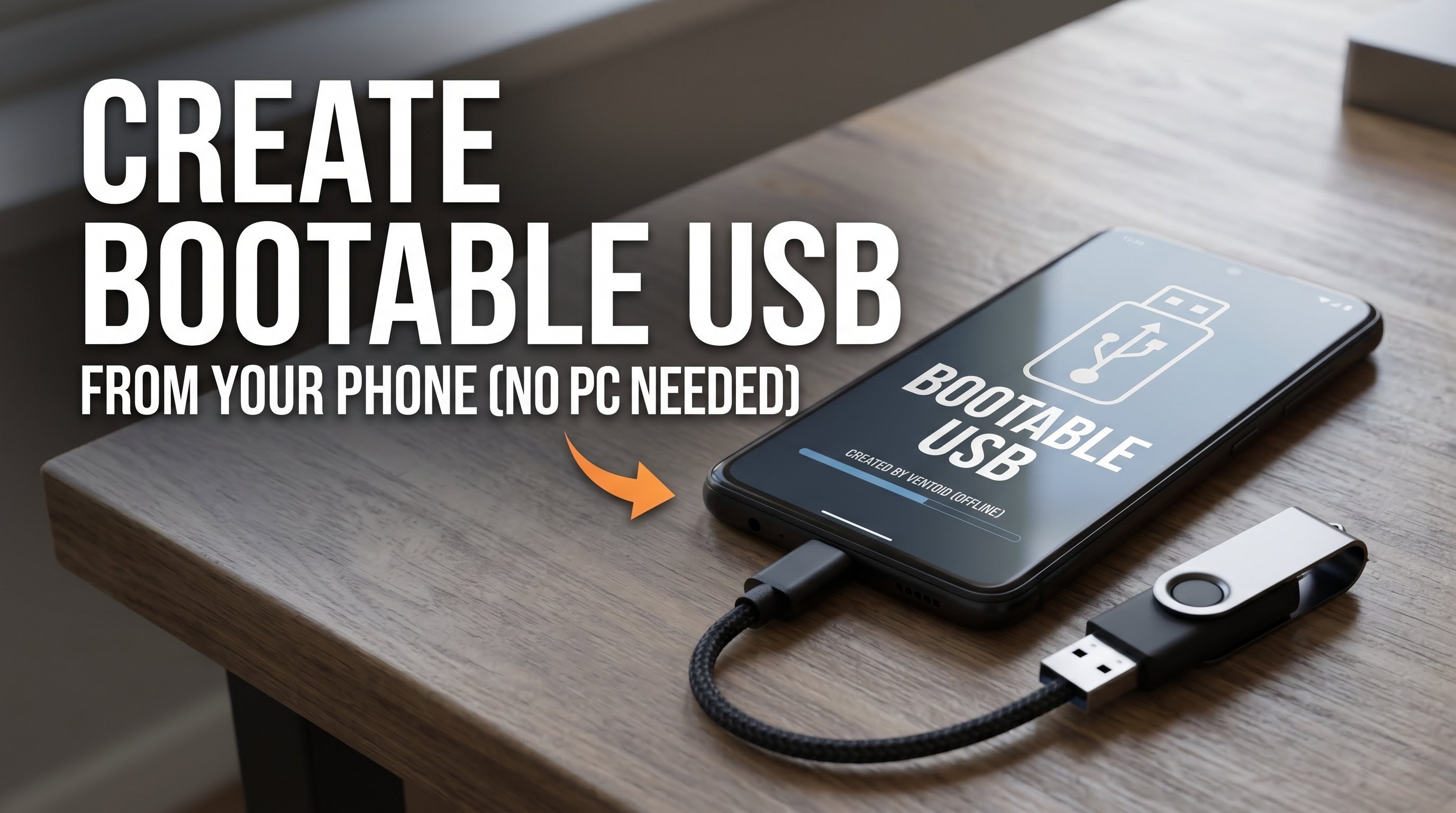
Have you ever been stuck with a broken, unbootable computer and no secondary PC around to create a recovery drive? It is a deeply stressful tech emergency that many of us have faced at the worst possible moments. If your primary workstation goes down, getting it back up and running usually requires borrowing another laptop to flash an operating system image. But what if your smartphone was the only hardware you needed? Welcome back to Techynoob. Today, we are exploring a brilliant, lightweight solution to this exact problem: the Ventoid Android app.
Ventoid is a clever, highly efficient open-source application designed to turn your everyday smartphone into the ultimate IT rescue station. By leveraging this tool, you can create Ventoy-style bootable USB drives directly from your Android phone using a simple OTG (On-The-Go) cable. Whether you are building an emergency Windows installation drive, a portable Linux repair kit, or just experimenting with new operating systems, this application ensures you are never left stranded.
Before we dive into the main setup process, let us briefly talk about keeping your device optimized and managing your local software toolkit. As a tech enthusiast, keeping important files organized locally is an absolute game-changer. For instance, I frequently use my device's file manager to access powerful tools like the Zuan Kernel Manager app APK. If you regularly tweak device performance or manage custom kernels on your modified devices, keeping essential APKs stored safely in your downloads folder saves a massive amount of time.
Installing these local files is incredibly seamless. You simply browse your local storage, tap the APK file, and the standard Android package installer prompts you for confirmation. Within seconds, your utility is fully installed and ready to use. Having this level of control over your local file system is the perfect stepping stone to utilizing powerful system-level tools like Ventoid.
Now, let us get back to the star of the show. Ventoid is specifically engineered for those high-pressure situations where your smartphone is literally the only functional device within reach. Instead of hunting down a friend's laptop, you can execute a bare-metal computer repair right from the palm of your hand.
Watch the full tutorial here on my Youtube channel:
Here is the complete step-by-step guide on how to create your bootable USB drive using your Android phone:
Step 1: Connect Your Hardware To get started, you will need a standard USB flash drive and an OTG adapter that is compatible with your smartphone. Plug the OTG adapter directly into your phone’s charging port, and then securely insert your USB flash drive into the adapter.
Step 2: Launch Ventoid and Grant Permissions Open the Ventoid application on your device. Because the app is designed with rapid deployment in mind, it will instantly recognize the attached external storage. The application natively supports direct USB writing, which guarantees a highly reliable and exceptionally fast data transfer rate right out of the gate.
Step 3: Choose Your Partition Layout One of the most impressive features of this mobile tool is the complete control it gives you over the drive's formatting structure. Depending on the target computer's motherboard architecture, you can actively select between MBR (Master Boot Record) or GPT (GUID Partition Table) partition layouts. If you are attempting to repair an older, legacy BIOS machine, MBR is your best choice. For modern UEFI systems, you will want to select the GPT layout.
Step 4: Follow the Stage-Based Setup Flow You absolutely do not need to be a command-line expert or advanced programmer to make this work. Ventoid features an incredibly user-friendly, stage-based setup flow. The application's interface will gently guide you through the necessary steps: wiping the flash drive, formatting the partitions correctly, and securely installing the bootloader.
Step 5: Transfer Your ISO Files Once the initial setup is complete, the true magic of the Ventoy-style ecosystem comes into play. You do not need to repeatedly flash the drive for different operating systems. All you have to do is copy your desired ISO files directly onto the newly formatted USB drive using your phone’s file manager. When you plug this USB into your broken PC, it will boot into a dynamic selection menu.
What truly makes Ventoid a staple for any Techynoob reader is its unwavering commitment to user privacy. The entire Ventoid setup process functions fully offline, meaning you do not need an active internet connection when out in the field. Furthermore, it is completely free from any annoying advertisements or background analytics.
Turning your everyday Android phone into an emergency PC repair kit is a brilliant preparation strategy. Keep an OTG cable handy, and you will always be ready to tackle a sudden system failure!
Subscribe to my Youtube channel for daily android tips tricks and tutorials: TechyNoob
Discussion (0)
Post a Comment
No comments yet. Be the first to share your thoughts!