
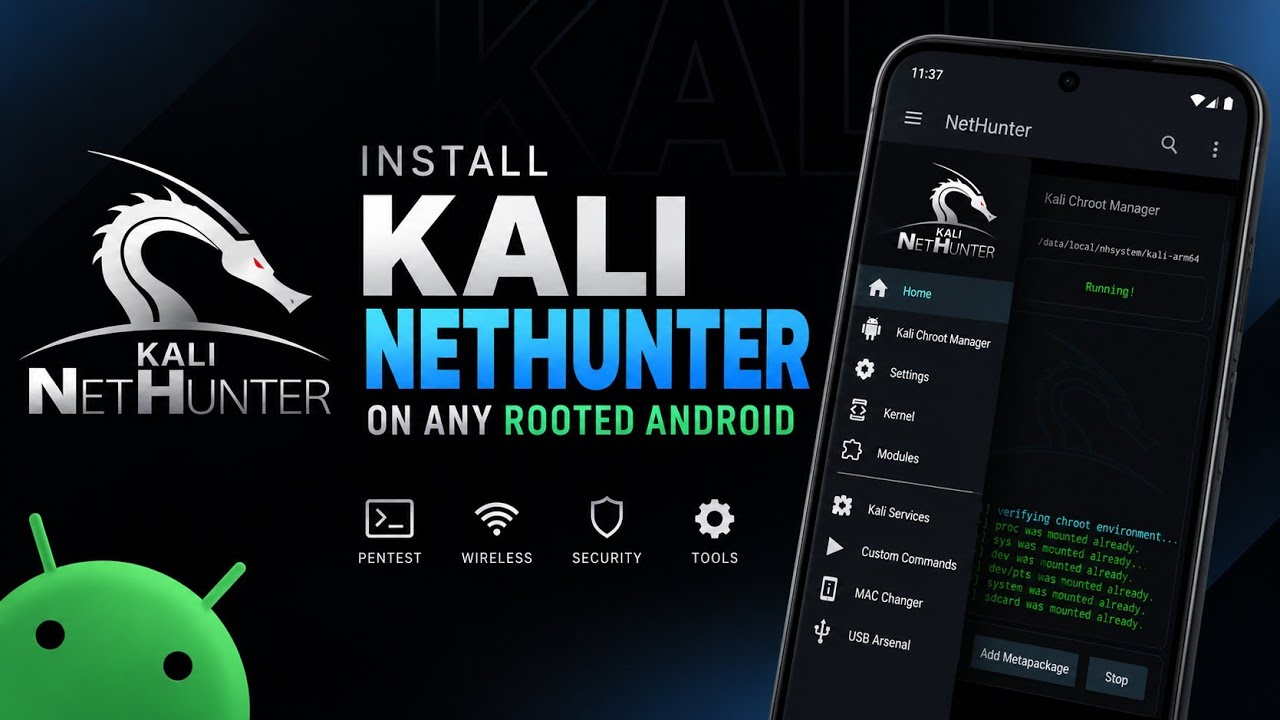
Kali NetHunter brings Kali Linux security and penetration-testing tools to supported Android setups. This guide follows the supplied video, which installs the generic full NetHunter ZIP on a rooted Android device through Magisk. The demonstration uses a device running Superior OS on Android 16 QPR2 and shows the initial setup, permission prompts, Chroot Manager and NetHunter dashboard.
This is a root-level installation and can modify system components. Back up important data, confirm that the downloaded image is appropriate for your setup, and understand your device's recovery process before proceeding. Use penetration-testing tools only on devices, networks and systems you own or have explicit permission to test.
What Is Kali NetHunter?
Kali NetHunter is Kali Linux's mobile platform for security testing. In the supplied video, the generic full image is used rather than a device-specific or minimal package. After installation, the presenter opens the NetHunter app, grants permissions, starts the Chroot environment manually and explores the available security tools.
What the Generic Full Image Includes
The video describes the generic full image as the option selected to install the broad NetHunter toolset on a rooted device rather than a device-specific or minimal build. The installer is shown changing the wallpaper, attempting to update the boot animation and installing NetHunter companion apps. The boot-animation change may not work on every custom ROM.
Requirements Before Installation
- A rooted Android device with Magisk available, as used in the demonstration.
- The generic full Kali NetHunter ZIP downloaded from the official Kali Linux download page.
- Sufficient free internal storage for the package and installed environment.
- A working backup and device-specific recovery plan in case installation fails.
- Time to complete installation: the video says the process may take around 20–25 minutes, depending largely on internal-storage read/write speed.
Watch the Full Video
How to Install Kali NetHunter
1. Download the generic full ZIP. Open the official Kali NetHunter download page and obtain the generic full image ZIP appropriate for your intended setup. The video explicitly does not use a device-specific or minimal version.
2. Open Magisk Manager. Launch Magisk and navigate to the Modules section.
3. Install from storage. Choose the option to install a module from storage, locate the downloaded generic full ZIP and select it. Review the installer output rather than interrupting the process.
4. Wait for installation to finish. The supplied demonstration says installation can take 20–25 minutes, depending on storage performance. Allow it to complete before rebooting.
5. Reboot the device. When the installer shows the reboot option, restart the phone to complete setup.
6. Check the wallpaper and boot animation. The demo shows the Kali wallpaper successfully applied. The boot animation remains the default Superior OS animation because that ROM does not allow the change in this configuration.
7. Open the NetHunter app. Launch the newly installed companion app. When prompted, grant the superuser permission required by the setup.
8. Complete permission prompts. The demonstration grants Nearby Devices and Notifications permissions, allows initial background configuration scripts to run, and then grants storage permissions. Review each prompt and allow permissions required for the features you intend to use.
9. Review the dashboard. The home screen displays system information, kernel status and basic device metrics, as shown in the video.
10. Start the Chroot environment manually. Open the Chroot Manager tab and press Start. The script warns that the environment does not automatically start on the first boot, so do not skip this step.
11. Verify the environment. After Chroot starts, check that the environment is running before opening tools. Follow current project documentation if the environment fails to start.
Tools and Capabilities Shown
The video briefly demonstrates the range of tools available in NetHunter, mentioning wireless testing, MAC-address changing, Nmap scanning and HID attacks. The exact tools and capabilities depend on the installed environment, device hardware, kernel support and permissions. Some wireless features may require compatible hardware or additional configuration; the video does not establish that every feature will work on every rooted Android device.
Important Compatibility Notes
- Generic does not mean every feature is guaranteed to work on every device. Hardware, kernel capabilities, Android version and ROM restrictions can affect individual features.
- The presenter uses Superior OS on Android 16 QPR2. The Kali boot animation is not applied in this setup, although the wallpaper changes.
- The Chroot Manager Start button must be pressed manually on the first setup, according to the demonstration.
- Installation duration varies; the 20–25 minute estimate comes from the video and is not a fixed requirement.
- Use the official Kali download page and check its current documentation for the appropriate package and updated requirements.
Troubleshooting
Installation takes a long time
The video notes that installation may take 20–25 minutes depending on internal-storage read/write speed. Keep the device powered and avoid interrupting the installer while it is actively working. If it appears stuck well beyond a reasonable period, consult current official documentation and the installer output before attempting recovery.
The Kali boot animation does not appear
This does not necessarily mean installation failed. In the demonstrated Superior OS setup, the wallpaper changes but the ROM does not allow the boot animation to be replaced. Check the behaviour of your ROM rather than assuming the same visual result on every device.
NetHunter opens but the environment is not running
Open Chroot Manager and press Start manually, as shown in the video. If it still fails, check the installation output, available storage and current official NetHunter troubleshooting documentation.
Permissions or root access are missing
Review the root manager to ensure the NetHunter app has the required superuser permission. Also review Android permissions needed for the functions you plan to use. Grant only permissions you understand and need.
Responsible Use
Kali NetHunter includes tools that can affect networks and devices. Use them only in a lab, on your own equipment, or with clear authorization from the owner. Do not use the installation as permission to scan, attack or access third-party systems.
Conclusion
The supplied tutorial demonstrates installing the generic full Kali NetHunter ZIP through Magisk, completing initial permissions, reviewing the dashboard and manually starting the Chroot environment. The key points are to allow sufficient installation time, expect ROM-specific differences such as the boot animation, and start Chroot Manager manually on the first run. Check the official Kali source for the current package and documentation before installing.
Download
Nethunter Generic ARM64 (Full)
Version: 2026.2 | Size: 1.8 GB



Discussion (0)
Post a Comment
No comments yet. Be the first to share your thoughts!