
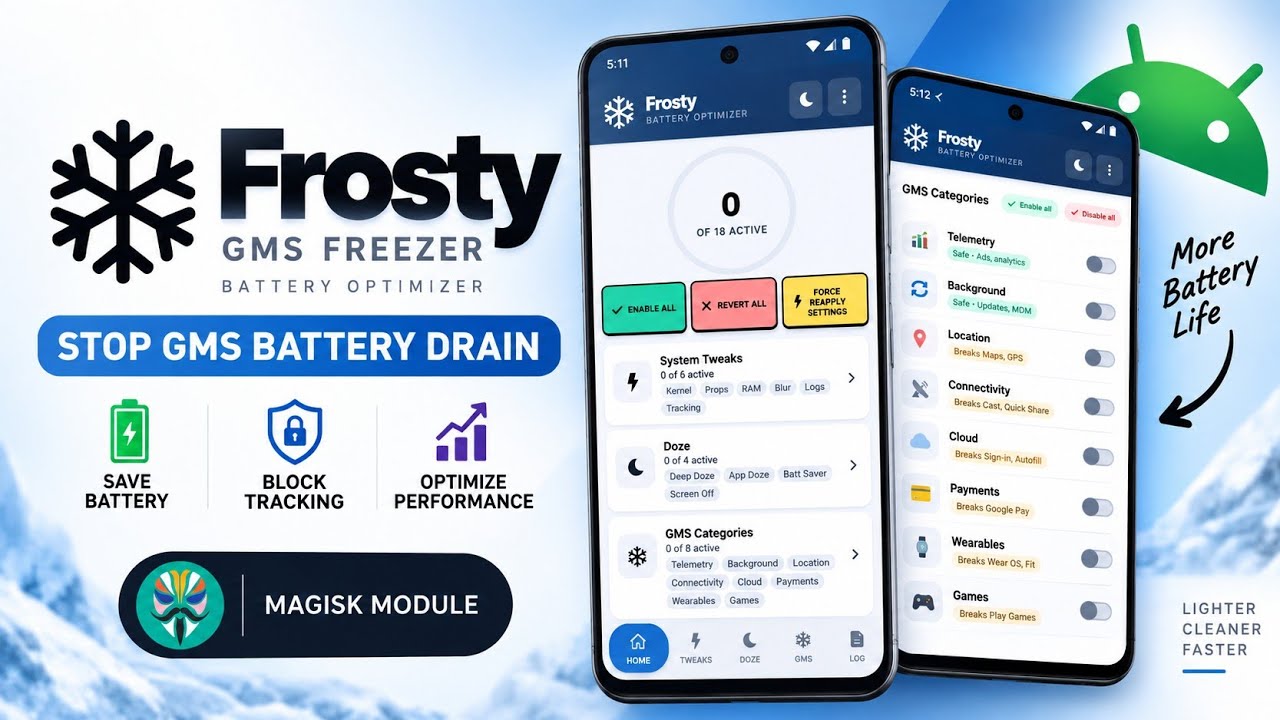
Frosty is described as a GMS freezer and battery-saving module for Android users who want to manage background activity associated with Google Mobile Services. Its goal is to reduce unnecessary background work and wakelocks while restricting unwanted analytics activity. The project is credited to developer Drsexo and is available as open-source software.
Because Frosty changes how Google-related components behave, aggressive freezing may affect apps or services that rely on Google Play Services. Results depend on the device, Android version, apps, and configuration; battery improvements are not guaranteed.
What Does Frosty Do?
The script describes Frosty as a module intended to manage or freeze selected Google Play Services components, reduce unnecessary background activity and wakelocks, lower idle battery drain, and restrict some background analytics activity. It aims to preserve essential push notifications and location functionality, but users should test these functions after installation.
Requirements
Prepare an Android device with Magisk installed, the Frosty module ZIP, access to Magisk's Modules section, and a backup or recovery plan. The video also notes that the demonstrated Magisk setup needs the KSU Web UI module to access Frosty's settings interface. That interface was not installed during the recording, so its settings were not demonstrated.
Watch the Full Video
Step-by-Step: Install Frosty With Magisk
1. Download the ZIP
Download Frosty from the link below and open your file manager. Locate the ZIP in Downloads and make sure the download has completed. Keep the file as a ZIP; do not extract it.
2. Open Magisk
Launch Magisk and go to Modules. Tap Install from storage to open the Android file picker.
3. Select the module
Navigate to the folder containing the Frosty ZIP and select it. Magisk will begin flashing the module and show installation output. Do not interrupt the process.
4. Reboot
When installation finishes and the reboot option appears, tap it to restart the phone. Rebooting applies the module's systemless changes.
5. Verify installation
After the device starts, open Magisk again and return to Modules. Confirm that Frosty GMS Freezer appears in the list and is enabled.
Accessing Frosty's Settings
The script says the KSU Web UI module is required in the creator's Magisk setup to access Frosty's configuration menu. Because that interface was not installed during the recording, the configuration process was not shown.
Consult the project's documentation for the correct Web UI setup and supported configuration. Avoid freezing components at random: Google Play Services supports functions used by many apps, and restricting the wrong components may affect notifications, location, authentication, or app behavior.
Troubleshooting and Rollback
- Notifications are delayed: Review Frosty's configuration and check whether relevant Google components are restricted too aggressively.
- Apps stop working: If problems began after installation, disable or remove the module through Magisk using the documented removal process.
- Battery life does not improve: Check Android's battery usage information first. Google Play Services may not be the main cause of drain on your phone.
- Settings are unavailable: Consult the project instructions for the required Web UI component and compatibility.
Make changes gradually and monitor the phone before applying further restrictions. If you rely on timely notifications, navigation, or work apps, prioritize reliability over aggressive freezing.
Download
Credits / Official Developer
Final Thoughts
Frosty is aimed at rooted Android users who want more control over Google Mobile Services background activity. Installing it through Magisk is straightforward, but configuration matters more than simply flashing the ZIP. Read the project's documentation, verify the module is enabled, and test core services after making changes. Battery savings are device-dependent, and stability should come first.
Discussion (0)
Post a Comment
No comments yet. Be the first to share your thoughts!