
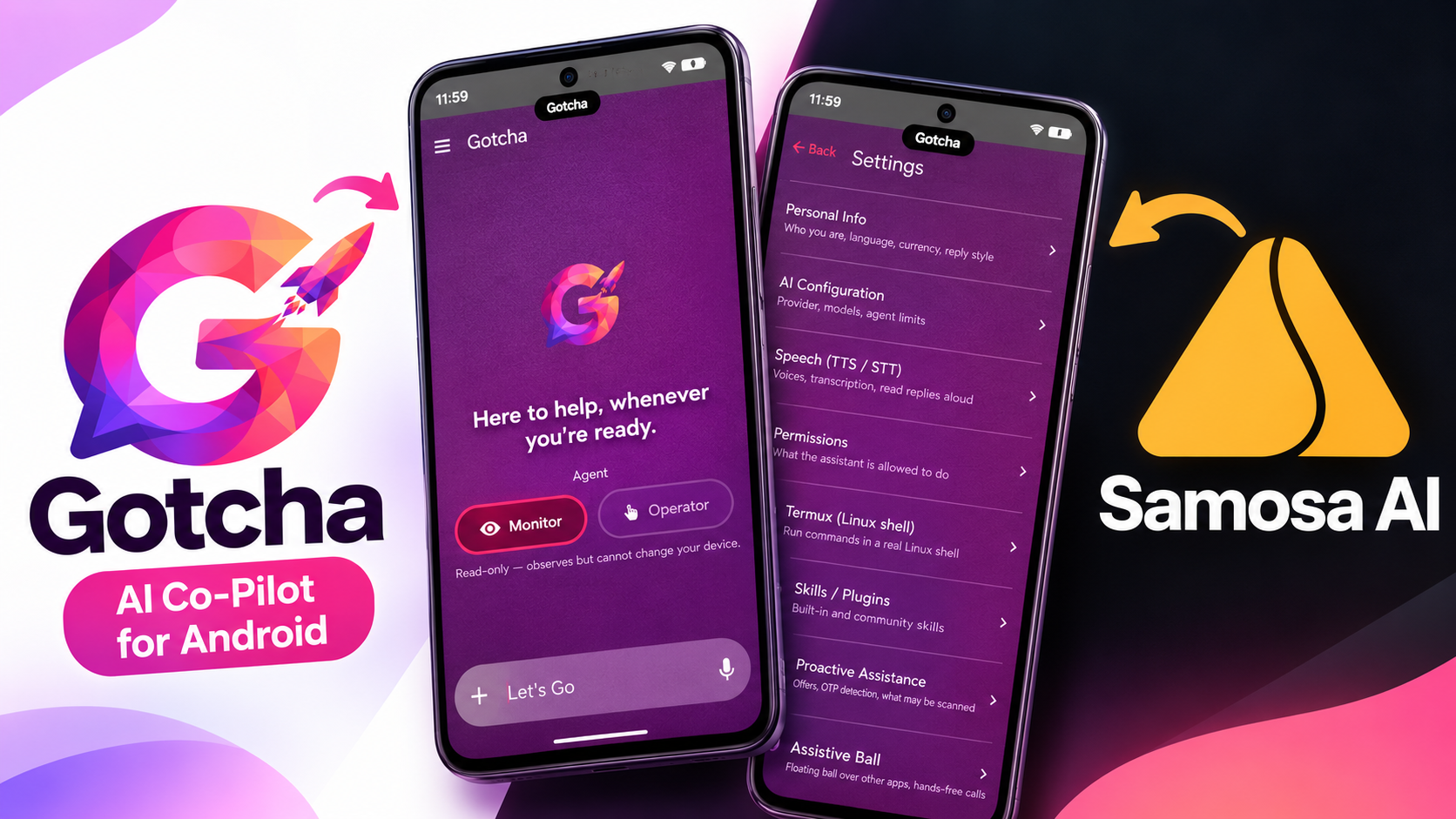
What if you could simply tell your Android phone what you want instead of manually opening apps, searching through settings, managing files, or performing repetitive tasks?
That is the idea behind Gotcha, an open-source AI copilot for Android developed by Samosa AI.
Gotcha goes beyond a traditional chatbot. Instead of only answering questions, it can use Android tools to inspect information and perform supported actions directly on the device. The current project supports Android 11 and above, works with OpenAI-compatible models, and provides separate Monitor and Operator modes.
In my video, I tested Gotcha with Samosa AI and Chai Medium and demonstrated several capabilities, including checking what the assistant can do, generating a system snapshot, creating an Angry Birds-style game, launching a GTA-style game, generating a 3D Tetris experience, and testing local file-server functionality against Gemini.
What Is Gotcha AI?
Gotcha is an open-source AI copilot designed specifically for Android.
The basic concept is simple: you type or speak a natural-language request, Gotcha sends the request along with relevant device context to the configured AI model, and the model can select from the application’s available tools to complete the task.
This makes Gotcha different from an AI assistant that only provides text responses.
Instead of simply explaining how to check your storage, for example, you can ask Gotcha to check the available storage for you.
Monitor vs Operator Mode
Monitor Mode
Monitor mode is designed for read-only interaction.
It can inspect and read supported information without being used for actions that modify your device.
This makes it a useful mode for exploring Gotcha before giving it broader permissions.
For example, you can ask it to inspect device information, check storage, or understand what is currently visible.
Operator Mode
Operator mode provides broader access for executing supported actions.
Depending on the permissions granted, it can perform supported actions involving files, applications, accessibility automation, and other Android functionality.
Because Operator mode can make actual changes to the device, review the requested permissions carefully and understand what the assistant is allowed to control.
My Gotcha Demo: What I Actually Tested
1. Asking Gotcha What It Can Do
I started by asking:
“Tell me what you can do. List your capabilities grouped by: phone control, files, web, media, and automation. Keep it under 200 words.”
This was a useful first test because instead of manually going through different menus, the assistant could explain its available capabilities directly through the chat interface.
2. Getting a Live System Snapshot
Next, I tested whether Gotcha could retrieve basic information about the phone.
The prompt was:
“Show me a quick system snapshot — CPU, memory, and disk usage in a short table.”
Instead of manually opening different Android settings screens, Gotcha could gather the available information and present it in a compact response.
3. Creating an Angry Birds-Style Game
I asked Gotcha to create an Angry Birds-style game as a single HTML file.
The request included: - A single HTML file - Matter.js through its CDN - A slingshot - Trajectory preview - Three structures - Three birds - Scoring - Multiple levels - Reset functionality - Mouse and touch controls - Ability to save, check, and fix the launch strength
This test showed Gotcha being used for more than conventional Android commands. Instead of simply answering a programming question, the assistant was asked to generate an interactive application that could be opened and tested.
4. GTA-Style Game Demo
I also tested Gotcha with a GTA-style game concept.
The goal was to push the assistant beyond simple device-management commands and see how it handled a more complex interactive experience.
5. 3D Tetris Demo
Another showcase in the video was a 3D Tetris-style experience.
This was another test of Gotcha’s ability to work with a more visually complex project and generate an interactive experience.
6. Gemini vs Gotcha: Local File Server Test
I asked Gotcha:
“Start a local HTTP file server for my Download folder on port 8000 and tell me the LAN link to open on my laptop. Keep it running so I can browse the files from my laptop.”
This test demonstrated how Gotcha could interact with the Android environment beyond ordinary application controls.
The idea was to use a local HTTP server so files from the phone’s Download directory could be accessed from another device on the same local network.
Because a local file server exposes files over the network, use this functionality only on a trusted network and understand exactly which files are being shared.
Assistive Ball
Gotcha includes an Assistive Ball that provides a floating interface for accessing the assistant while using other applications.
Voice Control
Gotcha also supports voice interaction, allowing users to communicate with the assistant without necessarily typing every instruction manually.
Screen Understanding
Gotcha can work with screen information when the required accessibility functionality is enabled. This can allow the AI to understand what is currently displayed and use that information as part of an interaction.
How to Install Gotcha on Android
Step 1: Download the APK
Download the latest Gotcha APK from the official project source.
Step 2: Try Gotcha With My Referral Link
🚀 Try Gotcha AI and get bonus credits: https://api.samosa-ai.com/join?ref=AIR-GQGZYJ
Step 3: Install the APK
Open the downloaded APK using your Android file manager. If Android blocks installation from that source, enable the required installation permission for the source you are using, then install Gotcha normally.
Step 4: Configure Your AI Model
Open Gotcha and configure your preferred supported AI model. In my demonstration, I tested Gotcha using Samosa AI and Chai Medium.
Step 5: Grant Required Permissions
Depending on what you want Gotcha to do, Android may request additional permissions. Review each permission carefully and only enable functionality you actually need.
Step 6: Start With Monitor Mode
For your first tests, start with Monitor mode. Try simple requests such as checking battery information, available storage, files, supported device information, or generating a system snapshot.
Step 7: Explore Operator Mode
After reviewing the permissions and capabilities, switch to Operator mode and try simple supported actions. Start with low-risk tasks before allowing the assistant to perform more significant operations on your device.
Gotcha Safety and Privacy
Because Gotcha can interact with Android functionality, permissions should be taken seriously.
Before using the application: - Review the permissions requested by Gotcha. - Understand which AI model is processing your instructions. - Consider what information may be sent to an external AI service. - Start with Monitor mode. - Review actions before allowing the assistant to execute them. - Be particularly careful when using file, terminal, network, or accessibility functionality.
AI models can misunderstand instructions, so avoid blindly approving actions that you do not understand.
Final Thoughts
Gotcha is an interesting example of AI-powered Android automation.
In my testing, I went beyond basic commands and demonstrated: - Asking Gotcha to list its capabilities - Generating a CPU, memory, and disk snapshot - Creating an Angry Birds-style HTML game - Testing a GTA-style game - Creating a 3D Tetris experience - Running a local HTTP file-server experiment - Comparing the local-server workflow with Gemini
The combination of AI interaction, Android tools, Monitor mode, Operator mode, voice interaction, Assistive Ball, and automation capabilities makes Gotcha an interesting project for anyone who wants to experiment with AI-controlled Android workflows.
🚀 Try Gotcha AI and get bonus credits using my referral link: https://api.samosa-ai.com/join?ref=AIR-GQGZYJ
Watch the Full Video
Useful Links:
Gotcha: https://samosa-ai.com/gotcha
GitHub: https://github.com/samosa-ai-com/Gotcha
Documentation: https://samosa-ai.com/gotcha/docs/getting-started
Try Gotcha — use my invite link to get bonus credits: https://api.samosa-ai.com/join?ref=AIR-GQGZYJ
Discussion (0)
Post a Comment
No comments yet. Be the first to share your thoughts!