
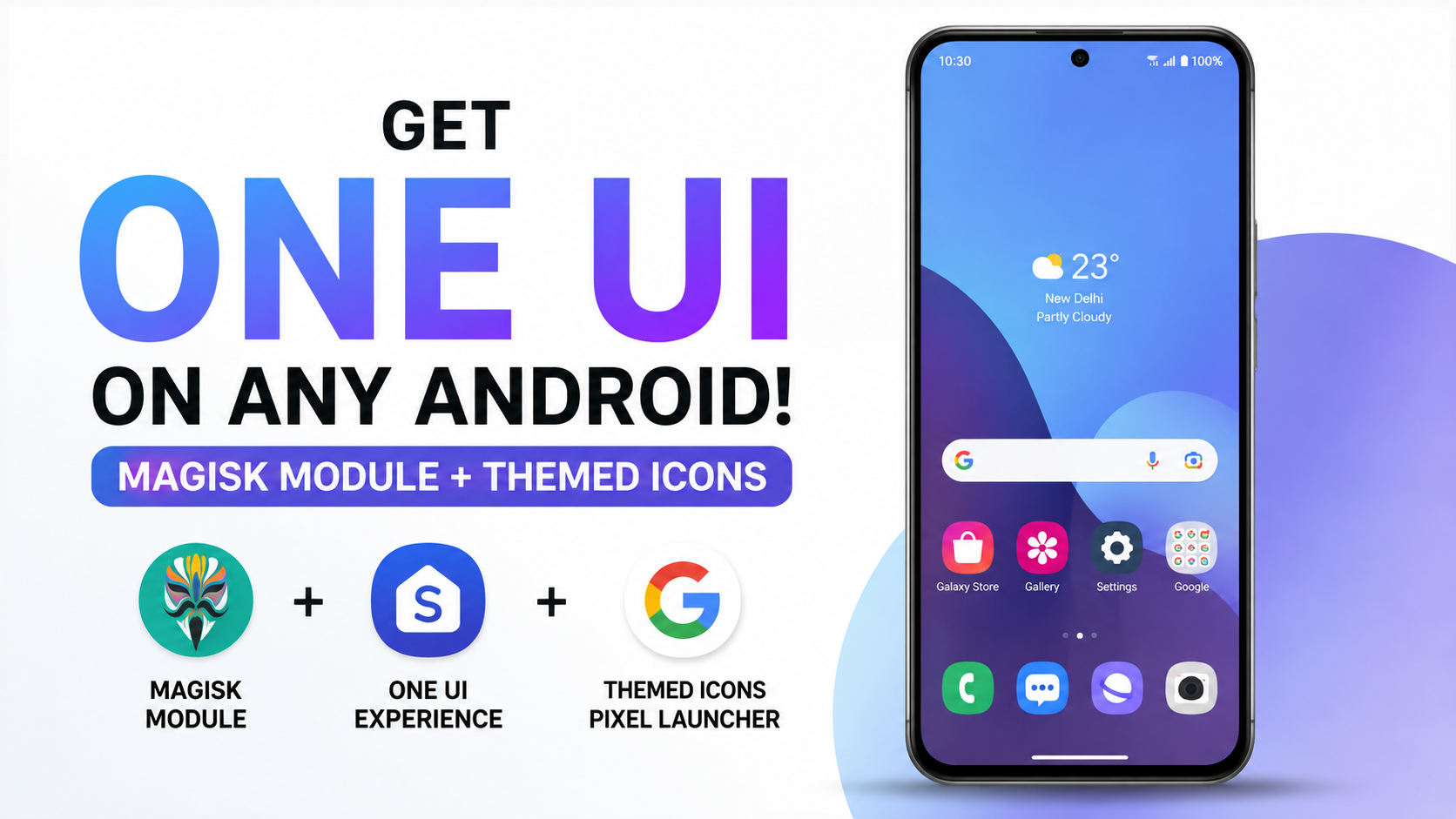
If you like the look and feel of Samsung One UI but use a Pixel or another Android phone, you don’t necessarily need to switch devices just to get a similar interface. With a rooted Android phone and the right Magisk module, you can bring a One UI-inspired experience to your existing setup.
In this guide, I’ll walk you through installing the One UI Experience Magisk module, enabling the themed interface, and checking the changes after reboot. The module also supports custom themed icons on Pixel Launcher and includes One UI-style applications such as Samsung Clock and Gallery.
YouTube Video:
What You Need Before Starting
Before you begin, make sure your Android phone is already rooted and that Magisk is working correctly. Since this setup uses a Magisk module, root access is required.
You’ll also need the One UI Experience ZIP file. Download the ZIP and keep it somewhere easy to find, preferably inside your phone’s Downloads folder.
Download: DOWNLOAD ONE UI EXPERIENCE
If you’re using One UI Home launcher files as part of your setup, keep those files ready as well.
One important thing before flashing any system modification is to make sure the downloaded ZIP is complete. A corrupted or partially downloaded module can cause installation problems, so it’s worth checking the file before you continue.
Check the One UI Experience ZIP
Start by opening your preferred file manager.
Go to your internal storage and open the Downloads folder. Locate the One UI Experience ZIP file that you downloaded earlier.
Before opening Magisk, check that the file is completely downloaded and that its size looks normal. You don’t want to begin the installation with a damaged archive.
Once everything looks fine, you can move on to Magisk.
Install the Module Through Magisk
Now open the Magisk app.
From the bottom navigation area, open the Modules section. At the top, you’ll find the option to install a module from your device storage.
Tap Install from storage.
Your file picker will open. Navigate back to the Downloads folder and select the One UI Experience ZIP file.
Magisk will start the installation process. The installer will run its scripts and apply the required files for the One UI-style experience.
At this point, don’t close Magisk or interrupt the installation. Let the process finish completely.
Once Magisk reports that the flashing process has completed successfully, you’ll see the option to reboot the phone.
Reboot Your Phone
Tap the Reboot button.
Your phone will restart so the changes made by the Magisk module can take effect.
The first boot after installing a system modification can take a little longer than usual, so give the device some time to start normally. Avoid forcing a reboot while the phone is still booting.
Once Android loads, unlock your phone and open Magisk again.
Verify the Module
Go back to Magisk → Modules.
Look for the One UI Experience module in your installed modules list.
Make sure the module is enabled. This gives you a quick way to confirm that Magisk has successfully loaded the module after the reboot.
If the module is listed and enabled, you can start checking out the actual interface changes.
Explore the One UI Experience
Now comes the fun part.
Open your app drawer and look at the applications included with the setup. The experience brings One UI-style applications such as Samsung Clock and One UI Gallery, giving the phone a much more Samsung-inspired appearance.
The icon adaptation is another noticeable part of the setup.
If you’re using Pixel Launcher with custom themed icon support, compatible application icons can be changed to match the One UI visual style. This means you can keep your existing applications while giving their icons a more consistent Samsung-inspired appearance.
For example, the Phone application can display a One UI-style phone icon while the actual application underneath remains the standard Google Phone app. In other words, the icon is being changed for visual consistency rather than replacing the underlying dialer itself.
This is useful if you want the appearance of One UI without completely changing the functionality of your existing Android applications.
Final Thoughts
After completing the installation, your rooted Android phone should have a much stronger One UI-inspired appearance, including themed icons and One UI-style applications.
The installation itself is straightforward: download the ZIP, verify the file, flash it through Magisk, reboot, and then confirm that the module is enabled.
If you’re already using a rooted Android device and enjoy experimenting with different Android interfaces, this is an interesting way to give your phone a Samsung-style makeover without changing the entire operating system.
YouTube:
Download: DOWNLOAD ONE UI EXPERIENCE
Discussion (0)
Post a Comment
No comments yet. Be the first to share your thoughts!