
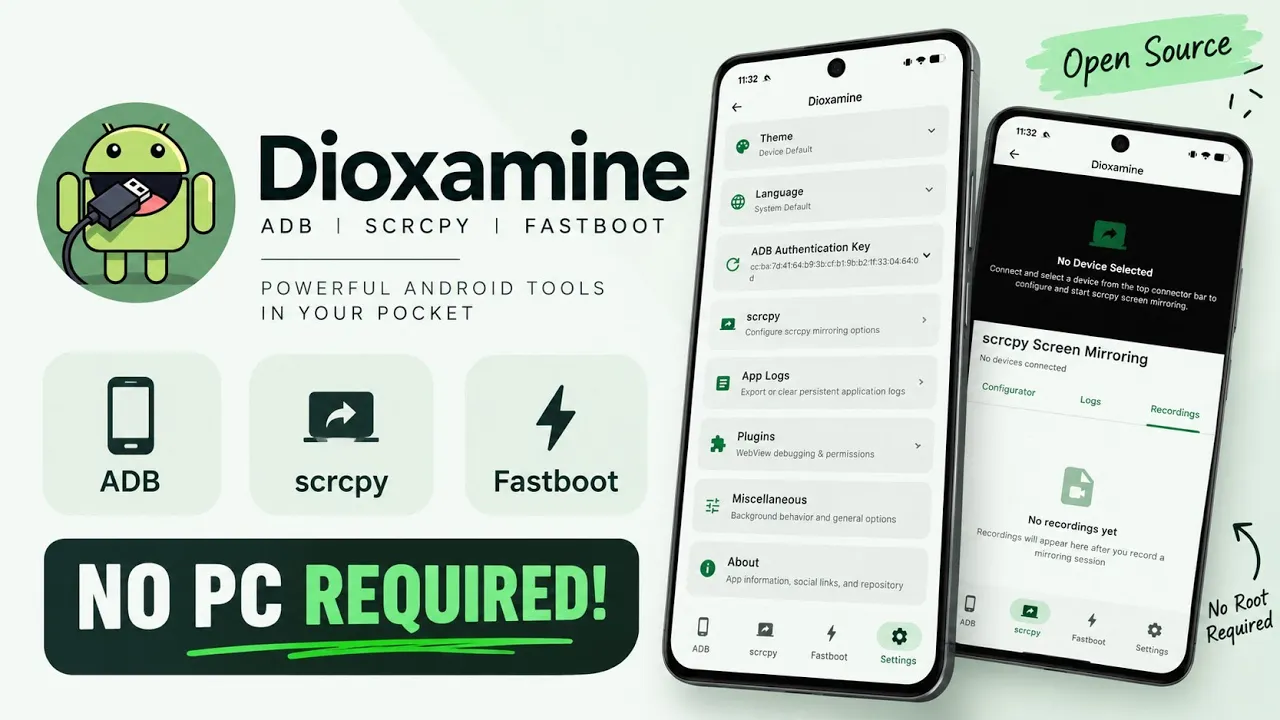
Dioxamine is an open-source Android utility designed to bring several Android maintenance tools to a phone or tablet. It aims to let users access ADB, Scrcpy, and Fastboot workflows from an Android host device without requiring root on that host. This may be useful when a computer is unavailable and you need a portable toolkit for working with another compatible device.
The video is an informational overview of the app's interface. It does not connect a second phone or demonstrate actual flashing, bootloader unlocking, or screen mirroring. Treat those as features described in the script, not procedures verified in the demonstration.
What Is Dioxamine?
The dashboard includes connection options for physical USB OTG and Wireless ADB over local Wi-Fi. The script highlights these functions:
- ADB utilities: Communicate with a connected Android device.
- Scrcpy integration: View and control another device's screen after a supported connection is established.
- Fastboot tools: Access operations described as firmware sideloading, partition flashing, and bootloader management.
- File browser: Transfer files between devices.
- Custom plugins: Extend the workflow or automate specialized tasks.
Actual functionality depends on device support, Android restrictions, permissions, and the operation being attempted.
Requirements
You will need an Android phone or tablet to run Dioxamine, the APK, a file manager, and either a compatible USB OTG adapter/cable or a supported Wireless ADB setup. A second Android device is needed to use the connection and control features.
The script says the host device does not need root. However, not every operation is supported on every device, and bootloader unlocking or partition flashing can erase data or make a device unbootable.
Watch the Full Video
Step-by-Step: Install Dioxamine
1. Download the APK
Download the APK from the link below and check the project source for release notes and installation information. Save the file in Downloads.
2. Install the APK
Open your file manager and locate the APK. Tap it to begin installation. If Android asks permission to install unknown apps from that source, review the prompt and enable the permission for the file manager you are using. Return to the installer and confirm.
3. Explore the dashboard
Open Dioxamine and inspect the connection options for USB OTG and Wireless ADB. The video stops at the interface overview and does not pair a second device, so use the app's own documentation when setting up a real connection.
4. Choose a connection method
For a wired connection, use a compatible OTG adapter and cable. For wireless use, follow the app's pairing instructions and the Wireless ADB process supported by your Android versions. Only authorize debugging when you understand which device is being granted access.
5. Use tools carefully
Once a compatible device is connected, the script describes access to Scrcpy screen mirroring and touch control, ADB utilities, Fastboot functions, file transfers, and plugins. Start with low-risk actions such as confirming connectivity or transferring a test file. Do not unlock a bootloader or flash partitions without exact device-specific instructions and verified files.
Important Safety Notes
- Back up data before bootloader or firmware operations.
- Verify the exact device model and firmware package.
- Avoid Wireless ADB pairing on networks or devices you do not trust.
- Follow the maintainer's documentation; the video is not a complete guide to advanced operations.
- Check the repository for changes between versions.
Dioxamine can make a phone a more portable toolkit, but it does not remove the risks of low-level device maintenance.
Download
Credits / Official Developer
Publishing note: The supplied credits URL points to Frosty, not Dioxamine. The Dioxamine source is listed separately above; verify which credits link you intend to publish.
Final Thoughts
Dioxamine brings ADB, Scrcpy, and Fastboot-related tools into a mobile workflow with wired OTG and Wireless ADB options. It may be useful for Android enthusiasts who want a portable toolkit, but the video only covers the interface. Read the project documentation, verify the target device, and back up before changing firmware, partitions, or bootloader state.
Discussion (0)
Post a Comment
No comments yet. Be the first to share your thoughts!