
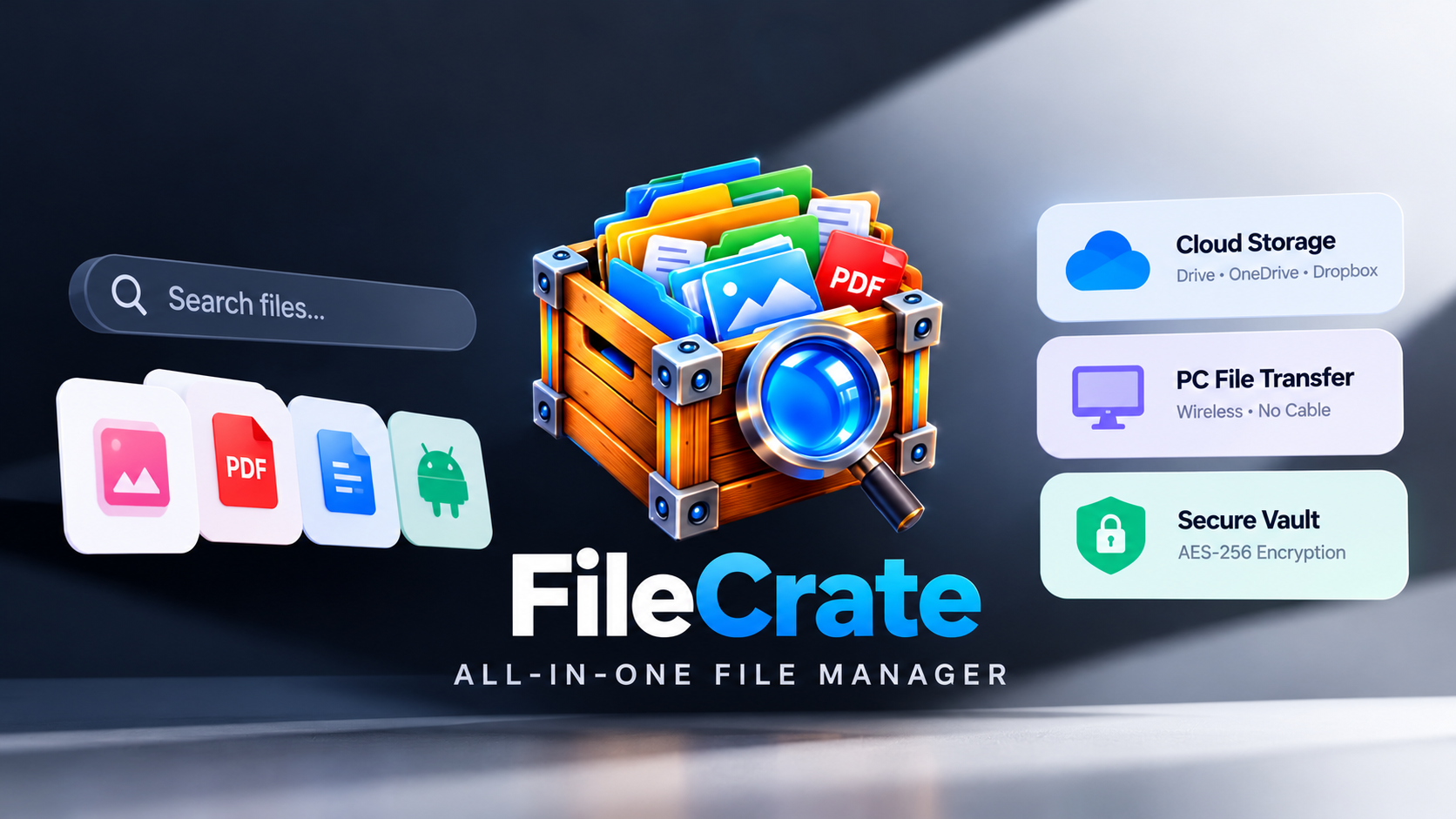
FileCrate is an Android file manager designed to help users find, organize and transfer files across a phone, computer, cloud accounts and network storage. The supplied video was made in collaboration with the developer and also announces a separate giveaway of 10 exclusive voucher codes for the first 10 viewers to claim them. The giveaway is covered in a separate alert document.
The review highlights text recognition in photos, searches inside documents, voice search, storage analysis, cleanup tools, cloud and network connections, file transfer, an encrypted Vault and document/PDF utilities. Feature availability can depend on the current version and connected services.
Key Features
- Text in Photos OCR: find photos of receipts, ID cards, documents and screenshots by searching for words visible in the image.
- Offline OCR: the video says text recognition runs on-device and only while charging. Language packs include English, Polish, Spanish, French and Japanese.
- Smart search: search by filename and words inside documents; the demonstration searches for “Derpfest ROM”.
- Voice search using Google Voice Search.
- Color-coded storage analysis and safe cleanup that identifies duplicates, old downloads and large files, moving selected items to the trash first.
- Dashboard categories for Images, Videos, Audio, Documents, Downloads and Apps.
- FileCrate Home for Windows to connect a PC or laptop; the demonstration also adds the phone's Downloads folder as local cloud storage.
- Cloud connections for Dropbox, OneDrive, Google Drive and Nextcloud, plus external SD cards.
- FTP and SFTP server connections for file servers, web hosting or a Raspberry Pi.
- Send to computer creates a network link when both devices are on the same network; the video says no cable or extra PC app is needed.
- Phone as FTP server to browse phone storage from a computer.
- Timeline view for browsing file activity.
- Vault protected by a minimum six-digit PIN, AES-256 encryption and recovery codes.
- Password-protected ZIP files, editing text and numbers in DOCX or Excel files, and PDF tools for handwritten signatures and form filling.
Watch the Full Video
Getting Started
1. Install FileCrate. Open the official Google Play listing linked below and verify the app identity before installing.
2. Explore the dashboard. Use the category tiles to browse images, videos, audio, documents, downloads and apps.
3. Configure OCR. Open Settings and About, locate Text in Photos OCR and download a language pack if needed.
4. Allow indexing. The script says OCR runs locally while charging. Give the app time to process images before relying on text-in-photo search.
5. Search files. Search filenames or words inside supported documents. Use voice search if preferred.
6. Review storage. Open Storage Analysis and carefully review duplicates, old downloads and large files before sending anything to the trash.
7. Connect storage. Use Network and Cloud to configure a Windows PC, cloud service, SD card or FTP/SFTP server according to the app's prompts.
8. Transfer securely. For Send to computer, keep both devices on the same trusted network. Treat transfer links and exposed network services as sensitive.
9. Set up Vault. Create at least a six-digit PIN and store recovery codes separately in a secure place.
10. Edit documents. Use the supported DOCX, Excel and PDF features; keep a backup of important files before editing.
OCR, Storage and Network Considerations
OCR can help locate a photographed receipt or document without remembering its filename. Since images may contain sensitive information, review the app's current privacy documentation. The video describes OCR as offline and on-device, but users should verify the current implementation.
The cleanup tool moves selected items to the trash first, but users should still review every selection and maintain backups. For cloud and network storage, use current authentication instructions and encrypted connections where available. Avoid exposing FTP services or transfer links on public Wi-Fi.
Vault and Privacy
The video describes the Vault as using AES-256 encryption and recovery codes. Choose a hard-to-guess PIN and keep recovery codes outside the Vault. The script also describes end-to-end encryption, but the exact scope may vary by feature; consult current documentation before trusting it with sensitive files.
Conclusion
FileCrate combines local file browsing, OCR search, storage analysis, cloud/network access, transfers, a Vault and document tools in one interface. Its main strengths in the video are finding text inside photos and connecting multiple storage sources. Verify privacy claims and service-specific behaviour in the current release.
Download
Collaboration Disclosure
This article is based on a video made in collaboration with the FileCrate developer.
Giveaway: 10 Exclusive FileCrate Voucher Codes
The video announces a giveaway of 10 exclusive FileCrate voucher codes. The first 10 viewers to claim are intended to receive a code, so availability may be limited.
Watch the original FileCrate video for the announcement and any available claim instructions:
Discussion (0)
Post a Comment
No comments yet. Be the first to share your thoughts!