
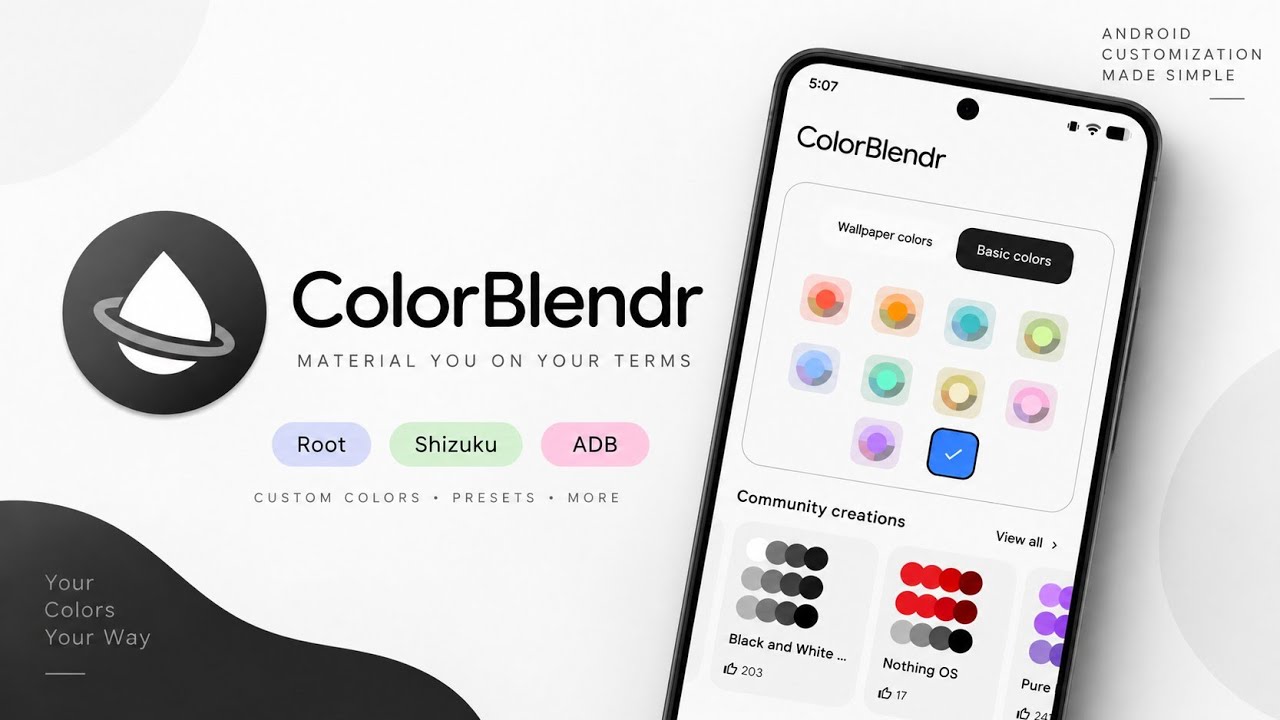
ColorBlendr is an open-source Android customization tool for users who want more control over Material You accent colors. Instead of relying only on colors extracted from a wallpaper, it lets you create a custom palette, adjust the dynamic color engine, and save different looks for later. The project is hosted on GitHub by Mahmud0808.
The demonstrated workflow supports rooted and non-rooted setups, although the setup method depends on the access available on your phone.
ColorBlendr Features
- Custom palettes: Enter a hex code or use the RGB color wheel.
- Theme preview: Preview the appearance of quick settings tiles, sliders, and supported interface elements.
- Dynamic color styles: Choose profiles such as Vibrant, Muted, Expressive, Tonal Spot, and Rainbow.
- Luminance and chroma tuning: Adjust lightness and saturation.
- Independent light and dark mode tuning: Fine-tune the appearance for each mode.
- Per-element overrides: Give selected interface elements different accent colors.
- Preset management: Save, export, and import theme configurations.
Results may vary depending on Android version, device software, and whether individual apps support Material You dynamic colors.
Requirements
Prepare an Android phone compatible with the app, the ColorBlendr APK, a file manager, and one supported setup method: root, Shizuku, or ADB. ADB setup may require a computer, so it is not necessarily a phone-only process.
Step-by-Step Installation and Setup
1. Download the APK
Download the APK from the link below and save it to your phone. The video recommends checking the official GitHub repository for the latest release and project details. Make sure the download completes before opening it.
2. Install ColorBlendr
Open your file manager and go to Downloads. Tap the APK. If Android asks permission to install unknown apps from that file manager, review the prompt and enable the permission for that source, then return to the installer and confirm.
Install APKs only from sources you trust. When possible, check the release information published by the developer.
3. Grant permissions
Open ColorBlendr and review the permission prompts. The demonstrated setup requests notification permission and photos/media storage permission. Grant only the permissions needed for the functions you plan to use.
The tutorial also recommends disabling battery optimization so background operation is less likely to be interrupted. The exact settings path depends on your Android version and manufacturer.
4. Choose a setup method
Select the environment that matches your phone:
- Root: Choose the root option and grant Superuser permission when prompted.
- Shizuku: Use Shizuku on a supported non-rooted setup.
- ADB: Follow the on-screen instructions. This method may require connecting the phone to a computer and running a command.
Do not grant elevated access to software you have not verified. If setup fails, consult the project's documentation before trying unrelated commands.
5. Create a palette
From the dashboard, use the palette generator to enter a hex code or choose a shade with the RGB color wheel. Check the preview to see how the color affects the interface elements displayed by the app.
6. Tune the dynamic color engine
Experiment with Vibrant, Muted, Expressive, Tonal Spot, and Rainbow profiles. Adjust luminance and chroma to control lightness and saturation, and tune light mode and dark mode independently.
Use per-element overrides if you want certain surfaces to stand out while keeping the rest of the interface more restrained.
7. Save presets
Save a configuration when you find a look you like. ColorBlendr also supports exporting presets and importing community themes, making it easier to switch styles without rebuilding each palette manually.
Tips and Limitations
Some third-party apps may not follow Android's dynamic colors, and available options can vary by device and Android build. If changes do not apply, recheck the selected setup method, permissions, and the app's release notes.
Watch the Full Video
Download
Credits / Official Developer
Final Thoughts
ColorBlendr lets Android users move beyond automatic wallpaper-based theming. Custom palettes, dynamic color profiles, lightness and saturation controls, element overrides, and reusable presets provide plenty of room to personalize the interface. Start with a subtle palette, test it across your apps, and save a preset before experimenting further.
Discussion (0)
Post a Comment
No comments yet. Be the first to share your thoughts!