
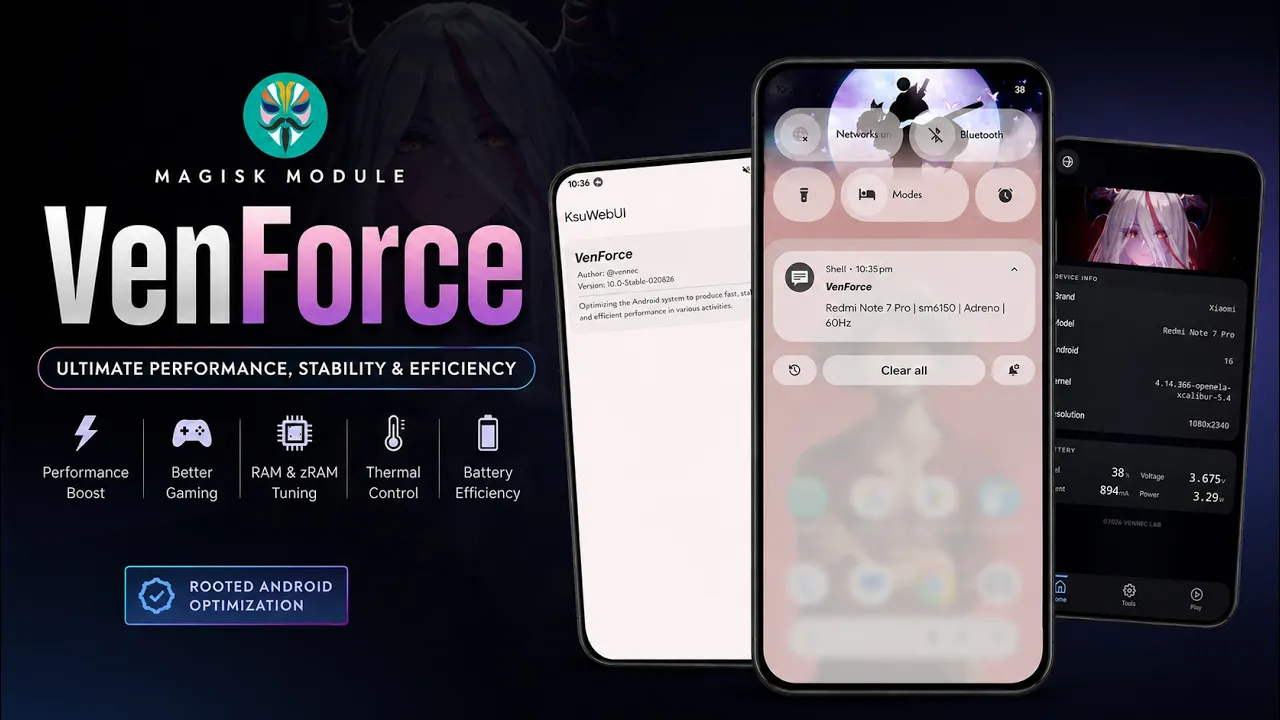
Android customization isn’t only about changing the appearance of your phone. For rooted users, modules can also provide additional control over how the device handles performance, memory, thermals and storage.
VenForce is an Android optimization module designed for rooted devices. Instead of requiring users to manually execute a series of terminal commands, it provides a graphical interface where different performance-related settings can be configured.
The module is particularly interesting for users who like experimenting with Android performance profiles. Its interface provides options for switching between different usage scenarios, including performance-oriented, battery-focused and balanced configurations.
In this guide, I’ll explain how VenForce works, how to install it with Magisk, how the KSU Web App fits into the setup, and what you should consider before changing system-level performance settings.
What Is VenForce?
VenForce is a root-based Android optimization module that provides a collection of performance and system-tuning options through a WebUI.
The accompanying video demonstrates the module being installed through Magisk, followed by configuration through the KSU Web App.
The module’s interface provides access to several categories of settings, including:
- Performance profiles
- CPU governor configuration
- RAM management
- zRAM management
- Thermal throttling adjustments
- I/O scheduler settings
Instead of requiring users to manually execute commands through a terminal, the graphical interface provides switches and controls for supported options.
This makes the module more approachable for users who are comfortable with root but don’t necessarily want to manage every performance setting manually.
How the WebUI Fits Into VenForce
One of the more interesting parts of this setup is the WebUI.
KernelSU officially supports module WebUIs using web technologies such as HTML, CSS and JavaScript. Its manager can display these interfaces through WebView and expose APIs that allow the interface to interact with the system.
The VenForce video uses the KSU Web App to access its graphical configuration interface when the device is rooted with Magisk. The script specifically shows the KSU Web App being installed before the module is configured.
If you’re using KernelSU instead, the video explains that a separate KSU Web App installation isn’t required because KernelSU provides WebUI functionality through its manager.
This distinction is important because users shouldn’t install unnecessary components simply because a tutorial uses them.
Watch the Full Video
If you want to see the complete installation and configuration process, I’ve demonstrated VenForce in the accompanying TechyNoob video.
The video shows the module installation through Magisk, the reboot process and the WebUI configuration interface.
Installing VenForce With Magisk
For this guide and video, I tested VenForce on:
- Device: Redmi Note 7 Pro
- ROM: MatrixxOS
- Android: Android 16 QPR2
- Root environment: Magisk
The installation process shown in the video starts with the VenForce ZIP file.
First, open Magisk Manager and navigate to the modules section. From there, select the option to install a module from storage.
Locate the VenForce ZIP file in your Downloads folder and select it.
The installer then configures the module’s initial scripts and performance parameters. The video shows the installation completing within a short period before the device is rebooted.
After the reboot, return to Magisk’s module section and verify that VenForce is enabled.
The video specifically demonstrates checking the module after restarting and confirming that it is active.
This verification step is worth keeping in your own installation process because it confirms that the module was loaded successfully before you begin changing its configuration.
Opening the VenForce Configuration
Once the module has been installed and the phone has restarted, the next step is opening the WebUI.
In the video, the KSU Web App provides access to the VenForce dashboard.
The interface is designed around configurable profiles rather than requiring users to manually enter individual commands.
The demonstrated dashboard includes different profiles for different types of usage.
Performance Profile
The performance-oriented configuration is intended for workloads where responsiveness and performance are more important.
This can be useful when you’re running demanding applications or playing games.
However, a performance profile shouldn’t automatically be interpreted as a guaranteed FPS increase. CPU and thermal behaviour depend on the device hardware, kernel and software configuration.
Battery-Saving Profile
The battery-focused profile is intended for situations where reducing resource consumption is more important than maximum performance.
This can be useful when travelling or when you know you won’t have access to a charger for an extended period.
Again, actual battery improvements depend on the device and workload.
Balanced Profile
The balanced option sits between the two extremes.
For everyday use, a balanced configuration can make more sense than continuously running an aggressive performance profile.
CPU and Memory Controls
The VenForce interface also exposes CPU governor-related settings.
CPU governors influence how the processor responds to workload and changes its operating frequency.
The module also provides options related to RAM and zRAM management.
zRAM uses compressed memory as an additional layer of memory management. How useful a particular configuration is depends on the amount of physical RAM, workload and Android’s own memory-management behaviour.
For that reason, users shouldn’t assume that increasing or changing every available memory setting will automatically make a phone faster.
Thermal and I/O Settings
VenForce also exposes thermal-throttling and I/O scheduler-related settings through the WebUI.
These are particularly sensitive areas.
Thermal management exists to prevent hardware from reaching unsafe temperatures. Disabling or excessively reducing thermal protections can increase heat and potentially cause instability or hardware stress.
Similarly, changing an I/O scheduler can affect how storage requests are handled, but the result depends on the storage hardware and kernel.
This is why I recommend treating these settings as advanced configuration options, rather than assuming that the most aggressive setting is automatically the best.
Download VenForce
The VenForce ZIP used in my video is available here:
The KSU Web App APK provided with the video is available here:
These are the download links supplied for the video.
For the underlying WebUI functionality, KernelSU’s official documentation explains how modules can provide HTML, CSS and JavaScript interfaces and interact with system APIs.
Official KernelSU: GitHub
Important Compatibility Considerations
VenForce is a root-level modification, so compatibility should be considered before installation.
Your Android version, kernel, root implementation and hardware can all affect how performance settings behave.
A configuration that works well on one device isn’t necessarily appropriate for another.
KernelSU itself officially supports GKI 2.0 devices with kernel 5.10 and newer, while older kernels may require manual kernel integration.
That doesn’t mean VenForce has the same compatibility requirements as KernelSU itself. It simply illustrates why Android root environments can differ considerably between devices.
Don’t Max Out Every Setting
One of the easiest mistakes when using an optimization module is enabling every aggressive option at once.
Higher CPU responsiveness can potentially increase power consumption and heat.
More aggressive thermal behaviour can reduce the protection normally provided by the device.
Changing memory or I/O settings without understanding their purpose can also produce unexpected behaviour.
A better approach is to change one category at a time and observe how your phone behaves.
If you encounter instability, revert the last change rather than continuing to modify additional settings.
Security and Backup
Because VenForce operates with root-level privileges, install it only from a source you trust.
Before installing any root module, maintain a backup of important data and make sure you know how to disable or remove a problematic module.
This is especially important with performance modules because a configuration error can potentially result in instability or, in some cases, a boot problem.
Root access provides considerably more control than a normal Android application, so it should always be treated accordingly.
Final Verdict
VenForce is an interesting option for Android enthusiasts who want a graphical way to experiment with system performance settings.
The biggest advantage of the module is its WebUI-based configuration. Instead of manually entering commands for every adjustment, users can access performance profiles and additional CPU, memory, thermal and I/O settings from a single interface.
The video demonstrates the setup using Magisk together with the KSU Web App, while KernelSU users can take advantage of its native WebUI support.
However, VenForce should not be treated as a guaranteed performance booster.
Android performance is affected by many variables, and aggressive settings can introduce trade-offs involving battery consumption, heat and stability.
If you’re an experienced Android user who already understands root modules and wants a convenient interface for experimenting with performance configuration, VenForce can be an interesting addition to your toolkit.
For everyone else, start conservatively, make a backup and change settings one at a time.
Test Device: Redmi Note 7 Pro
ROM: MatrixxOS
Android: 16 QPR2
Root: Magisk
Downloads
Official resource: KernelSU GitHub



Discussion (0)
Post a Comment
No comments yet. Be the first to share your thoughts!