
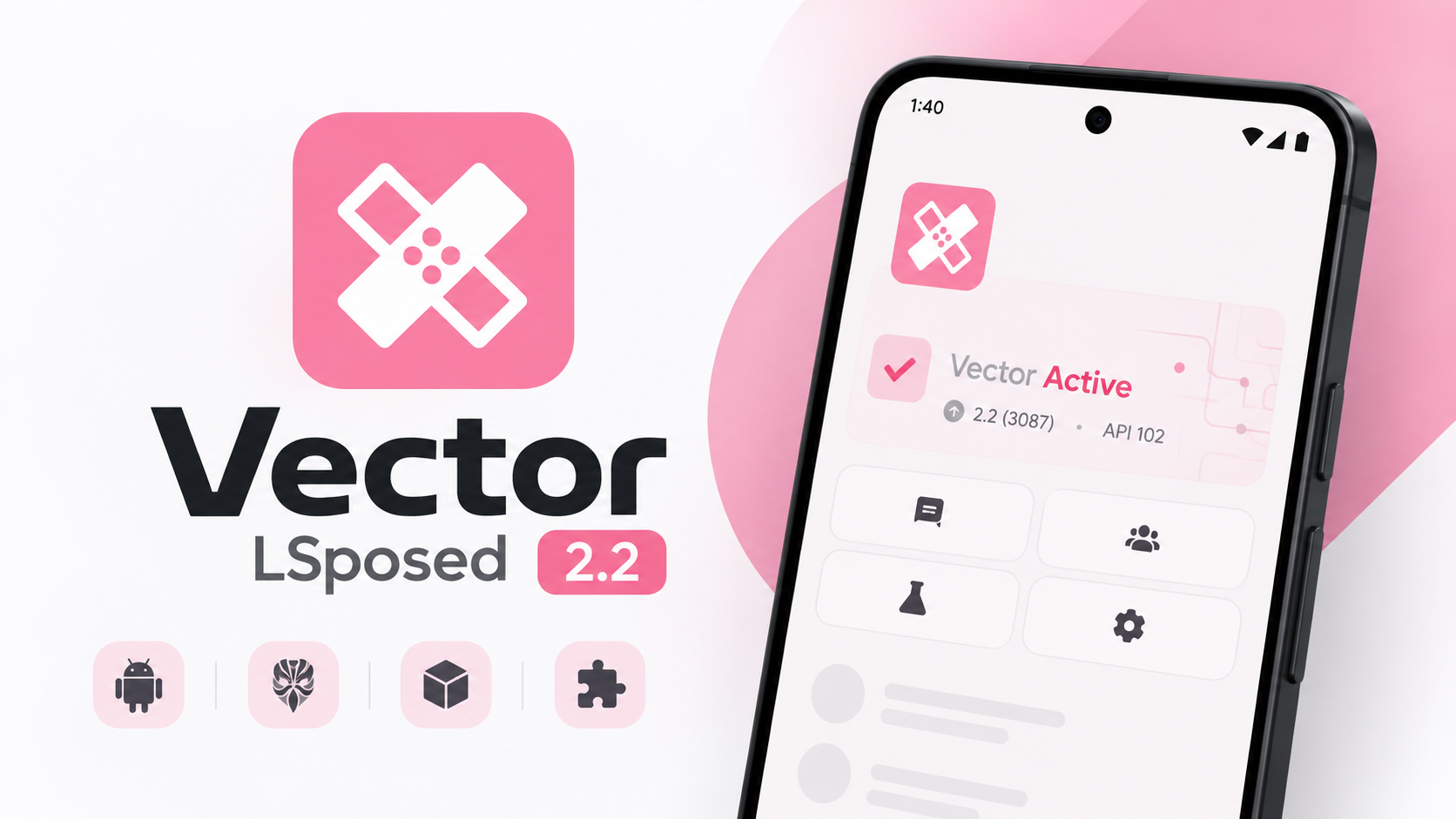
If you’re using a rooted Android device and want a modern framework for running LSPosed modules, Vector LSPosed 2.2 is an interesting option to explore. It is built around LSPlant and works as a Zygisk module, providing an ART hooking environment for modifying application and system behavior.
One of the key aspects of Vector LSPosed is that its modifications operate in memory rather than directly modifying system APK files. This makes the changes reversible by rebooting the device instead of permanently altering the original system files. The project described here targets a wide Android version range, from Android 8.1 through Android 17 Beta.
In this guide, we’ll go through the installation of Vector LSPosed 2.2, configure the required Zygisk environment, reboot the device, and verify that the framework is running correctly.
What You Need
Before starting, make sure you have:
- A rooted Android device
- Magisk, KernelSU, or APatch
- A working Zygisk environment
- Vector LSPosed 2.2 ZIP
- A file manager capable of accessing your internal storage
The exact Zygisk requirement depends on which root solution you’re using.
If you’re running Magisk, its built-in Zygisk implementation needs to be enabled.
If you’re using KernelSU or APatch, you’ll need a separate Zygisk implementation, such as Zygisk Next or Neo Zygisk.
Check Zygisk Before Installing
Before flashing Vector LSPosed, open your root manager and verify that your Zygisk environment is active.
Magisk
Open Magisk and go to its settings.
Make sure the Zygisk option is enabled.
KernelSU or APatch
If you’re using KernelSU or APatch, install and enable a compatible standalone Zygisk implementation first.
Without a working Zygisk environment, Vector LSPosed cannot initialize its hooks correctly.
Once Zygisk is ready, locate the Vector LSPosed 2.2 ZIP on your phone.
Flash Vector LSPosed 2.2
Open Magisk and navigate to the Modules section.
Select Install from storage and browse to the Vector LSPosed 2.2 flashable ZIP.
Select the file and let Magisk install the module.
The installation should only take a short amount of time because the package installs the framework components and required scripts into the rooted environment.
Do not reboot until the module installation has finished successfully.
Watch the Full Installation
If you want to follow the process visually, you can place your complete Vector LSPosed 2.2 walkthrough here:
YouTube:
Reboot Your Device
Once the installation finishes without errors, reboot the phone.
This reboot is important because Vector relies on Zygisk hooks that need to initialize during the Android boot process.
Allow Android enough time to start normally.
If the phone successfully reaches the home screen, open your root manager and return to the Modules section.
You should now see Vector LSPosed 2.2 listed as an active module.
This confirms that the basic framework installation has completed.
Explore the Vector Manager
The next step is opening the Vector manager interface.
Vector provides a redesigned interface that differs considerably from the traditional LSPosed Manager experience.
The home screen includes an Active status card showing the installed Vector version and API compatibility information.
You also get quick-access options for reviewing changes, accessing discussions, trying canary builds, and reporting issues.
Another interesting part of the interface is the community information displayed directly inside the manager. Recent project activity, commits, and contributor statistics can be viewed from the dashboard.
The navigation is divided into several sections:
- Home
- Modules
- Store
- Logs
This gives you a centralized interface for managing the framework and your installed modules.
Managing LSPosed Modules
Open the Modules section inside Vector.
Here you can enable compatible LSPosed modules and configure their application scopes.
Scopes determine which applications or system components a module is allowed to interact with. Setting them correctly is important because unnecessarily broad scopes can introduce compatibility issues.
If you’re installing a new module, enable only the applications or components that the module actually needs whenever possible.
Vector’s integrated Store also provides a way to discover and update modules directly from within the manager interface.
Use Logs for Troubleshooting
If a module isn’t behaving as expected, the Logs section can be useful for troubleshooting.
Vector provides real-time debugging information that can help identify problems with module initialization or hooking.
When experimenting with multiple root modifications, it’s generally better to add or enable modules individually. That makes it easier to identify which change caused a compatibility problem if something stops working.
Why Vector Uses In-Memory Hooking
Vector is built on top of LSPlant, providing a native-level ART instrumentation environment while maintaining API compatibility with the familiar Xposed framework model.
The approach described for Vector means system APK files aren’t directly modified. Instead, modifications are applied in memory while the relevant processes are running.
This is useful for users who want system and application customization without permanently editing the original system packages.
However, individual module behavior still depends on the module itself. Installing Vector does not automatically make every existing Xposed or LSPosed module compatible with every Android version.
Android Version Compatibility
Vector LSPosed 2.2 is presented as supporting a broad range of Android versions, from Android 8.1 through Android 17 Beta.
Even with broad framework compatibility, you should still check individual module compatibility before installing modules.
A framework can support an Android version while a particular module may not function correctly on that same version.
This is especially important on beta Android releases, where internal APIs and system behavior can change.
Important Precautions
Root-level modifications always carry some risk.
Before flashing Vector LSPosed, make sure you have a working recovery method and understand how to disable or remove a Magisk module if the device fails to boot.
If you encounter a bootloop after installation, your recovery procedure will depend on your root setup and device.
Also verify that your Zygisk implementation is compatible with your root solution. Magisk users can use its built-in Zygisk implementation, while KernelSU and APatch users need an appropriate standalone implementation.
Don’t install multiple Zygisk implementations simultaneously unless you specifically know that your configuration supports them.
Final Thoughts
Vector LSPosed 2.2 provides a modern approach to LSPosed-style Android customization, combining a Zygisk-based architecture with LSPlant and a redesigned management interface.
The installation itself is straightforward when your rooted device already has a functioning Zygisk environment: verify Zygisk, flash the Vector LSPosed ZIP, reboot, confirm the module is active, and then configure your modules through the Vector manager.
Its Home, Modules, Store, and Logs sections make the framework easier to manage, while the broad Android compatibility makes it an interesting option for users experimenting with different Android versions.
Download: Vector LSPosed 2.2 download link
Credits: https://github.com/JingMatrix/Vector
YouTube:
As with any root modification, keep a recovery plan available and verify compatibility before installing additional modules.
Discussion (0)
Post a Comment
No comments yet. Be the first to share your thoughts!