
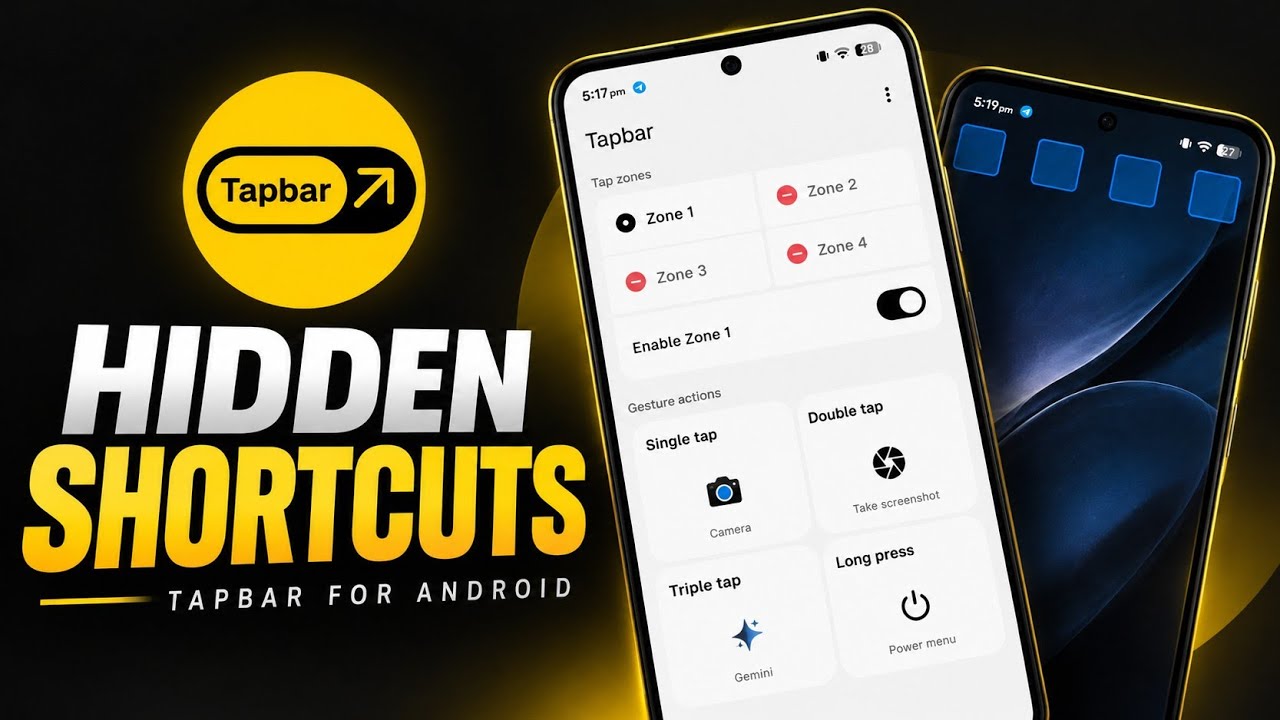
Tapbar is an Android utility that lets users create tappable areas on the display and assign actions to different tap patterns. The supplied video describes it as free and open source, working offline, and having no ads, trackers or analytics. It supports up to four independently configured tap zones, allowing users to launch apps or access selected system actions without navigating through the home screen.
The demonstration configures one zone to launch Camera on a single tap, take a screenshot on a double tap, open Gemini on a triple tap and show the power menu on a long press. The script also shows how to adjust zone size and position, change tap speed, enable haptic feedback and assign other actions.
What Is Tapbar?
Tapbar places configurable touch zones over the screen. Each zone can respond to a single tap, double tap, triple tap or long press. The video also mentions swipe gestures for actions such as volume or brightness. Users can choose an installed app, a system action or a specific app shortcut for each gesture.
Key Features
- Up to four custom tap zones positioned anywhere on the display.
- Independent gesture configuration for each zone.
- Single tap, double tap, triple tap and long-press actions.
- Swipe gestures mentioned in the video for controls such as volume and brightness.
- App launching, system actions and specific app shortcuts.
- Examples include Camera, screenshot, Gemini assistant and the power menu.
- Quick actions can include Wi-Fi panel, Bluetooth, cellular data, flashlight, screen-rotation lock and battery-saver settings.
- Appearance controls for light or dark mode and language selection.
- Haptic feedback for taps or successful actions.
- Tap-speed setting to tune recognition of multi-tap gestures.
- Horizontal and vertical positioning plus width and height controls for each zone.
- Slide-to-reset option for zone settings.
- Automatic startup when the device boots, as described in the video.
- Offline operation and no ads, trackers or analytics, according to the supplied script.
How Tap Zones Work
The app displays a blue square for each active zone. The video enables all four zones, then disables three to focus on one. Each zone can have its own position, dimensions and assigned actions, so users can place shortcuts where convenient without keeping all four active.
How to Configure Tapbar
1. Install Tapbar. Use the official F-Droid listing or the project's latest GitHub release linked below. Review the source and version before installing.
2. Review general settings. Choose light or dark appearance, set the preferred language and configure haptic feedback.
3. Enable a tap zone. Turn on one of the zones. The active area appears as a blue square on the display.
4. Set position and size. Adjust horizontal and vertical position, width and height to place the zone where it is easy to reach without interfering with normal use.
5. Assign the single-tap action. Choose an installed app, system action or app shortcut. In the demonstration, a single tap opens Camera.
6. Configure double and triple taps. The video assigns screenshot to double tap and Gemini to triple tap.
7. Configure long press. The demonstrated long-press action opens the system power menu.
8. Adjust tap speed and haptics. Tune tap speed so multi-tap gestures register reliably, and choose whether haptic feedback is enabled.
9. Test each action. Return to the home screen and test each gesture separately. If the wrong action fires, adjust tap speed or zone placement.
10. Configure more zones if needed. Enable up to four zones and assign different actions to each, keeping the layout comfortable and uncluttered.
11. Enable startup on boot if desired. The script says Tapbar can start automatically when the device boots. Enable this if you want zones available without opening the app manually.
Watch the Full Video
Examples From the Video
Single tap: Camera
The presenter taps the active zone once and the Camera app opens, providing a quick shortcut without locating the camera icon.
Double tap: Screenshot
A double tap on the same zone captures a screenshot. Ensure the zone does not conflict with ordinary touch interactions.
Triple tap: Gemini
A triple tap launches the Gemini assistant in the demonstration. Other supported apps or shortcuts can be assigned instead.
Long press: Power menu
A long press opens the Android power menu, the same menu the presenter says is normally reached by physically pressing the hardware power button.
Changing an Action and Android Limitations
The video changes the single-tap action from Camera to Airplane mode. In the demonstration, tapping the zone opens the Airplane mode settings page rather than toggling Airplane mode directly. The script attributes this behaviour to standard Android security limitations. Some configured actions may open a settings screen instead of directly changing a protected system setting.
Positioning, Tap Speed and Reset
The zone can be moved horizontally and vertically and resized through width and height controls. Tap speed determines how quickly successive taps must occur to be recognized as a double or triple tap. If gestures trigger the wrong action, adjust the speed setting and reposition the zone. The app also provides a slide-to-reset option.
Privacy, Offline Use and Startup
According to the supplied script, Tapbar works offline and has no ads, trackers or analytics. The video also shows appearance settings and haptic feedback, and says the app can start automatically when the device boots. Check the current release notes and app listing for up-to-date behaviour, and review permissions Android requests during setup.
Troubleshooting
Tap zone does not appear
Confirm that the intended zone is enabled. Review any permissions or system settings requested by the current version and check whether the zone is positioned outside the visible display.
Double or triple taps trigger the wrong action
Adjust tap speed and test repeatedly. Ensure the taps occur within the configured timing window and that the zone is large enough to hit consistently.
Action opens settings instead of toggling a feature
Some Android system actions are restricted by the operating system. As shown with Airplane mode, the action may open the relevant settings page rather than changing the setting directly.
The zone interferes with normal use
Move it to a less intrusive position, reduce its dimensions or disable unused zones. You do not need to keep all four zones active at once.
Conclusion
Tapbar provides a flexible way to assign several shortcuts to a small part of the screen. With up to four zones, multiple tap patterns, long press, swipe gestures, adjustable placement and haptic feedback, it can make common actions easier to reach. Its offline and open-source positioning is a key part of the supplied script. Keep in mind that Android may restrict direct changes to protected settings, so some actions may open a settings page instead.
Discussion (0)
Post a Comment
No comments yet. Be the first to share your thoughts!