
Introduction
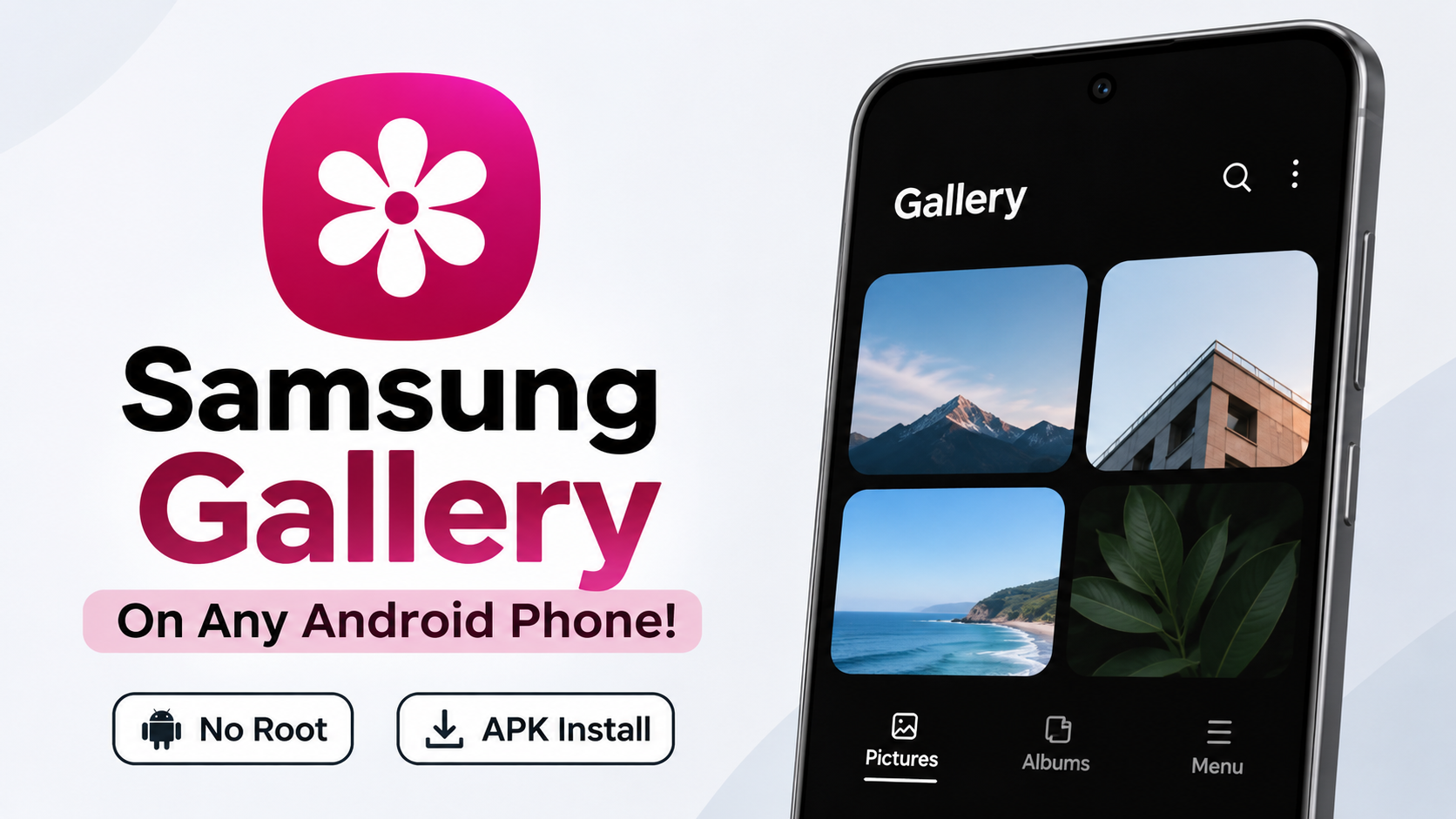
Samsung Gallery is known for its clean One UI layout and straightforward media organization. Users on other Android phones may want to try the same familiar gallery experience without rooting their device or installing a custom ROM. The port described here can be installed through ordinary APK installation, making the setup simpler than a system-level modification.
The supplied archive contains two APK files: the main Samsung Gallery application and the Ayra Media Storage permission plugin. Both components are part of the installation. This package is not a Magisk module, and the ZIP itself is not flashed through custom recovery. Instead, the archive is opened and each APK is installed through Android's package installer. Although the port is described as usable on Android devices generally, compatibility can still vary by Android version and device software.
What is included in the ZIP?
Open the file manager and locate the Samsung Gallery port ZIP, usually in the Downloads folder. When you view the contents of the archive, you should find the main Gallery APK and a second APK called the Ayra Media Storage permission plugin. The main application provides the gallery interface, while the plugin is described as an essential supporting component that helps the app detect and manage media files correctly.
Do not skip the plugin. The supplied installation instructions specifically require both APKs. Installing only the Gallery application may leave the port without the supporting component it expects and can lead to media detection problems or crashes. Keep the archive intact until you have confirmed that both applications have installed successfully.
Install both APK files
There are two ways to install the applications. The first method is to extract the ZIP archive into a regular folder. Open the extracted folder, tap the main Samsung Gallery APK and complete the installation. Return to the folder, select the Ayra Media Storage plugin APK and install it as well.
The second method works with file managers that can install APKs directly from inside a ZIP archive. Open the archive and select each APK for installation without extracting the files first. Whichever method you use, install both packages. If Android asks you to allow installation from this file manager, grant the permission for the installation to proceed. This is an Android security control for sideloading apps; only allow APK installation from a source you trust, and review the permission afterward if you no longer need it.
Video Guide
Watch the accompanying walkthrough for a visual demonstration of the installation and features:
Grant Photos and videos permission
After both applications are installed, open Samsung Gallery. A permission prompt may appear asking for access to media. Choose Settings, open App permissions, select Photos and videos and allow access so the Gallery app can load files stored on the device.
If the app opens but displays an empty library, check the permission first. Also confirm that the phone actually contains local pictures or videos. An empty state does not automatically mean that the installation failed. In the demonstrated setup, the phone had no pictures or videos stored locally, which is why the main view appeared empty.
Explore the One UI-style Gallery
The port presents a familiar One UI-style interface with three main navigation areas: Pictures, Albums and Menu. Pictures is the primary view for browsing the media library, while Albums organizes content into groups. The Menu tab provides shortcuts to additional categories and settings.
Inside Menu, the available sections include Videos, Favourites, Recent items, Locations and Settings. These views help users browse media in different ways rather than relying on one long list. What appears in each section depends on the files available on the phone and the permissions granted to the application.
Gallery settings and useful controls
Gallery settings include an option to toggle autoplay for motion photos, manage permissions, open service settings and restart the app directly. Autoplay controls how motion-photo content behaves while browsing. The permission controls provide a route to review the app's access to photos and videos, while the restart option can reload the application after settings changes.
The service-settings entry may be useful when troubleshooting, but it does not guarantee that every Samsung service will be available on a non-Samsung device. A port runs outside its original manufacturer environment and may rely on components that differ between brands or Android builds. Treat the available options as features of the port, not as a promise that the complete Samsung software ecosystem has been transferred.
Compatibility and troubleshooting
If Gallery does not show pictures, verify that both APK files are installed, Photos and videos permission is allowed and local media is present. If the application crashes or a particular feature is unavailable, remember that this is a port running on a device other than its original Samsung environment. Compatibility can vary across devices and Android versions.
Do not download replacement APKs from random sites to fix an issue. Use the package source you trust and check for updated information from the port developer. If the app continues to fail, uninstalling the port and returning to the device's original gallery is a safer option than repeatedly installing unrelated plugins or modifying system files.
Final thoughts and developer credit
The main advantage of this Samsung Gallery port is that it does not require root access, custom recovery or a Magisk module. It uses two regular APK installations from the supplied ZIP archive. The Ayra Media Storage plugin is a required part of the described setup, and the app needs Photos and videos permission to display the local library.
For users who prefer Samsung's familiar gallery layout, the port offers a straightforward way to try the interface on another Android phone. Install both components, grant only the permissions needed for media access and test the app before relying on it as your primary gallery. Credit for porting the application goes to developer Ayra Hikari.
Download
Download the package: https://devuploads.com/03kn97ise9ad
Credits
Porting credit: Ayra Hikari.
Discussion (0)
Post a Comment
No comments yet. Be the first to share your thoughts!