
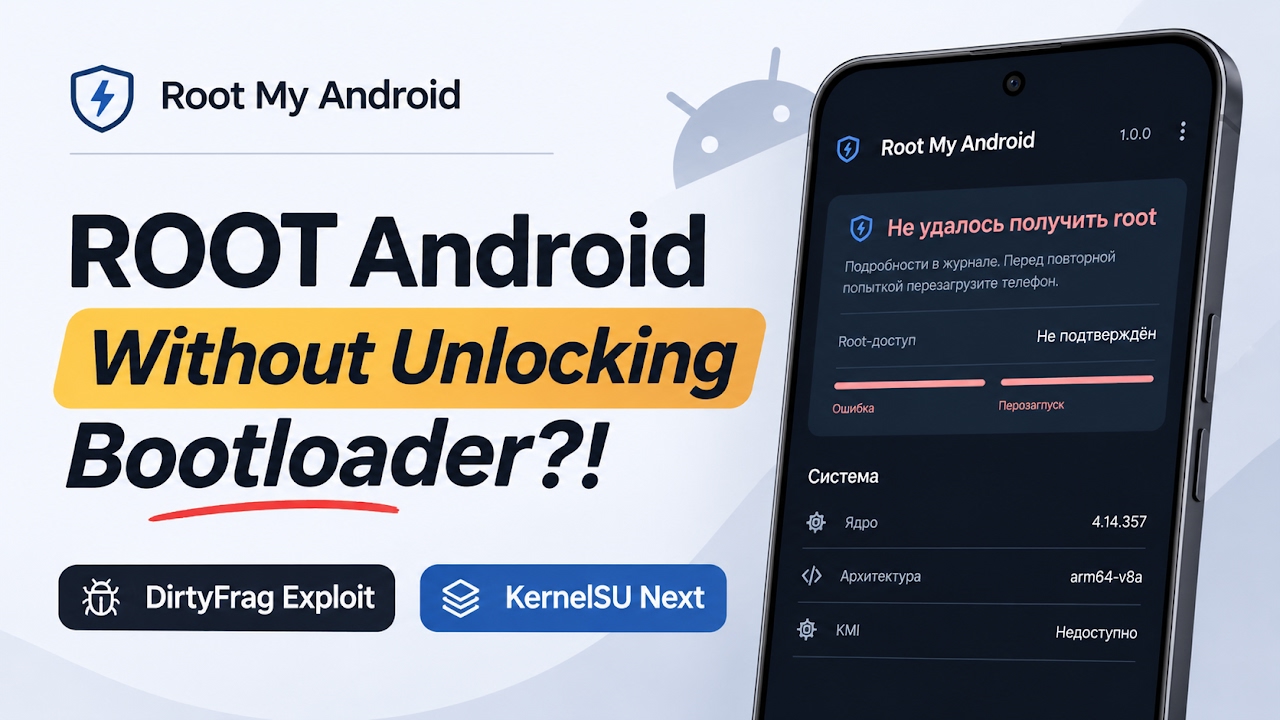
What Is Root My Android?
Root My Android is an Android rooting utility designed to obtain temporary root access on supported devices without first unlocking the bootloader. This is often called temporary root because elevated access remains active only until the phone is rebooted. It is intended for users who want to try root-powered tools without going through a conventional bootloader-unlocking process.
The utility is described as using DirtyFrag, identified as CVE-2026-43284. Its stated method relies on a kernel page-cache write primitive to load a custom kernel module directly into memory. Unlike conventional rooting procedures that patch and flash a boot image, this approach depends heavily on the device's kernel and firmware. Installing the app does not mean every Android phone is supported.
Applications You Need Before Starting
You need two applications: Root My Android and a compatible superuser manager, such as KernelSU Next. Root My Android is designed to work with KernelSU and its official forks, rather than being tied to a single manager.
Do not use Magisk or a Magisk-based fork with this utility. The supplied project instructions explicitly warn that the exploit's module-injection method can conflict with Magisk and may cause serious system problems, potentially including a bricked device. Treat this warning as a strict compatibility requirement rather than something to test after rooting. If your current setup depends on Magisk, do not proceed with this method unless the project publishes clear, device-specific instructions that say otherwise.
Before installing, confirm that your phone is supported and that its kernel meets the tool's requirements. Keep a backup of important data and understand your device's recovery options before experimenting with a rooting utility.
Installing KernelSU Next and Root My Android
Download the two APK files from their respective trusted project sources. Install KernelSU Next first, followed by Root My Android. To install an APK manually, open it using your file manager and follow Android's installation prompts. If Android asks for permission to install unknown apps, allow that permission for the file manager you are using, then return to the APK installer and complete the installation.
If Android asks for permission to install unknown apps, allow it for the file manager you are using, then return to the installer. Once both apps are installed, open KernelSU Next and inspect its status before running the rooting utility. If it reports that the device is unsupported or not integrated, stop and investigate compatibility instead of forcing the exploit.
Checking Compatibility and Attempting Temporary Root
Kernel compatibility is the key factor. In the demonstrated test, KernelSU Next displayed an unsupported or not-integrated warning because the phone was running an older non-GKI kernel. Root My Android was then launched, but the exploit did not obtain root and requested a reboot. This illustrates why compatibility should be checked first: the method is not universal, and a failed attempt does not mean the app will fail on every device.
On a supported device, the intended workflow is to open Root My Android and use its root action. The utility attempts to perform the exploit and load the module into memory. If successful, temporary root access should become available through the compatible KernelSU manager. Since the access is temporary, rebooting the phone ends the root session; you should expect to repeat the supported procedure if you need root again later.
Do not repeatedly retry an unsupported configuration or experiment with unrelated superuser managers. If the tool reports a failure, read the log and follow the project's compatibility guidance. Avoid making system changes based on assumptions about what the exploit did.
What Root My Android Offers
The dashboard reports the kernel version, CPU architecture, KMI status and firmware build. These details help users understand the environment in which the exploit is being attempted and make compatibility checks more useful than relying on the phone model alone.
The app also links directly to the KernelSU manager, where users can manage superuser permissions and supported modules after root is obtained. A built-in log viewer and settings menu provide places to inspect diagnostic information when an attempt fails.
These features are useful because temporary rooting depends on a precise match between the exploit and the device's software configuration. Logs can help identify a compatibility issue, while the kernel and firmware details provide useful information when checking project support.
Understanding Errors and Troubleshooting
In the test, the generated log explained that the kernel version could not be matched because the device used an unsupported non-GKI kernel. The failure occurred while the utility attempted to patch the required files. The sensible next step is to stop, check the device's kernel requirements and wait for a compatible release if the project does not list support.
If an attempt fails, note the exact error and retain the log. Verify that KernelSU Next is installed, that you have not paired the utility with Magisk, and that the device's kernel and firmware are listed as compatible. A reboot prompt is not proof that root was obtained.
Root exploits operate at a sensitive level of the operating system. Even when described as temporary, they are not risk-free. Back up important files, avoid commands you do not understand, and do not test the method on a device you cannot afford to lose access to.
Watch the Demonstration
For a visual walkthrough of installation, the compatibility check, the root attempt and the log viewer, watch the accompanying demonstration. It also shows the unsupported non-GKI test device and the reason the attempt failed.
Download and Project Credits
The download and project credit are provided below. Check the project's channel for current releases, compatibility notes and updated instructions before using the utility. Do not assume an older APK or exploit build supports a newer Android version or a different kernel configuration.
Download: Root My Android
Project credits: Root My Android Telegram
Final Thoughts
Root My Android may be useful for users with a compatible GKI-based device who want temporary root access while keeping the bootloader locked. Its dashboard and diagnostic log viewer are practical additions, but compatibility remains the deciding factor. Check the kernel requirements first, use KernelSU or a supported official fork, and avoid Magisk entirely with this method. If the phone is unsupported, do not force the process; waiting for a compatible build is safer than risking an unstable system.
Discussion (0)
Post a Comment
No comments yet. Be the first to share your thoughts!