
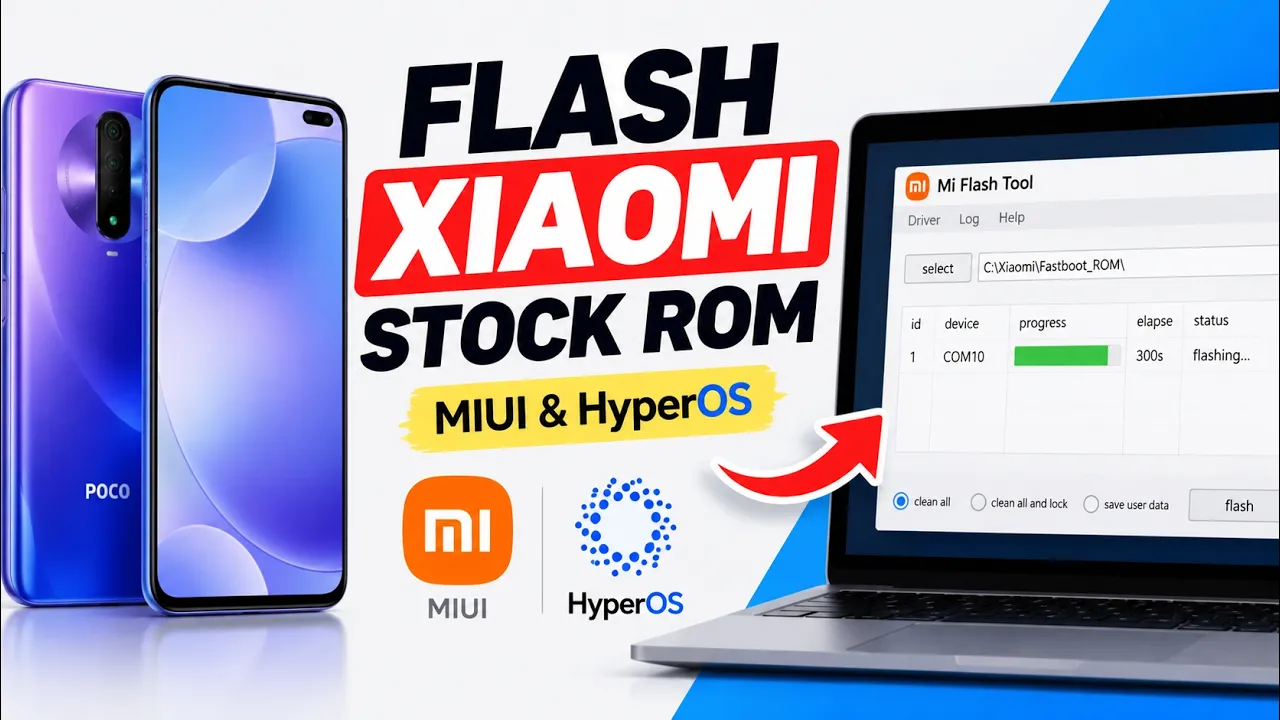
This guide follows the supplied video showing how to flash a stock MIUI or HyperOS Fastboot ROM onto a Xiaomi phone using the Mi Flash Tool on a PC. The demonstration device is the POCO X2, also known internationally as the Redmi K30 4G. The script presents this as a general workflow for Xiaomi phones, but the exact ROM, device codename, region and tool compatibility must match the phone being flashed.
Flashing firmware can erase data and, if the wrong package or option is selected, can leave a device unable to boot. Back up important files first, confirm the exact model and region, and read current device-specific instructions before proceeding. Do not assume that every Xiaomi phone supports the same firmware package or flashing process.
What You Need
- A Windows PC compatible with the Mi Flash Tool version you install.
- The correct Xiaomi Fastboot ROM for your exact device model and region.
- The Mi Flash Tool downloaded from the website supplied in the script.
- A reliable USB cable and stable USB connection.
- A backup of personal data, because Clean All erases user data.
- Enough time to complete the flash without disconnecting the phone or powering off the PC.
Fastboot ROM vs Recovery ROM
The supplied script strongly warns that Mi Flash Tool requires a Fastboot ROM and says not to download a Recovery ROM for this workflow. The Fastboot package is the format used in the demonstrated PC flashing process. Before downloading, check the package type and verify that it is intended for your exact model and region.
Download the Required Files
1. Xiaomi Fastboot ROM
Visit the firmware source used in the video, search for your exact phone model, choose the appropriate region and download the Fastboot package.
2. Mi Flash Tool
Download the Mi Flash Tool from the website shown in the supplied script, then review its installation instructions and compatibility information.
Download and Extraction Advice
The presenter recommends using the standard Google Chrome browser for the large Fastboot ROM download and advises against internet download managers or external download applications such as 1DM, based on their experience with file corruption from aggressive file splitting. This is the presenter's recommendation from the video, not a universal guarantee that every download manager corrupts firmware. Regardless of browser, verify the package integrity when an official checksum is available.
After downloading, extract the ROM archive and the Mi Flash Tool package as required. The video places the extracted files in a new folder on the desktop. Identify the extracted ROM directory that contains the Fastboot script and image files; do not select the compressed archive itself in Mi Flash.
Watch the Full Video
Choose the Correct Flashing Option
Clean All
The presenter chooses Clean All to flash the stock ROM while leaving the bootloader unlocked. This is the option used in the demonstration because the presenter may install custom ROMs later. The script says the phone reboots after flashing and that the tool may display an error because the bootloader-lock option was not selected; the presenter considers the flash successful in that specific run.
Clean All and Lock
The video describes Clean All and Lock as the option intended to reset the phone and relock the bootloader. Relocking is not a routine step to take without checking the exact device and ROM. Only consider it when the firmware is an appropriate official package for that exact model and region and you understand the consequences. Relocking with an incompatible or modified ROM can cause serious boot problems.
Step-by-Step: Flash a Fastboot ROM
1. Confirm the exact phone model. Identify the model and region before downloading firmware. The video demonstrates on POCO X2 / Redmi K30 4G, but select the package for your own device.
2. Download the Fastboot package. Use the firmware source and select the correct device and region. Confirm that it is a Fastboot ROM, not a Recovery ROM.
3. Download Mi Flash Tool. Obtain the tool from the link supplied in the script and follow its current installation instructions.
4. Extract the downloaded files. Extract the Fastboot ROM into a dedicated folder. Extract or install Mi Flash Tool as required. Keep the folder structure intact.
5. Prepare the phone and PC. Follow current device-specific instructions to place the phone in Fastboot mode and connect it to the PC using a reliable USB cable. The supplied script does not detail the button combination for entering Fastboot mode, so verify it for your exact model.
6. Open Mi Flash Tool. Launch the tool and select the extracted ROM directory, not the downloaded ZIP archive.
7. Refresh and verify detection. Use Refresh and confirm that the connected phone appears in the device list before proceeding. If it is not detected, stop and troubleshoot the cable, drivers, USB port and Fastboot connection.
8. Select the flashing option carefully. The video uses Clean All to avoid relocking the bootloader. Do not select Clean All and Lock unless you have verified that relocking is safe for your exact device and firmware.
9. Start flashing. Click Flash and wait for the process to complete. Do not unplug the USB cable, close Mi Flash Tool or power off the computer during the operation.
10. Wait for the phone to reboot. Flashing a full operating system can take time. Allow the process to finish and give the first boot time to complete.
11. Interpret the result carefully. The presenter reports a successful flash despite an error message associated with not choosing the bootloader-lock option. Do not blindly ignore errors on other devices; inspect the log and verify that the phone boots.
Critical Warnings
- Flashing erases data when using Clean All. Back up personal data before starting.
- Never use a ROM intended for a different model or region.
- Do not interrupt the flash by disconnecting the cable, closing the tool or powering off the PC. The script warns that interruption may brick the phone.
- Do not relock the bootloader unless you have verified the correct official firmware and device-specific relocking procedure.
- An error message is not always harmless. The video's warning relates to the presenter's specific Clean All setup; inspect errors in your own flash log.
- Use a trusted source and verify file integrity where possible.
Troubleshooting
The phone does not appear in Mi Flash
Stop before flashing. Check that the phone is in Fastboot mode, the cable supports data, the USB port works, and required drivers are installed. Reopen the tool and use Refresh. Follow current device-specific instructions if detection still fails.
The tool reports an error after flashing
Read the complete log and determine whether flashing actually completed and the phone can boot. The video reports an error when the bootloader was not locked, but that does not mean every Mi Flash error can be ignored.
The phone is stuck or will not boot
Do not repeatedly flash random packages. Confirm the exact device model and firmware, consult trusted device-specific recovery instructions, and avoid relocking the bootloader until the situation is understood.
Conclusion
Mi Flash Tool can be used to flash a compatible Xiaomi Fastboot ROM from a PC. The essential steps are selecting the exact model and region, downloading the Fastboot package rather than the Recovery ROM, extracting it correctly, choosing the right flashing option, and leaving the USB connection and PC undisturbed until completion. The POCO X2 / Redmi K30 4G in the video is an example; verify all instructions for your own device before flashing.

Discussion (0)
Post a Comment
No comments yet. Be the first to share your thoughts!