
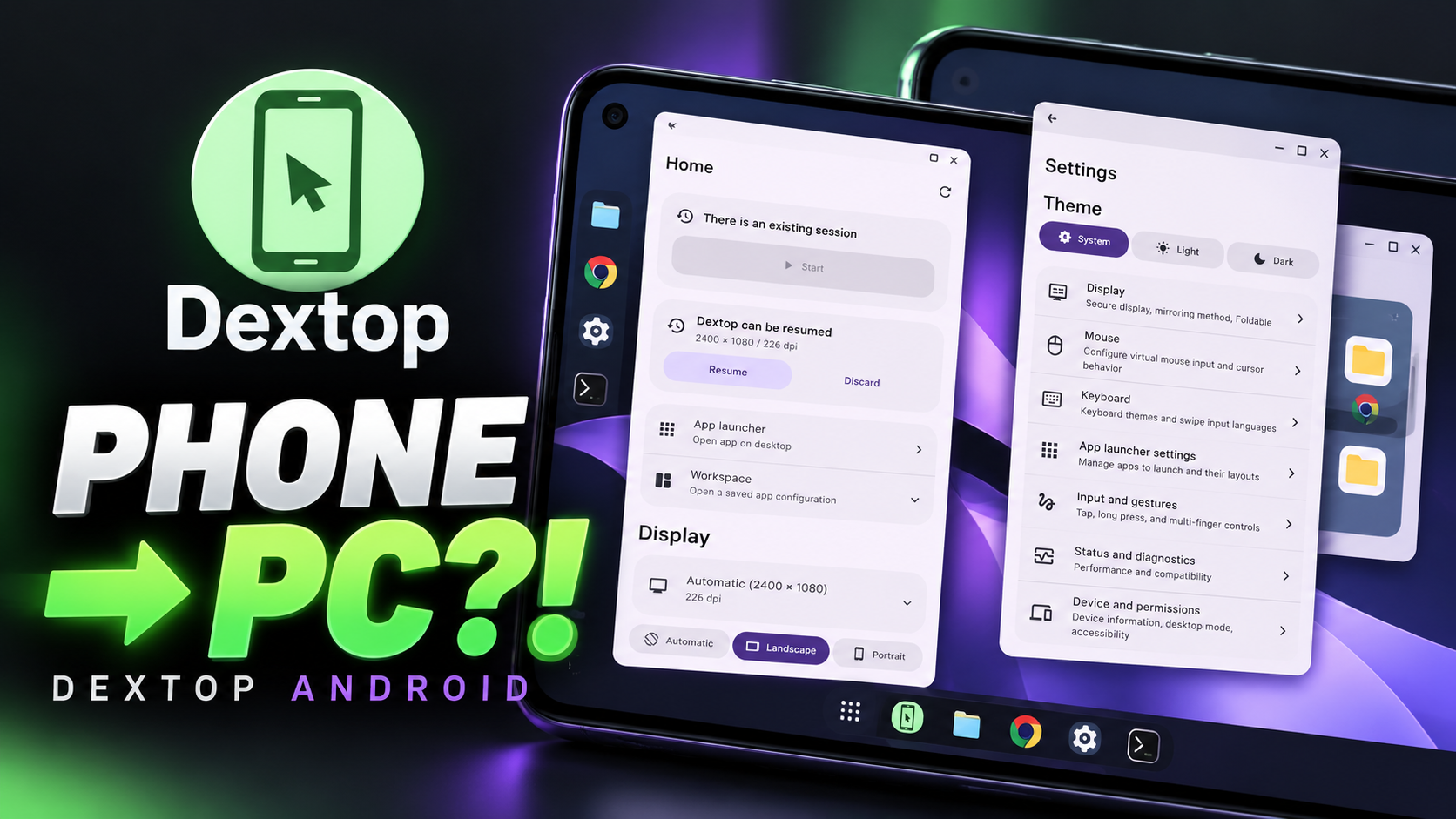
Dextop is an open-source Android app that creates a virtual desktop-style environment directly on a phone. The supplied video demonstrates resizable floating app windows, portrait and landscape layouts, display resolution and scaling controls, and a three-finger swipe that opens a control menu. Dextop uses Shizuku to access Android system services, so Shizuku must be active and the required permissions must be granted before its main features work.
The interface can vary by device because the app adapts to the system framework. The script specifically notes that Samsung and Google Pixel phones may show different desktop layouts. Results also depend on Android version, manufacturer and system support.
What Is Dextop?
Dextop is described as an open-source project that provides a desktop-like workspace on the phone's own display without requiring an external monitor. Its privileged access runtime works with Android system services to manage app launching, window placement, touch input and screen orientation.
Key Features
- Virtual desktop environment displayed directly on the phone.
- Portrait mode with floating, resizable app windows.
- Landscape mode for more horizontal room and side-by-side multitasking.
- Movable and resizable app windows.
- Display resolution and scaling controls.
- Three-finger swipe gesture to open virtual display and window controls.
- Privileged access runtime using Shizuku to interact with Android system services.
- Device-adaptive interface; Samsung and Google Pixel devices may show different layouts.
- Open-source project with APK releases on GitHub, according to the script.
Requirements
- An Android device compatible with the current Dextop release.
- Shizuku installed and actively running.
- The Dextop APK from the project release source.
- Permission to install APKs from the chosen source.
- Time to test portrait and landscape modes and adjust display settings.
Watch the Full Video
Installation and Setup
1. Download Dextop. Open the official GitHub project linked below and locate the latest release. The video also supplies a separate mirror; verify the source before installing.
2. Install the APK. Open the downloaded APK from your file manager and follow Android's installation prompts. The video reports that Play Protect may show a warning.
3. Handle security warnings carefully. Do not turn off Play Protect automatically. Verify the release and project information first, then decide whether you trust the APK.
4. Start Shizuku. Open Shizuku and make sure its service is running. Dextop depends on Shizuku to access Android system services.
5. Grant Shizuku permission. Open Dextop and approve the requested Shizuku access.
6. Review display settings. Inspect resolution, scaling and virtual environment options. Change settings gradually so you can restore readable text and controls.
7. Test portrait mode. Launch desktop mode in portrait orientation, open floating windows, move them and resize them.
8. Test landscape mode. Switch to landscape for more horizontal room and side-by-side multitasking.
9. Try the three-finger swipe. Use the gesture shown in the video to open the control menu for virtual display and window options.
10. Account for device differences. Expect the desktop UI and taskbar to vary according to the phone's system framework.
Portrait and Landscape Modes
Portrait mode
The demonstration starts in portrait orientation, showing floating windows directly on the phone display. Apps can be opened, moved and resized without connecting an external monitor.
Landscape mode
Landscape provides more horizontal space and is presented as the more desktop-like layout. Users can arrange windows side by side. Taskbar and window appearance depend on device framework and system support.
Resolution, Scaling and Gesture Controls
The dashboard includes resolution and scaling controls. Adjust these carefully: a denser workspace may provide more room but make text and controls smaller. The three-finger swipe opens a control menu for virtual display and window settings.
Compatibility and Limitations
- Shizuku must be running and Dextop must have the required Shizuku permission.
- Samsung and Pixel devices may display different layouts.
- Features can vary by Android version, manufacturer framework and permissions.
- The supplied script does not list minimum Android versions or supported devices; check current GitHub release notes.
- A Play Protect warning alone does not prove an APK is safe or unsafe. Verify the source before deciding how to proceed.
Troubleshooting
Desktop controls do not work
Check that Shizuku is running and Dextop has been granted permission. Restart Shizuku and reopen Dextop if needed.
Windows or taskbar look different
The script says the interface adapts to the device framework. Samsung and Pixel layouts may differ, so compare the available controls on your phone rather than expecting an identical interface.
Text or controls are too small
Return to display settings and adjust resolution or scaling gradually until the interface is readable.
Conclusion
Dextop offers a desktop-like workspace on Android with floating windows, portrait and landscape modes, display controls and gesture-based access to virtual display settings. Its Shizuku dependency provides access to system services. Confirm compatibility, verify the APK source and grant only the permissions needed.
Discussion (0)
Post a Comment
No comments yet. Be the first to share your thoughts!