
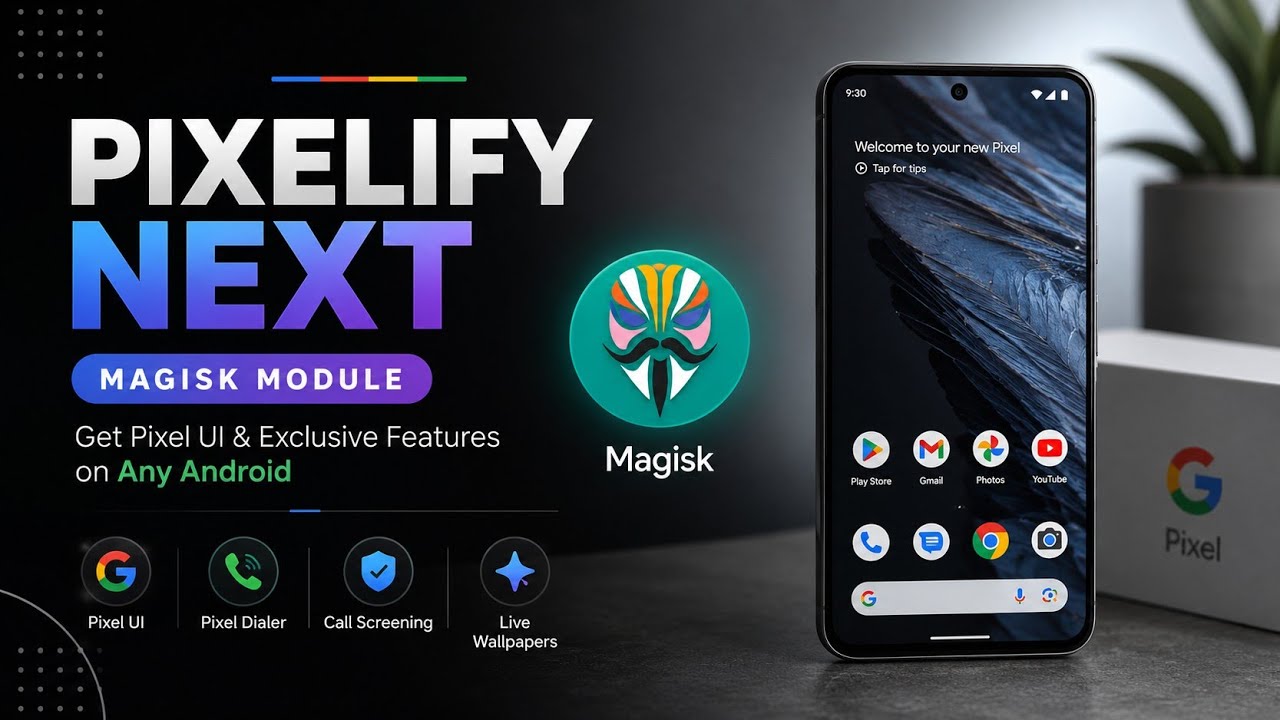
Have you ever looked at the clean, smooth, and feature-rich interface of a Google Pixel device and wished your phone could do the same? As Android enthusiasts, we love customizing our devices to squeeze out every drop of potential. While custom ROMs often provide a fantastic stock Android feel, they sometimes miss out on those exclusive, heavily guarded Google Pixel features. This is exactly where the Pixelify Next Beta Magisk module steps in, acting as a bridge between your current Android setup and the premium Pixel experience.
At Techynoob, I am always on the hunt for tools that elevate the smartphone experience. Today, I am going to walk you through everything you need to know about Pixelify Next Beta, how to set it up, and my personal experience using it on my daily driver.
What Exactly is Pixelify Next Beta?
Pixelify Next Beta is an incredibly powerful, open-source root module designed to enable the Pixel User Interface and unlock a treasure trove of Pixel-exclusive features on non-Pixel devices. Unlike massive, bloated firmware ports, this module starts with a remarkably low initial file size. It intelligently fetches and installs the necessary components—such as Pixel Live Wallpapers, Device Personalization Services, and the Pixel Launcher—directly from the internet during the setup process.
One of the standout aspects of this module is its use of dynamic Zygisk spoofing. Instead of spoofing your entire device (which can break banking apps or cause widespread instability), it specifically targets Google applications. By doing this, it seamlessly tricks specific apps into thinking they are running on a genuine Pixel, granting you access to features that are normally hardware-locked. It even patches system flags to force-enable unreleased functionalities.
Watch the full tutorial here on our Youtube channel:
Requirements Before You Begin
Before diving into the installation, you need to ensure your device meets a few critical prerequisites. Preparation is key to avoiding unnecessary headaches later on.
- Supported Android Versions: The module boasts broad compatibility, supporting everything from Android 7.0 all the way up to Android 16.
- Architecture: Your device must have an ARM64 or ARM32 processor (which covers almost all modern smartphones).
- Root Access: You need Magisk version 24 or higher installed.
- Zygisk: While technically optional, Zygisk is highly recommended. It is strictly required for the advanced dynamic spoofing functions to work properly.
- Internet Connection: Required during installation to download the latest Google resources.
- Hardware Buttons: Working volume keys are needed if you choose the interactive installation method.
Choosing the Right File: Standard vs. VK Version
When you go to download Pixelify Next Beta from its repository, you will notice two distinct zip files: the standard version and the "VK" (Volume Key) version.
The standard version runs an automated script that installs a predetermined set of features. However, the VK version is where the real customization happens. It allows you to use your phone's volume up and volume down keys to interact with the installation script in real-time. This means you can pick and choose exactly which features you want—like selecting your preferred Google boot animation resolution (720p, 1080p, or 1440p) or opting for the brand new Gemini AI boot animation.
Step-by-Step Installation Guide
Installing Magisk modules is generally straightforward, but Pixelify requires strict adherence to the process. Important Note: You must flash this module directly inside the Magisk Manager app. Attempting to flash it through a custom recovery like TWRP or OrangeFox will simply not work and will likely result in an error.
- Download the Module: Grab the Pixelify Next Beta VK zip file and save it to your phone's internal storage.
- Open Magisk: Launch the Magisk Manager application on your device.
- Navigate to Modules: Tap the puzzle piece icon at the bottom right to access the Modules section.
- Install from Storage: Tap on "Install from storage" and select the downloaded zip file.
- Follow the Prompts: The flashing process will begin. Since we are using the VK version, the script will pause and ask you questions. Use your Volume Up key to say "Yes" and Volume Down to say "No".
- Select Your Features: You will be prompted to install various components. For instance, it will check if you have the Google App, Dialer, and Text-to-Speech installed. If not, it can dynamically create them as system apps for you. You can also choose to install the newly added (though untested) Quick Share Air drop support.
- Reboot: Once the script finishes and all your choices are made, hit the Reboot button at the bottom of the screen.
Why I Use This Module Daily
Customization is great, but practicality is what keeps a modification on my phone long-term. I use Pixelify Next Beta daily because it brings tangible, quality-of-life improvements. Having the exclusive Pixel call screening and intelligent Dialer features completely changes how I handle spam calls.
Furthermore, the inclusion of the Gemini boot animation adds an incredibly sleek, modern touch to my device every time I restart it. The dynamic permission generation also means I don't have to manually fiddle with app settings after the installation; it just works seamlessly in the background, making the whole experience feel native rather than modded.
Battery Impact and Performance Analysis
A common concern with heavy system modifications is battery drain and performance throttling. Surprisingly, Pixelify Next Beta handles this beautifully. Because the initial module size is low and it only installs exactly what you tell it to via the volume key configuration, it doesn't leave unnecessary background processes running.
The targeted Zygisk spoofing is a game-changer here. Instead of forcing the entire operating system to run heavy spoofing scripts, it only applies them to specific Google apps. In my daily usage, I have noticed zero detrimental impact on battery life. The device remains fluid, and background memory management performs just as well as it did on a clean, stock ROM.
Potential Bugs and How I Fixed Them on My Device
No beta software is without its quirks, and transparency is important. While the developer has successfully tested this module on LineageOS (Android 15 and 16), there are known compatibility issues with certain manufacturer skins.
Specifically, if you are running Realme UI (Android 14), Oxygen OS (Android 14), or Axion OS (Android 16), do not flash this module. It is known to cause instant bootloops.
I experienced this firsthand. I am currently running Matrix OS based on Android 16 on my trusty Redmi Note 7 Pro. After flashing the module and rebooting, my phone went straight into a bootloop. It can be a frustrating moment, but thankfully, the fix is relatively simple if you know what you are doing.
To fix the bootloop on my device, I rebooted into my custom recovery. From there, I navigated to the built-in file manager, went to /data/adb/modules/, and simply deleted the Pixelify-Next folder. Upon restarting, my phone booted up perfectly fine, saving me from having to perform a complete factory reset. If you are venturing into the world of Android 15 or 16 custom ROMs, always ensure you have a recovery environment ready just in case you run into compatibility snags like I did.
Final Thoughts
Pixelify Next Beta is an ambitious and highly effective tool for anyone looking to transform their Android experience. It offers a level of granular control that most modules lack, wrapped in a surprisingly lightweight package. Just be mindful of the ROM you are currently using, proceed with caution, and you will be enjoying those exclusive Pixel features in no time.
Subscribe to our YouTube channel for daily Android tips, tricks, and tutorials: TechyNoob
Discussion (0)
Post a Comment
No comments yet. Be the first to share your thoughts!