
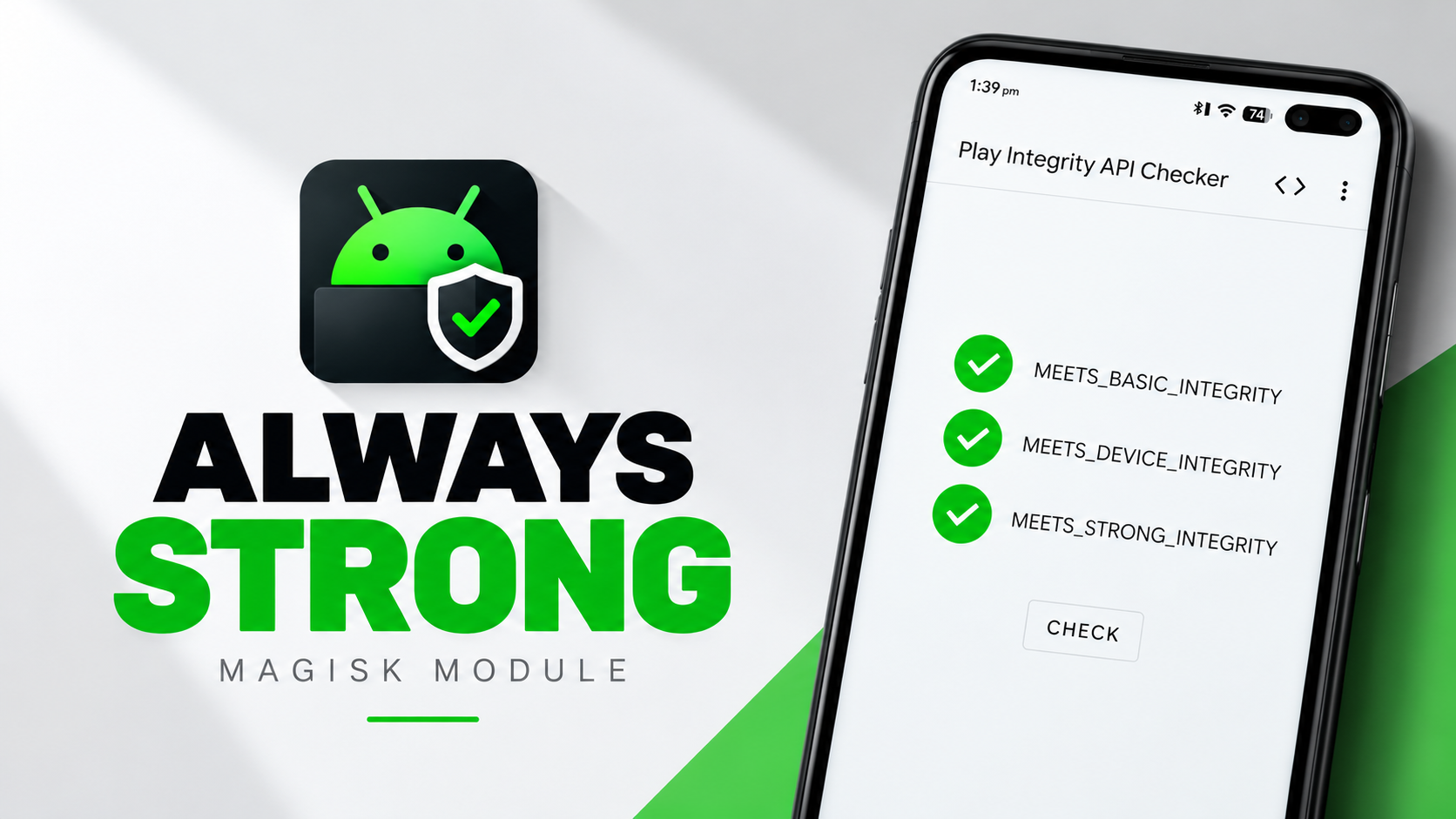
Always Strong is a Magisk module presented as a tool for rooted Android users who want to manage device properties and signals that apps may use when evaluating device integrity. Rooting and custom ROMs can affect Play Integrity results and may trigger restrictions in some apps. The supplied demonstration explores installation, the module's Web UI and why passing Basic, Device and Strong Integrity can require more than simply flashing a module.
Treat integrity results as variable rather than guaranteed. The video shows Basic and Device Integrity passing while Strong Integrity still fails after setup. The script says Zygisk, custom ROM signatures or revoked keyboxes may contribute. The module offers configuration options, but no module can guarantee that every device will pass every check indefinitely.
Why Zygisk Configuration Matters
The demonstration shows the Always Strong ZIP beside a separate Zygisk implementation ZIP. The script explains that built-in Zygisk in Magisk may not be sufficient for the configuration being discussed and mentions standalone implementations such as NeoZygisk or Zygisk Next as alternatives to consider for compatibility.
There is an important distinction in the walkthrough: despite showing the separate ZIPs, the presenter does not install NeoZygisk or Zygisk Next during the Magisk setup and instead uses built-in Magisk Zygisk. For KernelSU users, however, the script says a standalone implementation such as NeoZygisk or Zygisk Next is required because KernelSU does not include built-in Zygisk.
Features Highlighted in the Video
- System-property spoofing: the module is described as changing system properties that may affect how the device is identified.
- Root-trace hiding: it aims to hide traces of root that certain apps may look for.
- Interception of security requests: the script describes the module as intercepting relevant security requests while they are made.
- Detection and hiding status: the Web UI can help monitor hiding mechanisms and investigate what a ROM or app may be detecting.
- Custom keybox management: the interface allows injection of custom keyboxes, provided the user has valid ones. Validity and revocation status can affect attestation outcomes.
- Hardware-backed attestation properties: options are provided for managing properties associated with attestation failures.
- Bootloader-status reporting: users can fine-tune how the system reports bootloader status.
- KSU Web UI: the video opens the KSU Web UI app to access the module's web interface and review status.
Requirements Before You Begin
- A rooted Android device using a compatible setup.
- The Always Strong module ZIP.
- A root-management environment; the demonstration uses Magisk and also shows the KSU Web UI.
- For KernelSU, a compatible standalone Zygisk implementation such as Zygisk Next or NeoZygisk, as specified in the script.
- A Play Integrity checking app to compare results before and after setup.
Installation and Initial Setup
1. Prepare the module ZIP. Download Always Strong from a verified project or release source. The supplied script does not include a download URL, so add the correct official release link before publishing.
2. Choose the applicable Zygisk setup. For the specific Magisk setup shown, the presenter uses built-in Magisk Zygisk and does not flash NeoZygisk or Zygisk Next. If using KernelSU, the script says to install a standalone Zygisk implementation because KernelSU has no built-in Zygisk feature.
3. Install Always Strong. Open the root manager and install/flash the Always Strong ZIP using its module-installation process. Follow the installer's prompts and check that installation completes.
4. Reboot the device. After the module and applicable Zygisk configuration are set up, reboot as shown in the demonstration.
5. Confirm the module is active. After reboot, open Magisk Manager and check that Always Strong is installed and active. The video also opens the KSU Web UI app to access the module's status interface.
6. Run a Play Integrity check. Use a checking app to record which levels pass. In the video, Basic and Device Integrity pass, while Strong Integrity still fails at this stage.
7. Review configuration and test again. Use the Web UI controls to inspect hiding mechanisms and relevant properties. Change settings cautiously and repeat the integrity check to see whether the result changes.
Understanding the Three Integrity Levels
The demonstration makes clear that passing some checks does not mean all checks will pass. Initially, the presenter reports that only Basic Integrity passed before setup; after installing and configuring the module, Basic and Device Integrity pass, but Strong Integrity remains unsuccessful. The script identifies possible causes for a Strong failure, including Zygisk itself, custom ROM signatures and revoked keyboxes. These are possibilities discussed in the video, not a definitive diagnosis for every device.
The video also notes that the module may take time to reach the desired result. In the presenter's testing, it took around one day to pass all three checks, including Strong Integrity. This is an observation from that setup, not a guaranteed waiting period or a promise that the same result will occur on other devices.
Important Compatibility Note
NeoZygisk and Magisk v31: The supplied script warns that NeoZygisk is not fully supported on Magisk v31 yet and recommends using Zygisk Next instead. Check current compatibility information before installing or changing Zygisk components.
Give the module time: In the presenter's test, it took around one day to pass Basic, Device and Strong Integrity. Results vary by device, ROM, configuration and the state of attestation-related components.
Troubleshooting Tips
- If the module is not active after reboot, revisit the root manager and confirm that it is installed and enabled.
- If you use KernelSU, verify that a compatible standalone Zygisk implementation is installed and active; the script says KernelSU does not include built-in Zygisk.
- If Strong Integrity fails while Basic and Device pass, do not assume the installation failed. Review the possible causes mentioned in the video, including Zygisk compatibility, ROM signatures and keybox status.
- Make one change at a time and re-run the check so you can identify which change affects the result.
- Do not assume a result will remain stable forever. Attestation systems and app requirements can change, and results can differ across devices.
Final Thoughts
Always Strong offers controls for users who want to investigate device-integrity behaviour on rooted Android systems. System-property controls, root-trace hiding, keybox management and the Web UI can provide useful visibility, but Strong Integrity remains a moving target. Follow the correct setup for Magisk or KernelSU, pay attention to the NeoZygisk/Magisk v31 note, and use repeated checks rather than assuming one successful result is permanent.
Use these tools responsibly and only on devices you own or are authorised to manage. This article reflects the supplied video script; the script does not provide an official download URL or project repository, so those links should be verified and added before publication.
Discussion (0)
Post a Comment
No comments yet. Be the first to share your thoughts!