
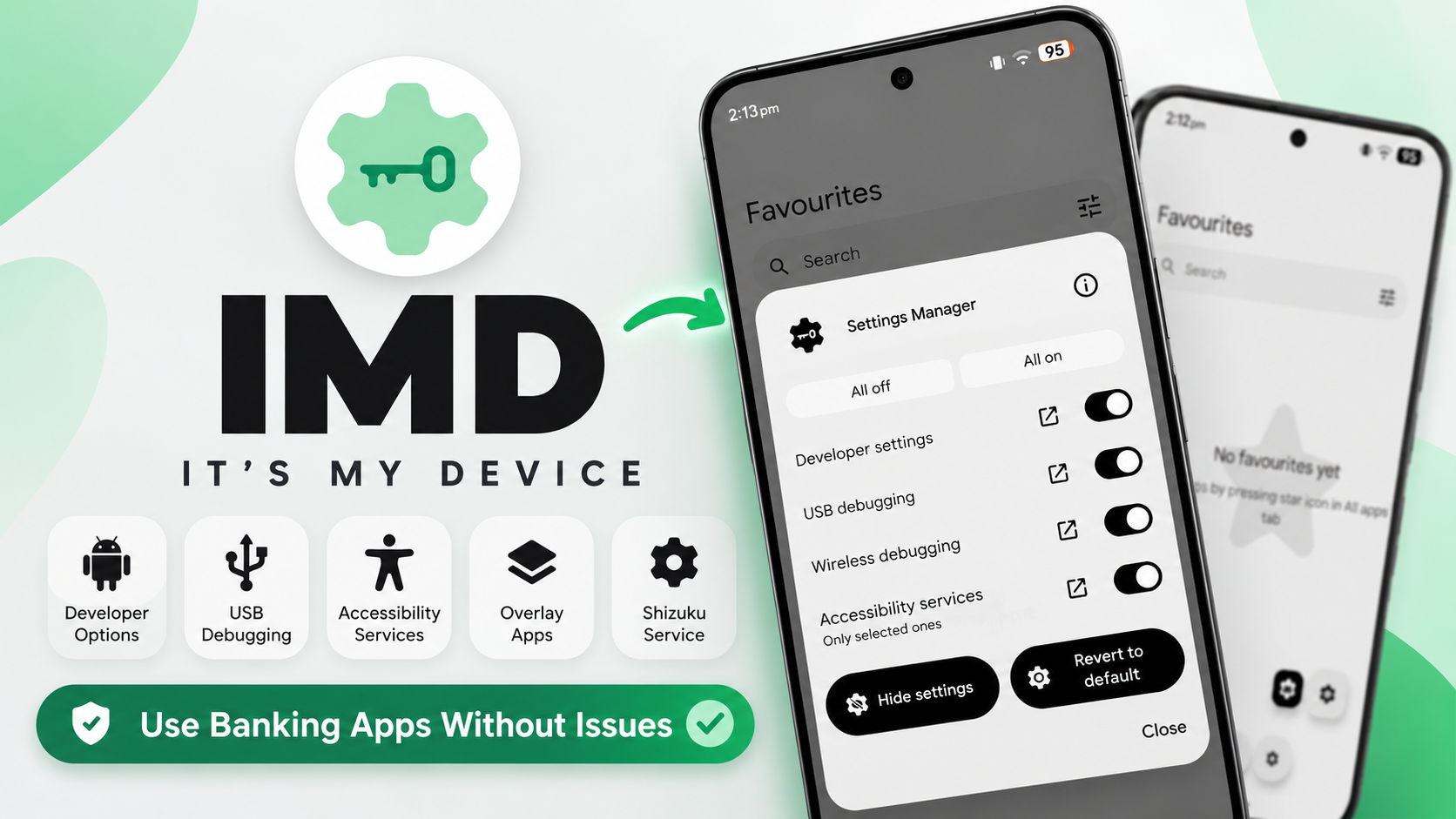
IMD, short for It's My Device, is an Android settings and services manager designed to help users manage settings that some banking or payment apps may restrict, such as Developer options or debugging. It can hide and restore selected settings and services, with per-app configuration and automation options.
The walkthrough describes IMD as a settings hider, not a guarantee that every banking or payment app will run. Apps use different checks, and their behavior can change. Follow your financial app's rules and device security requirements.
What IMD Can Manage
- Developer settings and ADB or USB debugging.
- Accessibility services, Display over other apps, and the Shizuku service.
- Per-app configuration to hide selected settings for particular apps, using the built-in Settings observer.
- A live status view for checking services and toggling them on or off.
- Automatic unhiding of settings.
- IMD Plus background service, described as automatically hiding settings when a restricted app launches.
- IMD Intents for integration with Tasker and MacroDroid, secured with authentication keys.
Requirements
- The IMD APK from its official release page.
- An Android file manager and permission to install APKs from that source.
- An active Shizuku service for functions that require it, including the overlay-related setup described in the video.
- Tasker or MacroDroid only if you intend to use automation integrations.
Step-by-Step Installation
1. Download the APK
Get IMD from its official release page and save the APK to Downloads. Check the release notes and compatibility information before installing.
2. Install IMD
Open your file manager, tap the IMD APK, and confirm installation. If Android asks to allow installs from that source, review the prompt and enable the permission for the app you are using to open the APK.
3. Complete initial setup
Launch IMD and follow its setup prompts. If you plan to manage settings such as Display over other apps, the tutorial says IMD needs access to an active Shizuku service. Follow the on-screen instructions and confirm Shizuku is running.
4. Configure settings and services
Use the settings manager to view supported services and switch them on or off. Configure per-app behavior for the apps you intend to use, and review automatic unhiding options so you understand when developer settings or services will be restored.
5. Explore IMD Plus and automation
The tutorial describes IMD Plus as adding a background service that can automatically hide settings when a restricted app launches. Advanced users can integrate IMD Intents with Tasker or MacroDroid. Use authentication keys as directed and avoid exposing them in shared automation profiles.
Important Notes
Hiding debugging or developer settings may affect workflows that rely on them, and some apps may continue to detect a debugging-enabled environment. IMD does not guarantee that a banking or payment app will accept the device. Do not use it to bypass an app's security requirements. If a setting does not restore as expected, check IMD documentation and verify Shizuku and the affected Android service.
Watch the Full Video
Download
Credits / Official Developer
https://github.com/soul-99/SU_IMD
Final Thoughts
IMD brings service status, per-app configuration, settings visibility, and automation integrations into one interface. Configure it carefully and remember that individual apps may apply their own device checks.
Discussion (0)
Post a Comment
No comments yet. Be the first to share your thoughts!