
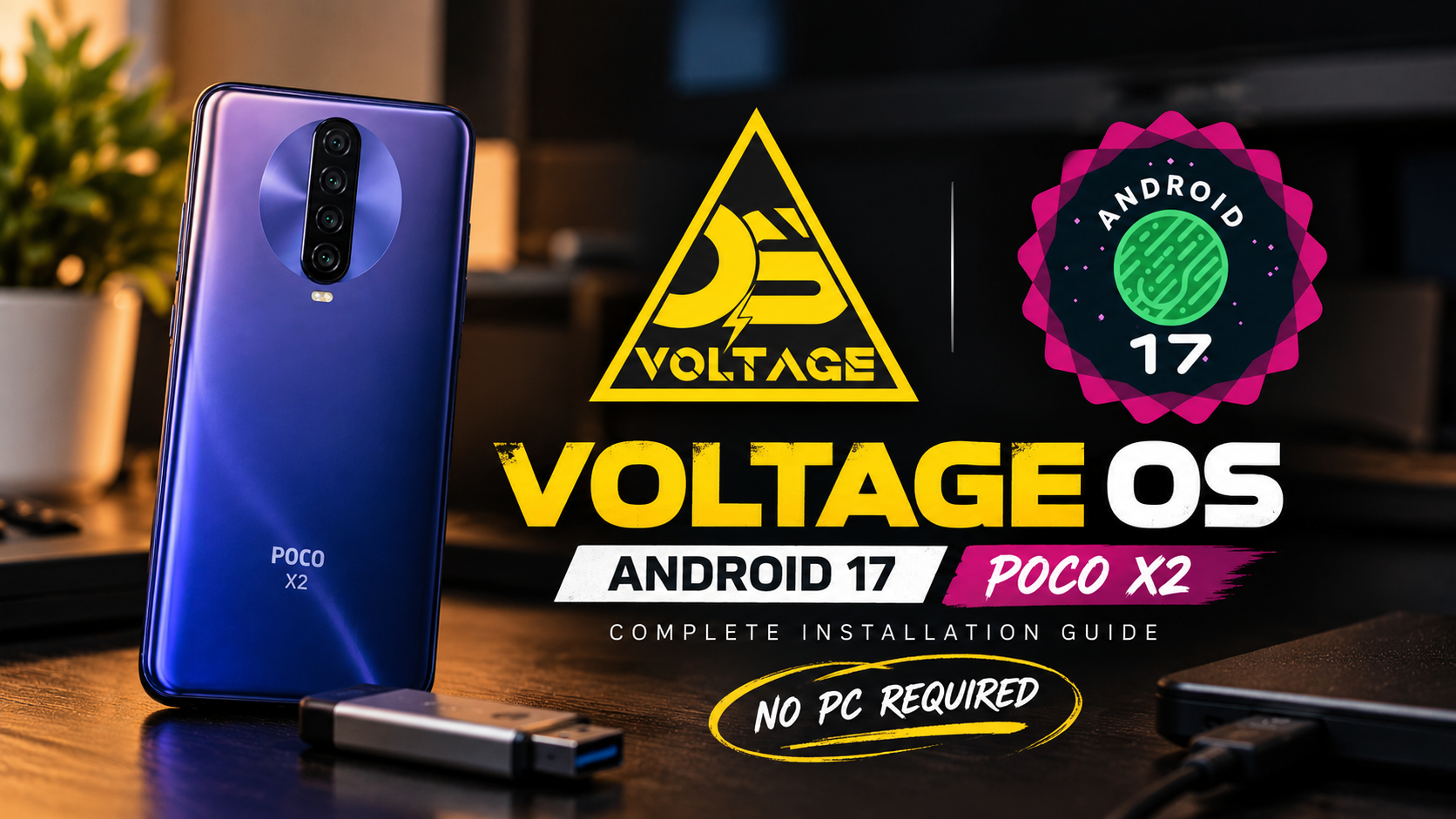
Looking to experience Android 17 on your Poco X2? Voltage OS brings Google's latest Android generation to the device through a custom ROM, offering an alternative to the stock Android experience.
In this article, we will explore Voltage OS based on Android 17 for the Poco X2, take a look at the initial build, and explain how to install it using TWRP recovery without requiring a PC.
This installation method uses an external USB drive or portable hard disk to transfer the ROM ZIP file to your phone. However, the process involves wiping and formatting partitions, so make sure you understand the steps before proceeding.
What Is Voltage OS?
Voltage OS is a custom Android operating system that provides an alternative software experience for compatible devices.
In this installation, Voltage OS is based on Android 17 and is running on the Poco X2.
The build demonstrated in this guide is an initial release with limited customization features. Although the interface is relatively minimal, the ROM provides an opportunity to experience Android 17 on supported hardware.
The installation is performed through TWRP custom recovery, using an external storage device instead of a computer.
Voltage OS Android 17 on Poco X2: Overview
Here are the main details of the installation featured in this guide:
- Device: Poco X2
- Custom ROM: Voltage OS
- Android version: Android 17
- Recovery: TWRP
- Installation method: External USB storage or portable hard disk
- PC required: No, not for the demonstrated process
- Google Apps: SandBox Gapps support is built into this build
- Build status: Initial build with limited customization
The demonstration begins with the Poco X2 running Lunaris AOSP version 3.10 based on Android 16, with TWRP recovery already installed.
Important Things to Know Before Installing
Before flashing Voltage OS, keep the following points in mind.
1. A Clean Flash Is Recommended
A clean flash is highly recommended for this initial build.
The installation process includes wiping Dalvik cache, cache, metadata, and data partitions, followed by formatting data.
These operations can erase personal data and installed applications. Back up important files before proceeding.
2. SandBox Gapps Is Already Included
This particular build includes built-in SandBox Gapps support.
You should not flash a separate Gapps package on top of this ROM, as the build already includes the relevant support.
3. TWRP Recovery Is Required
The installation demonstrated here uses TWRP recovery.
The tutorial assumes that TWRP is already installed on your Poco X2. It does not cover the process of installing recovery itself.
4. An External Storage Device Is Needed
The ROM ZIP file is transferred using an external USB drive or portable hard disk.
You will need compatible external storage and a suitable connection to access the file through TWRP.
The demonstration initially encounters USB connection issues and switches to an external hard disk.
5. The First Boot Takes Time
After flashing and formatting, the first boot can take considerably longer than a normal restart.
Allow the device sufficient time to initialize the operating system and complete the initial setup.
How to Install Voltage OS Android 17 on Poco X2 Using TWRP
Follow these steps carefully to install Voltage OS on your Poco X2 using an external storage device.
Step 1: Download the Voltage OS ROM ZIP
Download the Voltage OS ROM ZIP file for the Poco X2 from the official developer source.
Copy the ZIP file to a compatible external USB drive or portable hard disk.
Make sure you have the correct ROM package for your device before proceeding.
Step 2: Boot Into TWRP Recovery
Restart your Poco X2 and boot into TWRP recovery.
If your current ROM provides an advanced restart option, you can use it to select recovery mode.
Alternatively, use the appropriate hardware key combination for your device. The demonstration uses the power and volume-up buttons.
Wait for the TWRP recovery interface to load.
Step 3: Connect the External Storage
Connect the USB drive or portable hard disk containing the ROM ZIP file to your phone.
Make sure TWRP detects the connected storage.
If the external drive is not detected properly, check the connection and try a compatible storage device.
Step 4: Select the ROM ZIP File
From the TWRP main menu, tap Install.
Next, tap the storage selection option at the bottom of the screen and choose your connected external storage device.
Navigate through the folders and locate the Voltage OS ROM ZIP file.
Select the file and verify that it is the correct package for your Poco X2.
Step 5: Flash the ROM
After selecting the ROM ZIP file, swipe the confirmation slider to begin flashing.
Wait for the flashing process to finish.
Do not interrupt the process while TWRP is installing the ROM.
Step 6: Perform an Advanced Wipe
Once the ROM flashing is complete, return to the TWRP main menu.
Open Wipe, then select Advanced Wipe.
Select the following partitions as described in the demonstration:
- Dalvik / ART Cache
- Cache
- Metadata
- Data
Swipe to confirm the wipe.
Warning: Wiping these partitions can erase important information. Make sure you have a backup before continuing.
Step 7: Format Data
Return to the main Wipe menu and select Format Data.
Type yes when prompted, then confirm the operation.
Formatting data can erase user data and internal storage contents. Ensure that any important files have been backed up before performing this step.
Step 8: Reboot the Device
After the wipe and format operations are complete, return to the main TWRP menu.
Tap Reboot System to start the device.
The first boot may take some time, so allow the operating system to initialize.
Once the phone has progressed beyond the recovery stage and the external storage is no longer needed, you can disconnect it.
Step 9: Complete the Initial Setup
When the Voltage OS setup screen appears, follow the on-screen instructions to complete the initial Android setup.
Once setup is complete, you will be able to access the home screen and explore the new operating system.
Step 10: Verify the Android Version
Open Settings and navigate to the About section.
Check the operating system information to verify that Voltage OS is installed and that the device is running the Android 17-based build.
You can also review the installed kernel version displayed in the system information.
Voltage OS Android 17: Initial Build Experience
The initial build demonstrated on the Poco X2 provides a relatively simple Android experience.
The ROM is based on Android 17 and has limited customization options at this stage.
Despite the limited feature set, the demonstration describes the interface as smooth during the initial experience.
The system information section displays the installed Voltage OS version and kernel details, allowing users to verify the installed software.
Since this is an initial build, users should check the developer's release notes for known issues, supported features, and future updates before using it as their daily operating system.
Frequently Asked Questions
Can I install Voltage OS Android 17 on Poco X2 without a PC?
Yes. The demonstrated installation uses TWRP recovery and an external USB drive or portable hard disk to transfer the ROM ZIP file.
Do I need to flash Gapps separately?
No. This specific build includes SandBox Gapps support, so a separate Gapps package should not be flashed on top of it.
Is a clean flash recommended?
Yes. The demonstration recommends a clean flash for this initial build.
Which recovery is used?
The installation uses TWRP recovery, which is assumed to be already installed on the device.
Will the first boot take a long time?
Yes. The first boot can take longer while the operating system initializes its services.
Final Thoughts
Voltage OS based on Android 17 offers Poco X2 users an opportunity to explore a newer Android-based custom ROM.
The installation process demonstrated here uses TWRP recovery and external storage, allowing the ROM to be flashed without a PC. However, this is an initial build with limited customization features, and a clean flash is recommended.
Before installing, back up your data, verify that the ROM is intended for your device, and carefully follow the flashing and formatting steps.
Watch the Full Video
Watch the complete Voltage OS Android 17 installation guide on the Poco X2:
Download
Download the Voltage OS ROM ZIP from the official developer source:

Discussion (0)
Post a Comment
No comments yet. Be the first to share your thoughts!