
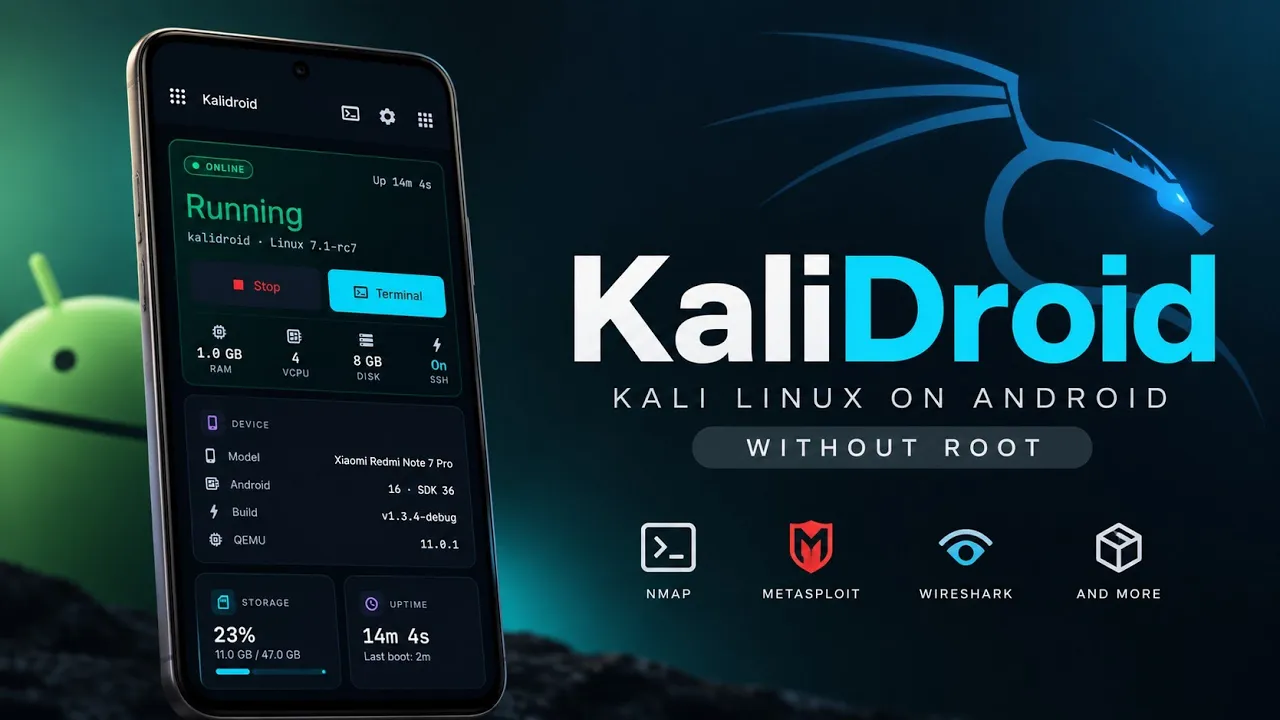
If you enjoy cybersecurity, ethical hacking, and Linux-based security tools, you probably know how useful it is to have a dedicated environment for testing and research. Traditionally, running a complete Linux desktop on Android has required workarounds, root access, or complicated installation procedures.
KaliDroid offers another approach by running Kali Linux inside a virtual machine on a compatible Android device. It is designed for users who want a persistent Linux desktop environment on their smartphone without unlocking the bootloader or rooting their device.
In this article, we will explore KaliDroid, its features, installation process, virtual machine configuration, and how it can be used as a portable cybersecurity lab.
What Is KaliDroid?
KaliDroid is an application designed to run Kali Linux in a virtual machine on Android. Instead of relying solely on a terminal-based Linux environment, it uses the Android Virtualization Framework to create a dedicated virtualized environment.
This approach allows users to access a graphical Kali Linux desktop directly from their Android device.
Unlike a temporary live environment, KaliDroid is designed to provide persistent storage. This means files, scripts, and other saved data can remain available after shutting down and restarting the virtual machine.
The application is intended for educational purposes, mobile lab environments, and authorized defensive security testing.
Key Features of KaliDroid
1. Rootless Kali Linux Environment
One of the main attractions of KaliDroid is that it does not require root access to the Android device.
You do not need to unlock the bootloader, flash a custom recovery, or modify the phone's system partition to get started.
This makes it an option for users who want to experiment with a Linux environment while keeping their regular Android installation intact.
2. Virtual Machine-Based Linux Desktop
KaliDroid runs Kali Linux inside a virtual machine rather than simply providing a terminal session.
The application uses Android's virtualization capabilities to run the Linux environment on the phone's hardware. Actual performance depends on the device's processor, memory, and virtualization support.
3. Persistent Storage
KaliDroid provides storage allocation options of 4GB, 8GB, and 16GB during setup.
Persistent storage helps retain downloaded tools, scripts, files, and other data between sessions. This is useful for users who want to maintain a consistent testing environment instead of rebuilding it every time.
4. Adjustable RAM and CPU Allocation
Users can configure the amount of RAM and the number of CPU cores allocated to the virtual machine.
The available resources should be selected according to the phone's hardware and the needs of the Linux desktop. Allocating too much memory to the VM can affect Android's performance.
5. Graphical Desktop Access
KaliDroid supports interaction with the virtual machine through a local loopback SSH connection or a VNC viewer client.
This provides access to a graphical Linux desktop rather than limiting users to a command-line interface.
6. USB Passthrough
The application includes a hardware USB passthrough option.
With compatible hardware and the necessary Android and VM support, this can allow external USB devices to be connected to the virtual environment. The exact functionality depends on the connected device and its compatibility.
7. Container and Security Tool Support
The configuration interface includes options for environments such as Docker and Podman.
The demonstration also showcases familiar Kali Linux tools, including Nmap, Metasploit, and Wireshark. The availability and performance of individual tools depend on the virtual machine configuration and the hardware being used.
Requirements and Compatibility
Before installing KaliDroid, keep these points in mind:
- Android version: The demonstration mentions Android 8 and above, but support for the Android Virtualization Framework depends on the device and its software.
- Root access: Root access is not required according to the demonstration.
- Storage: Choose between 4GB, 8GB, and 16GB of persistent storage.
- RAM and CPU: Available memory and processor resources affect VM performance.
- USB accessories: External devices require compatible hardware and passthrough support.
- Graphical interface: A compatible local viewer or VNC client may be needed to access the desktop.
The Android version alone does not guarantee compatibility. Check the application's official requirements and verify that your device supports the virtualization features it needs.
How to Install KaliDroid on Android
Follow these steps to set up KaliDroid on a compatible device.
Step 1: Download the APK
Download the KaliDroid APK from its official developer source, then locate the downloaded file in your Android file manager.
Before installing, verify that the APK comes from a trusted source. Avoid installing packages from unknown websites.
Step 2: Install the Application
Tap the APK file to open Android's package installer.
If Android asks for permission to install apps from that source, review the prompt and enable the required permission only if you trust the file and its origin.
Tap Install and wait for the process to finish.
Step 3: Launch KaliDroid
Open the application after installation.
On the first launch, the app may request notification permission. Review the request and allow it if you want the application to provide background status notifications.
Step 4: Configure Persistent Storage
Select the storage allocation that fits your available space:
- 4GB for a smaller environment
- 8GB for a medium-sized setup
- 16GB for a larger environment
Make sure your device has sufficient free storage before proceeding.
Step 5: Adjust RAM and CPU Cores
Configure the memory and processor resources allocated to the virtual machine.
Choose settings appropriate for your phone rather than assigning all available resources to the VM.
Step 6: Enable USB Passthrough if Needed
If you plan to use compatible external USB hardware, enable the USB passthrough option in the configuration screen.
This step is optional for users who only need the virtual desktop and its software tools.
Step 7: Start the Virtual Machine
Return to the KaliDroid dashboard and press the start button.
The initial boot may take longer on devices with limited hardware resources. Wait for the virtual machine to finish initializing.
Step 8: Open the Kali Linux Desktop
Use the available local viewer or compatible VNC client to access the graphical environment.
Once the desktop loads, you can explore the installed tools, create files, and configure your Linux workspace.
Step 9: Save Your Work and Shut Down
Save your scripts and other files in the persistent environment.
Shut down the virtual machine when you finish. Your saved data should remain available for the next session, provided it is stored in the persistent virtual storage.
What Can You Do With KaliDroid?
KaliDroid can serve as a portable Linux lab for learning Linux, practicing cybersecurity in controlled environments, and experimenting with compatible security tools.
For example, Nmap can be used to study network discovery on systems you own or are authorized to test. Wireshark can help with analyzing permitted network traffic, while Metasploit can be used in isolated training labs to understand vulnerability testing.
The persistent environment can also be useful for keeping scripts, notes, and other lab files together.
Important: Use these tools only on systems and networks you own or have explicit permission to test. Do not use KaliDroid for unauthorized access, surveillance, or attacks.
Final Thoughts
KaliDroid brings a virtualized Kali Linux environment to compatible Android devices without requiring root access. Its persistent storage, configurable resources, graphical desktop access, and USB passthrough options make it worth exploring for users interested in portable Linux and cybersecurity labs.
However, compatibility and performance depend on the device's virtualization support and available hardware resources. Verify the requirements before installing, and use the environment responsibly.
Watch the Full Video
Watch the complete KaliDroid installation and feature demonstration:
Download
Download KaliDroid from the official source:
Discussion (0)
Post a Comment
No comments yet. Be the first to share your thoughts!