
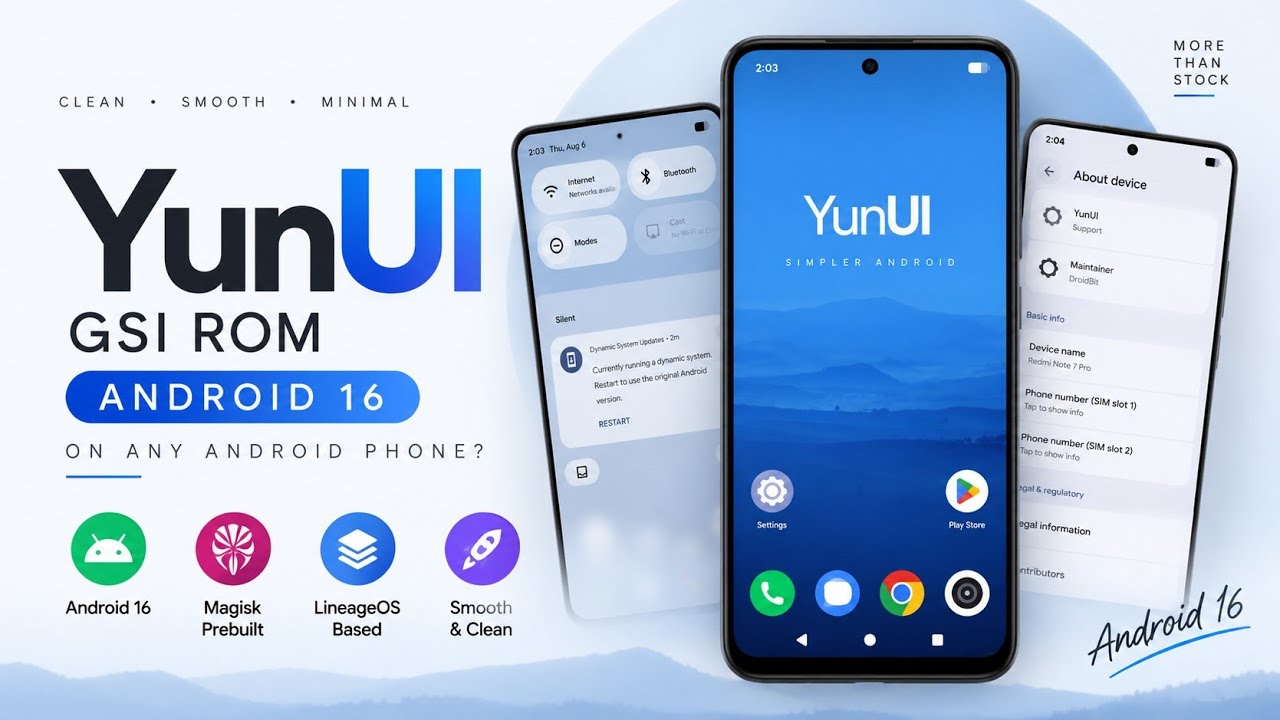
Custom ROMs are a popular way to explore a different Android experience, but installing a traditional ROM usually requires replacing the existing system software. Generic System Images (GSIs) provide another approach, allowing compatible Android devices to run a system image without installing a complete device-specific ROM.
Yun UI GSI is an Android 16-based system image that offers a clean, minimal interface with a LineageOS-based foundation.
This review focuses on the experience of running Yun UI GSI on a Redmi Note 7 Pro through Dynamic System Updates (DSU). It covers the interface, built-in features, storage limitations, everyday performance, and the important differences between a GSI and a permanently installed custom ROM.
Watch the Full Video
Watch the complete Yun UI GSI review and walkthrough:
Download Yun UI GSI
Make sure you select a compatible image for your device and installation method.
What Is Yun UI GSI?
Yun UI GSI is a Generic System Image designed to provide an alternative Android system experience on compatible devices.
Unlike a traditional device-specific custom ROM, a GSI uses a more generic system image that relies on the device's existing vendor implementation.
The goal is to make it possible to explore another Android software environment without necessarily replacing the phone's main operating system.
Yun UI GSI is based heavily on LineageOS, which helps explain its clean interface and relatively minimal approach to customization.
Testing Experience and Storage Limitations
The review was conducted over approximately one day, so it should be considered a short-term overview rather than a long-term reliability assessment.
The Redmi Note 7 Pro used for testing has 64 GB of internal storage, most of which was already occupied by personal data and everyday files.
Because of this storage limitation, only 8 GB of space could be allocated to the GSI.
That restriction limited the amount of testing possible, particularly for long-term usage, large application installations, and extended performance evaluation.
Despite the limited testing period, the ROM felt smooth and responsive during the observed usage.
Boot Into Yun UI GSI
The GSI was installed using the DSU installation method covered in a separate tutorial.
To explore the ROM, restart the device and boot into the Yun UI GSI environment.
Once the system starts, you'll arrive at the Yun UI home screen.
The launcher uses a clean, minimal layout, and navigation feels responsive.
One notable feature is that Magisk is prebuilt into the ROM.
This means the tested build includes Magisk out of the box, although the exact root behavior and compatibility can depend on the particular GSI build and device configuration.
Switching Between Yun UI GSI and the Main ROM
One important difference between this GSI setup and a permanently installed custom ROM is how the device boots.
After rebooting, the phone automatically returns to its main daily ROM.
If you want to use Yun UI GSI again, you need to boot into it manually.
The walkthrough demonstrates using the reboot option from the notification panel or the DSU application to switch back to the GSI environment.
This behavior is important to understand if you plan to use Yun UI GSI regularly.
It is not necessarily intended to replace your main operating system permanently in the same way as a conventional custom ROM installation.
Home Screen and App Icons
The Yun UI launcher follows a minimalist visual style.
One interesting detail is that some application icons use a custom theme that doesn't necessarily match the actual application installed underneath.
For example, the green phone icon shown in the dock is actually the standard Google Dialer.
Similarly, the default messaging application is Google Messages, while the camera application is a basic open-source camera app.
This is primarily a visual theme choice rather than a collection of entirely new applications.
Network and Private DNS
The Network and Internet settings provide the usual Android connectivity controls.
One useful feature is the Private DNS section, where Cloudflare DNS is available as a preconfigured option.
Private DNS can help protect DNS queries when the selected provider supports encrypted DNS.
However, it does not encrypt all internet traffic or provide the same functionality as a VPN.
The rest of the network settings follow the familiar Android layout.
Sound and Display Settings
The Sound and Vibration menu includes the standard controls expected from an Android ROM.
There are no unusually extensive audio customization features highlighted in this build.
The Display section includes two useful options:
- Double tap to wake
- Double tap to sleep
These features let you interact with the screen without always relying on the physical power button.
They are particularly convenient for everyday use when the phone is resting on a desk or another surface.
Storage and Battery Experience
The Storage settings confirm the limitation mentioned earlier in the review.
The GSI was allocated a maximum of 8 GB of space on the test device.
That amount was sufficient for the short evaluation but restricted the ability to install many additional applications or conduct longer-term testing.
Battery performance was described as typical for everyday usage.
It was neither exceptionally strong nor particularly poor, but the short testing period does not provide enough evidence to make a broader claim about long-term battery life.
Android 16 and Easter Egg
The About Phone section confirms that the GSI is running Android 16.
Tapping the Android version repeatedly opens the Android 16 Easter egg.
This confirms the installed Android version within the tested environment and provides the familiar interactive feature found in Android releases.
LineageOS Foundation
Under the hood, Yun UI GSI is heavily based on LineageOS.
This foundation helps explain the clean interface, familiar Settings layout, and smooth navigation observed during the review.
The ROM does not attempt to provide a large number of additional customization options.
Instead, it focuses on a relatively straightforward Android experience.
Compatibility and Important Limitations
GSIs are not universally compatible with every Android device.
Successful installation depends on factors such as the device's Project Treble implementation, partition layout, supported architecture, vendor compatibility, and the particular image being used.
Even if a GSI boots successfully, some hardware features may behave differently from the main ROM.
The review also represents only a short testing period. It does not establish long-term stability, application compatibility across every use case, or battery performance over several days.
Before trying a GSI, back up important data and make sure you understand how to return to your main operating system.
Final Thoughts
Yun UI GSI provides a clean Android 16 experience with a minimalist interface, familiar Android settings, Cloudflare Private DNS, double-tap display controls, and a LineageOS-based foundation.
The prebuilt Magisk integration is another notable feature of the tested build.
However, the review was limited to approximately one day of use, and the 8 GB storage allocation restricted longer-term testing.
The need to manually boot back into the GSI after returning to the main ROM is also important to consider.
For Android enthusiasts who want to experiment with a different Android 16 environment without immediately replacing their primary system, Yun UI GSI offers an interesting option, provided their device supports the image and they understand the limitations of the DSU-based setup.

Discussion (0)
Post a Comment
No comments yet. Be the first to share your thoughts!