
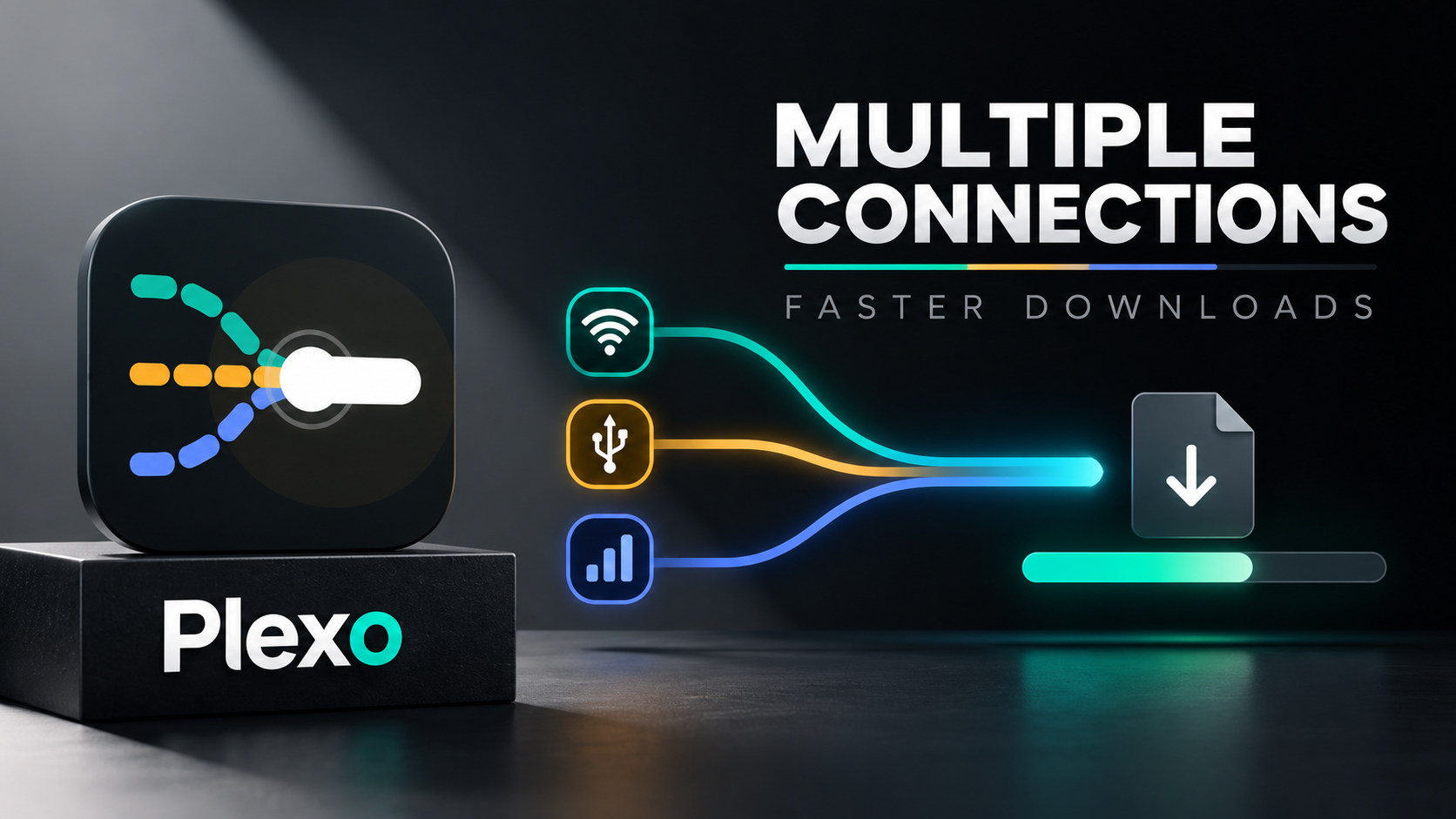
Plexo is an open-source application presented as a way to aggregate bandwidth from multiple network interfaces. Instead of relying on only one active connection, it can use available connections such as Wi-Fi, Ethernet and mobile data tethering together. This can be useful when downloading large files or torrents and one connection alone is too slow.
The supplied demonstration downloads a Kali Linux Desktop ISO through a torrent while using Wi-Fi and a USB-tethered phone connection. Plexo's interface displays live connection activity, speed graphs, average and peak throughput, and a block map showing pieces being downloaded. The script describes the application as lightweight, with support for standard files and torrents.
What Is Plexo?
Plexo is described in the supplied script as a free, open-source bandwidth aggregation tool developed by Anmol Kapil. Its main purpose is to distribute download activity across multiple available network interfaces. Instead of manually switching connections, users can configure available networks and let Plexo use them during a supported download.
The script says Plexo can continue using other connections if one slows down or drops. Actual speed gains depend on network conditions, the number and quality of active connections, the download source and traffic handling. Combining connections does not guarantee that every download will become faster by a fixed amount.
Key Features
- Multiple network interfaces: combine available Wi-Fi, Ethernet and mobile-network tethering connections.
- Bandwidth aggregation: distribute download traffic across active connections rather than relying on a single interface.
- Torrent and standard-file support: the demonstration imports a torrent file for the Kali Linux Desktop ISO.
- Live network statistics: monitor activity from each connection through a real-time graph.
- Per-connection indicators: the demonstration uses green and yellow indicators to distinguish Wi-Fi and USB-tethered traffic.
- Download block map: view pieces of the file being downloaded and assembled.
- Throughput history: view speed over the last 60 seconds, average speed and peak speed.
- Lightweight interface: the script describes Plexo as resource-conscious while running in the background.
- Connection resilience: the script says other connections can continue contributing when one slows or drops.
Watch the Full Video
Supported Platform and Package Options
The supplied script describes Plexo as a Linux application. The presenter says they downloaded and installed a .deb package and notes that an AppImage version is available for users who prefer not to install anything permanently. Choose a package that matches your Linux distribution and architecture, and check the project's current release information before installing.
Requirements Before Using Plexo
- A supported Linux environment and a Plexo release compatible with your distribution and CPU architecture.
- At least two usable network connections to test bandwidth aggregation.
- USB tethering enabled on a phone if you plan to use a mobile connection over USB.
- Enough data allowance for large downloads, especially when using mobile data.
- A download or torrent source that you trust and have permission to access.
How to Set Up and Test Plexo
1. Download Plexo. Open the official project page and select a release for your Linux environment. The video mentions the .deb package and AppImage option.
2. Install or launch the package. Install the .deb using the method appropriate for your distribution, or use AppImage if you prefer a portable package. Follow the project's current instructions.
3. Connect multiple networks. Connect to Wi-Fi and, if needed, enable USB tethering on a phone. Ethernet can be another option. Confirm that each connection works before opening Plexo.
4. Open Plexo and inspect connections. Launch the app and check which network interfaces are available. In the demonstration, the presenter uses Wi-Fi and one USB-tethered connection because the PC setup can use only one USB tethering connection at a time.
5. Import a supported download. The video imports a torrent file for the Kali Linux Desktop ISO. For your own test, use a legitimate file or torrent from a trusted source.
6. Watch the live statistics. Observe whether Plexo is using both connections. Review per-network indicators, the real-time graph, block map, average throughput and peak speed.
7. Compare results fairly. Test the same download under similar conditions with one connection and then multiple connections. Network congestion, source limits and mobile signal can affect the outcome.
Understanding the Speed Graph and Block Map
The graph updates in real time so users can see how much data each connection contributes. The green and yellow indicators in the demonstration distinguish Wi-Fi and USB-tethered traffic. The block map visualizes pieces of the ISO as they are downloaded and assembled.
The script also points out throughput history for the previous 60 seconds, along with average and peak speed. These figures help users judge whether the combined setup is improving performance instead of relying on a brief speed spike.
Limitations and Practical Tips
- Speed increases are not guaranteed; they depend on available connections, the download source and how traffic is handled.
- Multiple connections may use more mobile data, so monitor your plan before downloading large files.
- Some computer or OS configurations may limit simultaneously usable USB-tethered connections; the video demonstrates this limitation.
- Use packages that match your distribution and architecture, and follow current official installation instructions.
- Only download files and torrents from legitimate sources. A faster connection does not make an untrusted download safe.
Who Should Use Plexo?
Plexo may be useful for Linux users who regularly download large files or torrents and have more than one available internet connection. Its live per-interface graphs and throughput statistics make it easier to inspect how connections are being used. Users with only one network connection may see less benefit from its main bandwidth-aggregation feature.




Discussion (0)
Post a Comment
No comments yet. Be the first to share your thoughts!