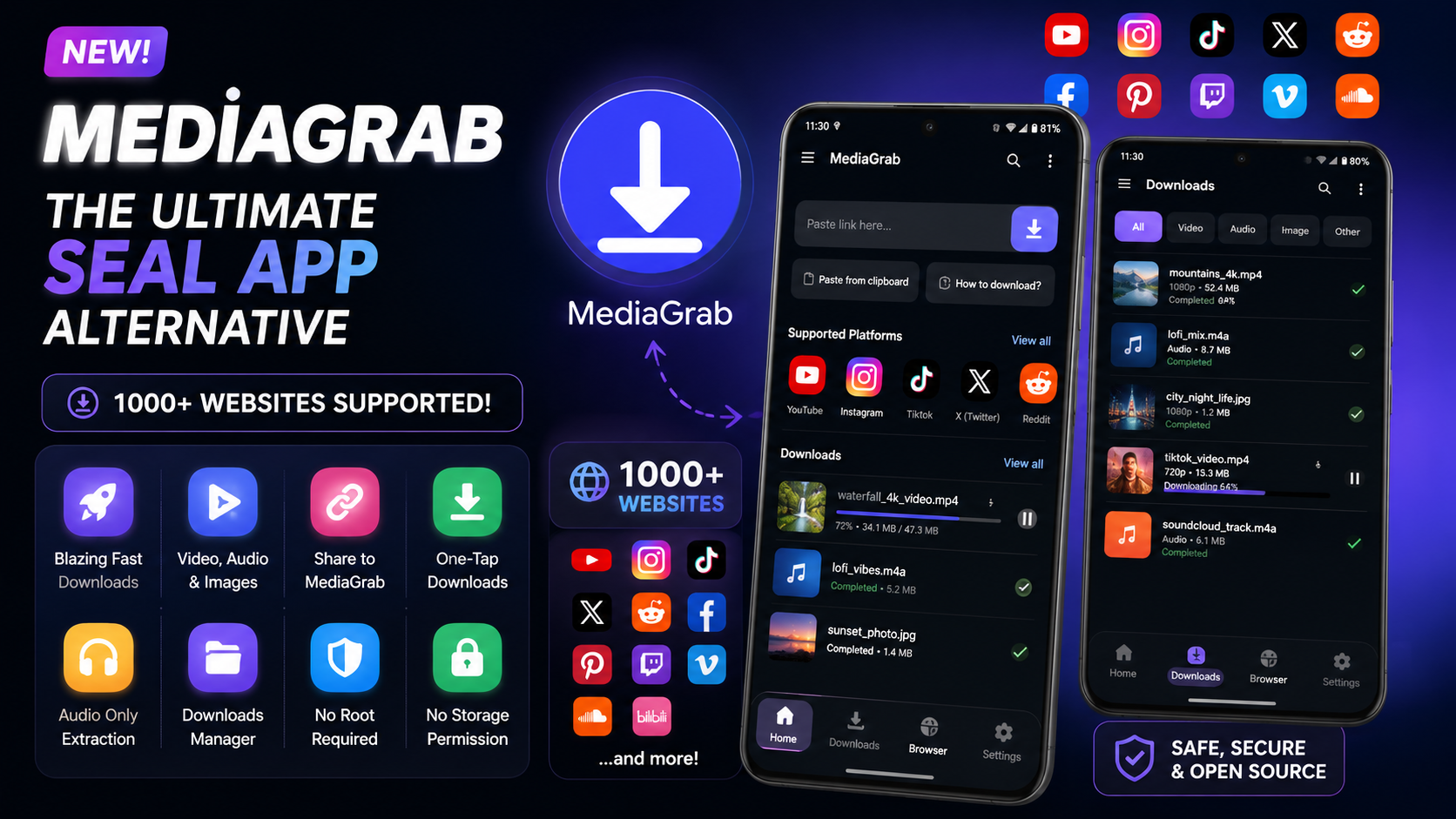
Hey everyone, welcome back to another tech update! If you’ve been on the lookout for a powerful, reliable, and completely free alternative to the popular Seal app, you are in the right place. Today, I’m thrilled to introduce you to MediaGrab. This is a robust, open-source media management tool for Android that lets you safely back up, archive, and manage images, video, and audio from over a thousand different websites.
Whether you need to save your own uploaded content from platforms like YouTube, Instagram, TikTok, X (formerly Twitter), Reddit, Facebook, Pinterest, Twitch, Vimeo, Bilibili, or even grab royalty-free tracks from SoundCloud, MediaGrab handles it all effortlessly. It is basically the ultimate all-in-one downloading utility you need on your phone right now. Let's dive deep into what makes it so special.
What Makes MediaGrab the Ultimate Tool?
When it comes to downloading utilities, a lot of apps on the market are bloated with intrusive ads or require sketchy permissions. MediaGrab takes a different approach. Because it is open-source, the code is completely transparent, privacy-respecting, and entirely free from aggressive monetization.
Under the hood, this application is incredibly powerful. It is powered by a bundled yt-dlp engine, combined with ffmpeg for smooth file merging and aria2c for accelerated downloading. This means it can pull media from over a thousand sites with incredible speed and stability. For users looking to archive pure image posts (like Open Graph or Twitter cards), it features a reliable metadata-scraper fallback. Furthermore, it handles Reddit natively through its public JSON API, ensuring clean, high-quality downloads.
From a design perspective, MediaGrab looks absolutely stunning. It utilizes a modern Material 3 UI that seamlessly supports light, dark, and system themes with instant switching, so it looks great on any device, day or night. And the best part? You do not need any complicated Shizuku setups or root access to make it work. It uses the modern Android MediaStore API, meaning it doesn't even need to ask for broad storage permissions on Android 10 and above!
Watch the full tutorial here on our Youtube channel:
Step-by-Step Installation Guide
Installing open-source apps outside of standard app stores can sometimes feel intimidating if you've never done it, but it is actually a breeze. Here is exactly how to get MediaGrab running on your device safely.
Step 1: Download the APK First, head over to the official open-source repository page for MediaGrab (you can find the link in my Telegram channel) and download the latest APK release. The file size is surprisingly lightweight, ensuring it won't clutter your device's internal storage.
Step 2: Locate the File Open up your preferred File Manager and navigate to your Downloads folder. Tap on the MediaGrab APK file to initiate the setup process.
Step 3: Temporarily Disable Play Protect (If Blocked) During your first installation attempt, you might notice that the installation gets blocked or fails. Don't panic—this is a very common scenario for brand-new open-source utility apps that haven't been heavily indexed by Google yet. To fix this:
- Quickly open the Google Play Store.
- Tap on your profile picture in the top right corner.
- Select Play Protect and tap the gear icon (Settings) in the top right.
- Toggle off "Scan apps with Play Protect" temporarily.
Step 4: Complete the Installation Go back to your File Manager and tap the MediaGrab APK again. Hit "Install," and it will go through perfectly this time.
Step 5: Re-enable Play Protect For your device's overall security, always remember to go back into the Play Store and turn Play Protect back on right after the installation finishes.
How to Use MediaGrab
Using the app to archive your media is an absolute joy. Let’s say you want to back up an educational reel or your own creative video from Instagram. You have two incredibly simple methods:
- The Native Share Menu: Simply tap the "Share" button on any post inside your social media app and select "Share to MediaGrab" from the Android share sheet. The app will automatically parse the link and start the backup process.
- The Floating Accessibility Button: This feature is a massive time-saver. You can enable a one-tap floating button that hovers on your screen while you browse supported apps like Instagram, TikTok, or X. Just tap the floating button while watching a clip, and the foreground service kicks in. You'll see a live progress notification right in your status bar, and it finishes super fast.
Additionally, if you only need the sound—perfect for saving podcasts, interviews, or background tracks—MediaGrab offers an audio-only extraction feature in m4a format. You can manage everything through the built-in downloads manager, which lets you easily search, filter, retry failed transfers, or clear your history completely.
Why I Use This Utility Daily
As a tech blogger and content creator, I am constantly researching tutorials, saving reference materials, and keeping offline backups of my own uploaded content across multiple platforms. Before finding MediaGrab, I had a messy folder of different downloader apps for different websites, most of which were filled with annoying pop-up ads and tracking scripts.
MediaGrab consolidated my entire workflow. I use it daily to archive tech announcements from X and save royalty-free audio tracks directly to my local storage. The sheer convenience of the floating accessibility button means I don't have to break my scrolling flow to save something important to my device. It's become an indispensable utility for maintaining my personal offline media library.
Battery Impact and Performance Analysis
One of my biggest concerns with background utility apps—especially those using accessibility services for floating overlays—is battery drain. I tested MediaGrab heavily over the last few weeks, keeping the accessibility button active during my daily social media browsing.
The results? Surprisingly excellent. Because the app is incredibly lightweight and doesn't run hidden tracking scripts or ad frameworks in the background, the battery impact is virtually unnoticeable. The aria2c integration also means that downloads finish so quickly that the CPU doesn't stay engaged for long periods. Even when utilizing the ffmpeg engine to merge high-resolution video and audio tracks, it handles the processing efficiently without causing my phone to heat up.
Potential Bugs and How I Fixed Them on My Device
While MediaGrab is fantastic, open-source software can sometimes have minor quirks as it evolves. During my initial testing, I encountered a couple of hiccups:
Issue 1: Downloads failing on certain X (Twitter) threads. Sometimes, if a post has multiple mixed media types (like a photo and a video in one single post), the app would get confused and fail to parse the link. My Fix: I realized this was an issue with the underlying yt-dlp engine needing an update. Since MediaGrab relies on this engine, I went into the app's settings and triggered the option to "Update yt-dlp backend." Once the backend updated to the newest repository version, the mixed-media parsing worked flawlessly.
Issue 2: The floating button disappearing. On Android devices with aggressive background battery management (like newer Xiaomi or Samsung devices), the system sometimes kills the accessibility service to save RAM, causing the floating button to vanish. My Fix: I went into my phone’s Settings > Apps > MediaGrab > Battery, and changed the restriction profile from "Optimized" to "Unrestricted." I also locked the app in my recent tasks menu. Since making that quick tweak, the floating button has remained perfectly stable.
Final Thoughts
If you are serious about managing your digital media, keeping offline backups of valuable educational content, and want a clean, privacy-respecting tool, MediaGrab is a must-have application for your phone. It easily rivals—and in many practical ways surpasses—popular alternatives like Seal.
Thanks for dropping by to read this guide. Let me know your thoughts and your favorite open-source utilities down in the comments below, and I will catch you in the next tech update!
Subscribe to our YouTube channel for daily Android tips, tricks, and tutorials: TechyNoob
Discussion (0)
Post a Comment
No comments yet. Be the first to share your thoughts!