
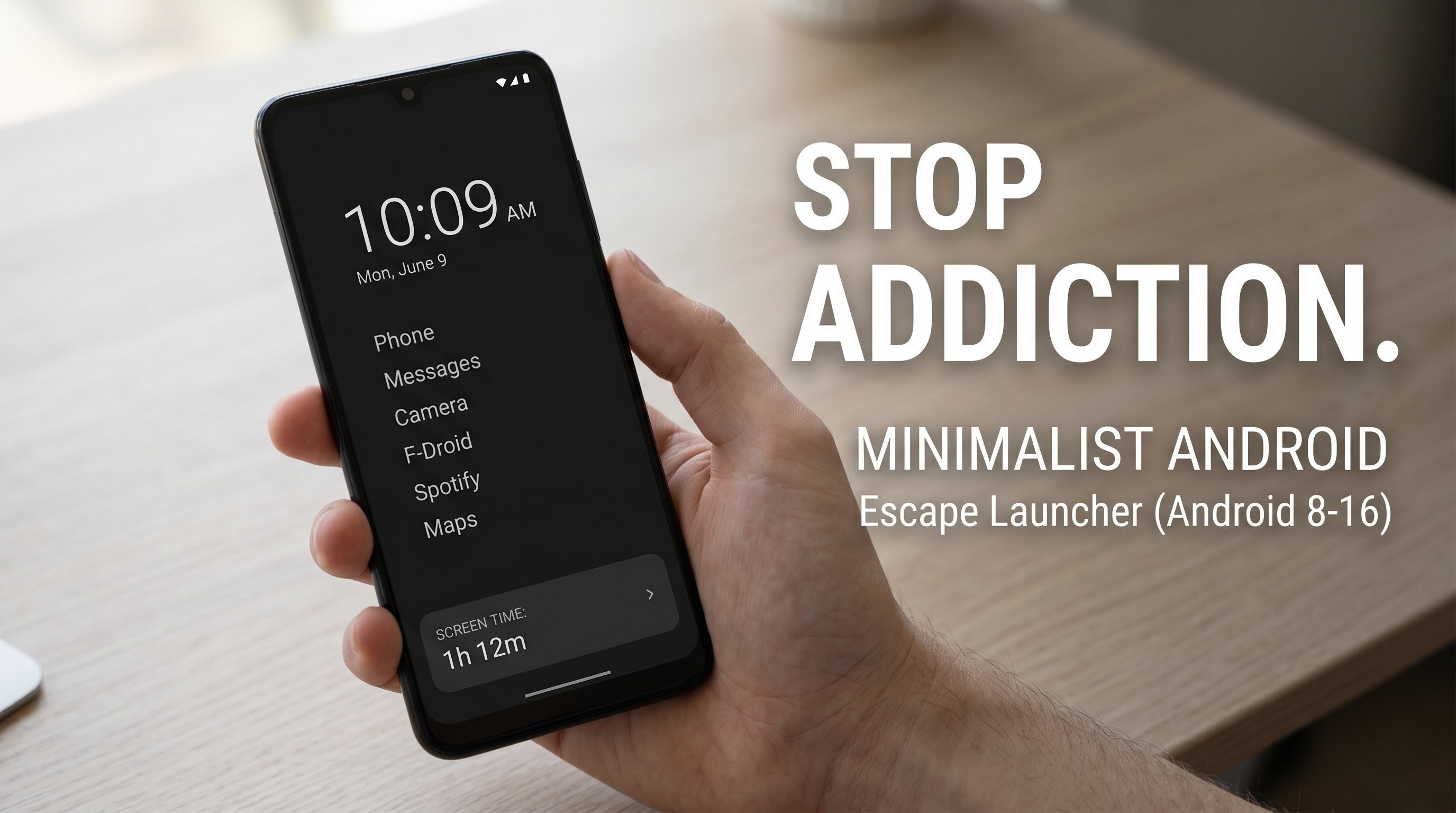
The modern smartphone is a marvel of engineering, but it is also an intentional distraction machine. From bright, flashing notification badges to algorithms specifically designed to maximize your scrolling time, breaking free from screen addiction can feel like an uphill battle. If you find yourself mindlessly opening social media apps every few minutes, changing your phone's digital environment might be the solution.
One of the most effective ways to reshape your relationship with your device is by changing your home screen. A minimalist launcher transforms your interface from a dopamine-inducing playground into a purely functional tool. Among the options available today, Escape Launcher stands out as a powerful open-source solution built to help users regain control of their digital lives.
What is Escape Launcher?
Escape Launcher is a minimalist home screen replacement for Android devices. Designed with the clean aesthetics of Material UI 3, it strips away the visual clutter that triggers compulsive phone checking. Instead of rows of colorful icons competing for your attention, it presents a stark, distraction-free environment.
The application supports a massive range of software, offering seamless compatibility all the way from older Android 8 devices up to the latest Android 16 release. Beyond its clean look, it includes intentional friction mechanics—such as mandatory countdown timers before specific apps open—to force a moment of mindfulness before you dive into an addictive feed.
Key Features for Digital Minimalism
To successfully beat smartphone addiction, an app needs to offer more than just a black background. Escape Launcher integrates several core features to enforce healthy boundaries:
- Built-in Screen Time Tracking: Keep an honest eye on your usage with a dedicated dashboard that displays your active minutes directly on your primary interface.
- Intentional Delay Timers: You can configure a brief countdown delay before specific apps are allowed to open, breaking the habit of subconscious, muscle-memory tapping.
- Android 15 & 16 Private Space Support: It remains one of the only minimalist launchers fully compatible with the native Private Space profile feature, allowing you to isolate and secure sensitive apps.
- Clean Text-Based UI: By replacing bright app icons with simple, customizable fonts and text lists, the visual temptation to open apps is dramatically reduced.
Watch the full tutorial here on our Youtube channel:
Step-by-Step Installation and Setup Guide
Because Escape Launcher focuses on deep system integration and privacy-focused open-source distribution, setting it up involves installing the package package directly and configuring a few vital system permissions. Follow these steps to get started:
Step 1: Locate and Prepare the Installer File
First, you will need to access the installation package (the APK file) on your Android device. Open your preferred local File Manager application and navigate to your Downloads directory (or the folder where you saved the installer file). Ensuring you have the direct installer package ready in your local directory makes the setup process straightforward.
Step 2: Install the Application
Tap directly on the Escape Launcher APK file within your file manager. Your Android operating system will present a security prompt asking if you wish to proceed with installing the application. Confirm the action by clicking Install. Within a few moments, the package will unpack, and the system will notify you that the launcher is ready to open.
Step 3: Grant Vital Accessibility Permissions
To unlock the core anti-addiction features of Escape Launcher, you must provide it with the necessary system permissions. Upon opening the app for the first time, you will be prompted to enable accessibility access:
- Open your Android device's system Settings.
- Navigate to the Accessibility menu.
- Locate Escape Launcher from the list of downloaded or installed services.
- Toggle the permission switch to On and confirm the system prompt.
Note: This specific permission is required so that the launcher can accurately track your active screen time and successfully deploy the mindfulness countdown timers before addictive apps launch.
Step 4: Configure Your New Minimalist Space
With the setup complete, you will be greeted by an intentionally sparse home screen displaying only the time, date, your current screen statistics, and a chosen list of essential text shortcuts. Swipe over to view the unified app list, use the quick search bar to find hidden utilities, or dive into the settings menu to personalize your font styles and adjust your screen time dashboard goals.
Final Thoughts
Regaining control over your time doesn't require switching to a primitive "dumb" phone. By implementing a minimalist layout like Escape Launcher, you maintain the high-end utility of your smartphone—like navigation, work profiles, and banking—while stripping away the triggers that lead to endless scrolling. It is a practical, modern approach to digital well-being.
Subscribe to our YouTube channel for daily Android tips, tricks, and tutorials: TechyNoob

Discussion (0)
Post a Comment
No comments yet. Be the first to share your thoughts!