
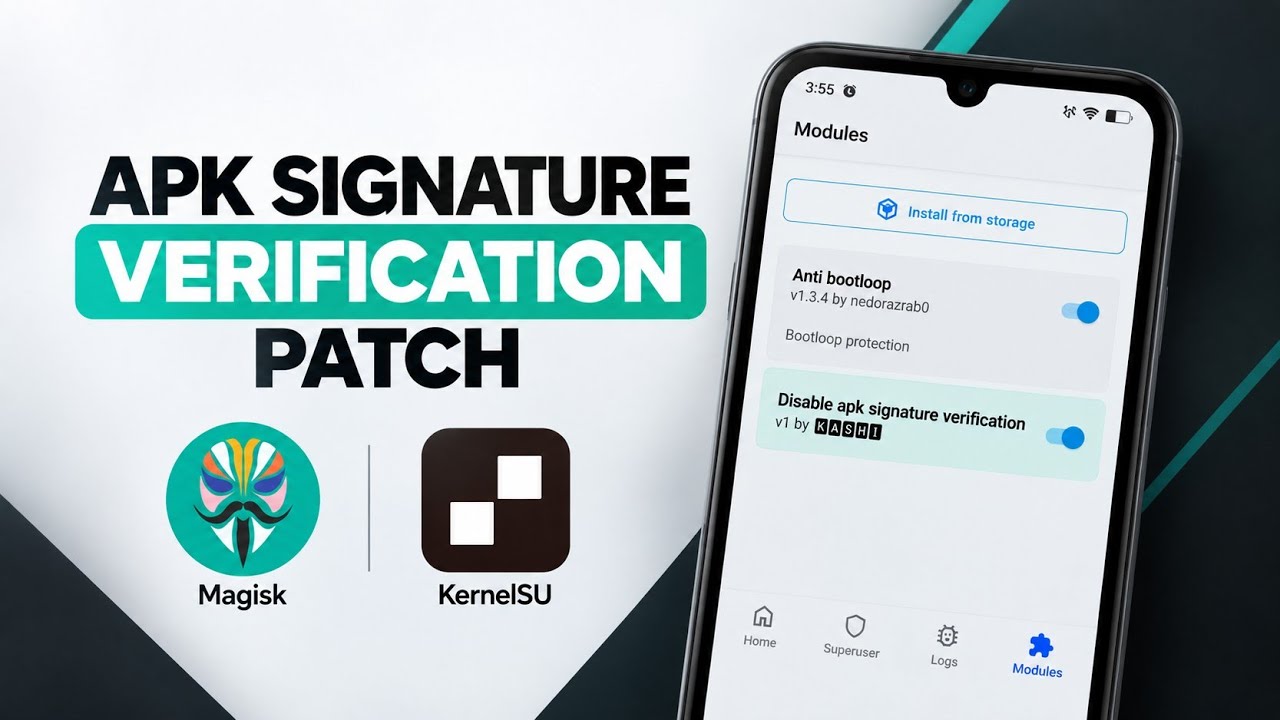
Have you ever tried installing a modified Android application over the original version, only to be greeted with the frustrating “App not installed” error? One common reason is a signature mismatch. Android normally checks an application's signing certificate when installing updates, and if the new APK is signed differently from the installed version, the installation may be blocked.
The APK Signature Verification Patch is a root module designed to modify Android's package verification behavior. It aims to relax signature verification restrictions, making it possible to install certain modified applications or differently signed builds over existing installations without first uninstalling the original app.
In this guide, we'll look at what the module does, how to install it through Magisk or KernelSU, and what to consider before changing Android's application verification behavior.
Watch the Full Video
Watch the complete installation and demonstration:
Download APK Signature Verification Patch
Download APK Signature Verification Patch
Keep the downloaded ZIP archive intact. Do not extract it before flashing.
Credits / Official Developer
Developer / Source: Mods-Center
Official GitHub / Developer Source
What Is APK Signature Verification Patch?
Android uses application signatures to help verify an app's identity and manage updates. Normally, an update must satisfy Android's signing requirements for the package already installed on the device.
When an APK is modified and signed with a different key, Android may reject it as an update to the original application.
APK Signature Verification Patch is designed to modify the Android framework's signature verification behavior through a root-level module. The goal is to allow certain applications with different signatures to be installed over existing packages.
This can be useful for testing modified applications, experimenting with different builds, or working with applications that would otherwise require uninstalling the existing version.
However, disabling or relaxing signature verification changes an important Android security mechanism. It should not be treated as a routine performance tweak.
Requirements Before Installation
Before installing the module, make sure you have:
- A rooted Android device
- Magisk or a compatible KernelSU setup
- The APK Signature Verification Patch ZIP file
- A reliable way to recover if a module causes boot problems
The module is installed through the root manager's module installation interface. The ZIP must remain unextracted so the manager can process its installation script correctly.
How to Install APK Signature Verification Patch
Step 1: Download the ZIP
Download the module from the developer's official release source.
Open your file manager and navigate to the Downloads folder.
Locate the ZIP archive named Apk-Signature-Verification-Patch. Make sure the archive is complete and has not been extracted.
Step 2: Open Magisk or KernelSU
Launch your root management application.
Open the Modules section and select Install from storage.
Browse to the Downloads folder and select the APK Signature Verification Patch ZIP.
Step 3: Allow the Installation to Finish
Once the ZIP is selected, the installation script begins running.
This module may take noticeably longer to install than a typical root module because it analyzes and patches Android framework components.
Keep the screen awake and allow the process to finish. Do not interrupt the installation or force-restart the device while the patching process is running.
Step 4: Reboot the Device
After the flashing process completes successfully, a reboot option appears.
Tap the reboot button to restart Android and apply the framework changes.
Step 5: Verify the Module
After the phone boots, open Magisk or KernelSU again.
Navigate to the Modules section and confirm that APK Signature Verification Patch is listed as installed and enabled.
This confirms that the root manager recognizes the module as active, although it does not guarantee that every modified APK will install successfully.
What Can You Do With It?
The module is intended to make certain signature-mismatch installation scenarios easier.
For example, if an application is already installed and you have a modified build signed with a different key, Android would normally reject the update because the signatures do not match.
With the patch active, some of these restrictions may be relaxed, allowing the modified build to install over the existing package.
This can help when testing alternate builds or experimenting with applications while trying to preserve existing app data and login sessions.
However, whether an application can be updated successfully still depends on its package structure, Android version, signing configuration, and other installation requirements.
Important Security Considerations
Application signature verification is an important part of Android's security model.
Relaxing it can make it easier for an untrusted or malicious APK to replace an installed application under certain circumstances. A modified application may also behave differently from the original or expose stored information.
Only install APKs from sources you trust, and keep a backup of important application data.
The module also does not guarantee that every app can be downgraded or replaced. Android may enforce other restrictions, such as version compatibility, package conflicts, or application-specific checks.
If an application becomes unstable after replacing it, restoring the original trusted version may be necessary.
Final Thoughts
APK Signature Verification Patch is a specialized root module for Android users who frequently test modified applications or work with differently signed builds.
Its main purpose is to relax signature verification restrictions so that certain APKs can be installed over existing applications without first removing the original package.
Installation is straightforward through Magisk or KernelSU, but the framework patching process may take longer than a typical module installation.
Because application signature verification is a security feature, use the module carefully, keep backups, and install only software you trust.



Discussion (0)
Post a Comment
No comments yet. Be the first to share your thoughts!