
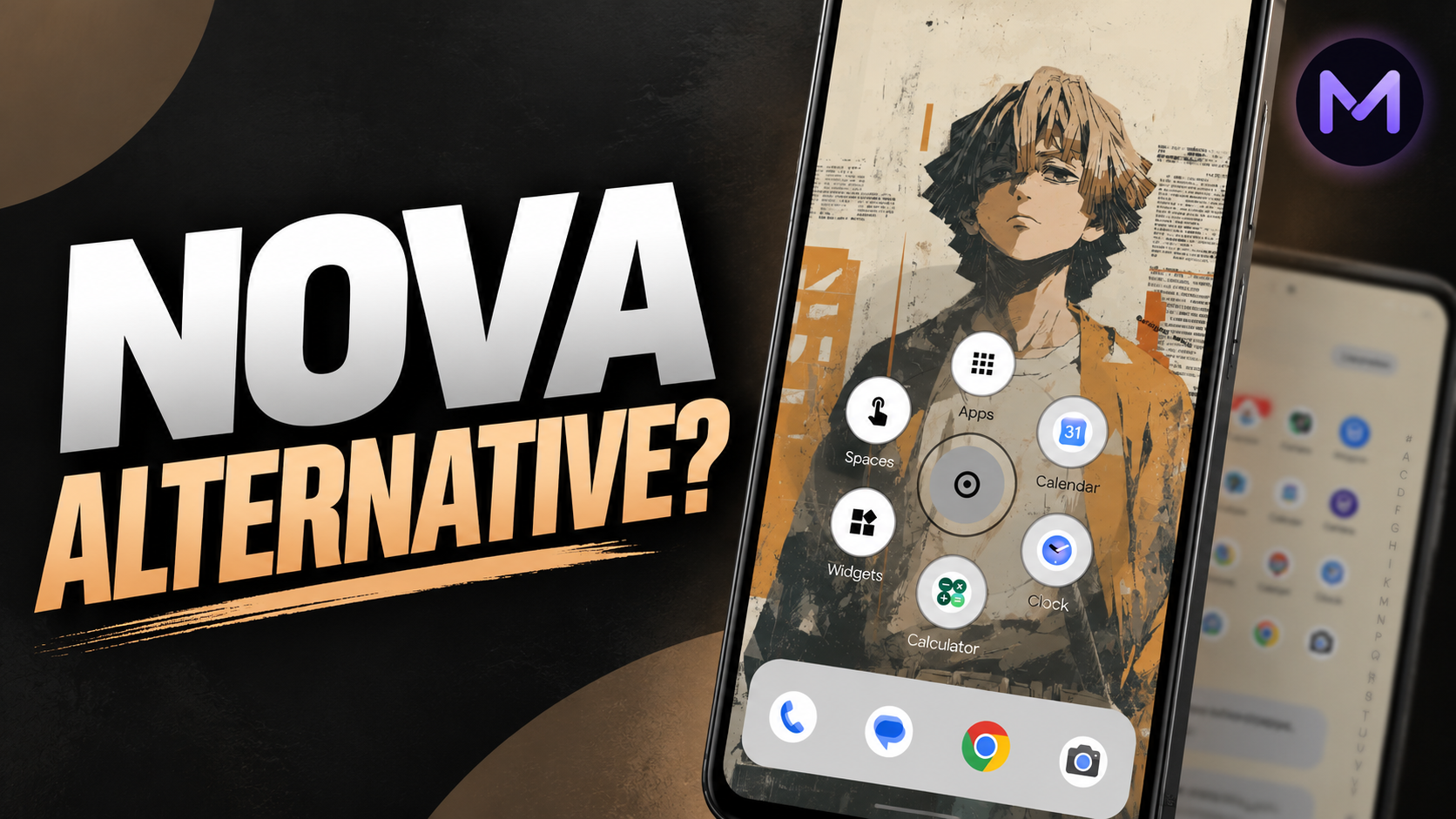
Meridian Launcher is an Android launcher focused on privacy, a minimal home-screen design and deep customization. In the supplied video, the developer collaboration is disclosed, and the launcher is presented as having no subscriptions, advertisements, analytics or features locked behind a paywall. The review demonstrates its home screen, Orbit radial app menu, alphabet-based app drawer navigation, search, widgets, detailed layout settings, gestures, Spaces and optional AI assistant.
The launcher is also presented as an option for people switching from Nova Launcher: its setup wizard can import a Nova backup so the user can carry over a layout rather than rebuilding it manually. The exact results may depend on the backup and features supported by Meridian, so users should review the imported layout before removing their previous launcher.
What Is Meridian Launcher?
Meridian Launcher replaces the default Android home screen with a customizable environment for app shortcuts, widgets, search and gestures. Its design emphasizes a clean, minimal appearance while providing controls for precise placement and separate home-screen modes. The video compares it with Nova, Smart Launcher, Niagara and Lawnchair, highlighting privacy, automated Spaces and flexibility as its distinguishing points.
Privacy and Pricing
According to the supplied script, Meridian has no subscriptions, advertisements, analytics or paid features. The optional AI assistant is off until the user manually enables it. The video says users can connect their own provider by entering a key, and that the key remains off until the assistant is switched on. Because these are claims presented in the video, readers should consult the current app listing and privacy information for the latest details before installation.
Watch the Full Video
Key Features
- Nova backup import: the setup wizard can read a Nova Launcher backup to help transfer an existing layout.
- Minimal home screen: a clean interface designed to keep the screen uncluttered.
- Orbit radial app menu: press and slide toward an app, then release to launch it.
- Alphabet-based app drawer navigation: move along the edge by letter to find apps without repeatedly scrolling through long pages.
- Powerful search: search contacts, apps and settings, with T9 support.
- Built-in and standard widgets: Meridian includes widgets designed for its layout alongside regular Android widgets.
- Detailed home-screen grid: configure grids up to 16 by 16 and use half-cell placement for precise positioning.
- Layout controls: adjust side, top and bottom margins and control the system status bar.
- Icon customization: use icon packs and choose from seven icon shapes.
- Widget stacks: organize widgets using the launcher's widget-stacking support.
- Flexible dock: change the number of dock icons, add multiple dock pages and customize the dock background.
- Gesture configuration: assign actions to 16 triggers and customize the gesture pad.
- Spaces: switch between separate home-screen environments, including Everyday and Focus by default, and create additional modes. Spaces can switch automatically on a schedule.
- Custom drawn gestures: assign a drawn symbol or letter to an action, such as launching 1DM with a '1' gesture or opening Clock with a 'T' gesture.
- App drawer controls: change columns, layout and background style.
- Optional AI assistant: add a chat page to the left of the first home screen and use supported providers, including local models through Ollama or online services named in the script such as OpenAI, Gemini, DeepSeek and Grok.
- Natural-language customization: the video demonstrates an instruction such as making icons square, with the assistant applying the requested change.
Switching from Nova Launcher
One practical feature shown in the video is the ability to import a Nova backup during initial setup. This can make migration faster because users may not need to recreate their home-screen layout from scratch. Before switching, create a fresh backup in Nova, keep the backup file available, and check the imported layout and widgets in Meridian. Some launcher-specific settings or widgets may not transfer exactly.
Orbit: A Radial App Menu
Orbit is a radial app menu positioned at the center of the launcher experience shown in the video. To open an app, press on the menu, slide toward the target application and release. The presenter demonstrates launching Clock and later Calendar. This interaction offers an alternative to tapping through the app drawer and may be useful for people who prefer gesture-led navigation.
App Drawer and Search
The app drawer uses letter-wise navigation along the edge, allowing users to move directly through the alphabet. The bottom search button can search apps, contacts and settings, and the script specifically notes T9 support. Users who keep many apps installed may find these tools useful for reaching a destination without scrolling through multiple pages.
Home Screen, Dock and Widget Customization
Meridian's home-screen settings allow grids up to 16 by 16, half-cell placement and adjustment of side, top and bottom margins. The video also shows controls for the system status bar, support for icon packs, seven icon shapes and widget stacks. Dock settings let users choose how many icons appear, add multiple dock pages and adjust the background into a rounded style that can match the wallpaper.
The app also includes widgets designed specifically for Meridian's layout, as well as standard app widgets. The app drawer settings provide further control over columns, layout and background appearance.
Gestures and Spaces
The launcher offers 16 assignable gesture triggers and a configurable gesture pad. In the demonstration, a custom '1' gesture is assigned to launch 1DM, and a 'T' gesture is configured to open Clock. This allows users to create direct shortcuts for frequently used actions.
Spaces provide separate home-screen environments. The video says Everyday and Focus are available by default, with the ability to create additional customized spaces. These spaces can switch automatically according to a schedule, making it possible to use different home-screen setups for different routines or contexts.
Optional AI Assistant
Meridian includes an optional assistant that appears as a chat page to the left of the first home screen. The supplied script says users can bring their own provider, with options named in the video including Ollama for local models and OpenAI, Gemini, DeepSeek and Grok for online services. The user pastes a key and manually enables the assistant; the video emphasizes that it remains off until the user turns it on.
Before connecting a provider, review that provider's data-handling terms and the credentials involved. Keep API keys private and only enter them into the app if you trust the current implementation. The script does not specify which provider models, endpoints or pricing plans are supported, so check Meridian's current documentation for those details.
Getting Started
1. Install Meridian Launcher. The supplied video shows the app installed from Google Play. Find the current official listing and verify the app identity before installing.
2. Import your existing layout if needed. If moving from Nova Launcher, create a Nova backup and use Meridian's setup wizard to import it. Review the result before deleting your previous setup.
3. Set up the home screen. Choose your preferred minimal layout and configure the grid, margins, icons and widgets.
4. Explore Orbit and search. Try the radial app menu and letter-wise app drawer navigation. Use search for apps, contacts and settings.
5. Customize the dock and gestures. Set the dock icon count and pages, then assign gestures to frequently used apps or actions.
6. Configure Spaces. Start with Everyday and Focus, then create additional spaces if useful. Set schedules according to your routine.
7. Decide whether to enable the AI assistant. The assistant is optional. If you choose to use it, select a supported provider, enter credentials carefully and manually enable the feature.
8. Review privacy settings. Check the current Play Store listing and privacy information for up-to-date disclosures, especially before enabling third-party AI services.
Who Is Meridian Launcher For?
Meridian may appeal to Android users who want a highly customizable home screen without subscriptions or ads, prefer gesture-based navigation, need separate home-screen modes, or want to migrate from Nova Launcher. Its 16-by-16 grid, half-cell placement, dock pages, widget stacks and custom gestures offer fine-grained control. The optional AI assistant may also interest users who want natural-language customization and the ability to choose a model provider.
Things to Consider
- Importing a Nova backup may not reproduce every launcher-specific setting or widget exactly.
- Advanced customization options can take time to configure; users who prefer a very simple launcher may not need all of them.
- The AI assistant is optional and requires choosing a provider. Review the provider's privacy and credential-handling practices before enabling it.
- Features and privacy claims may change with future versions, so verify the current app listing and documentation.
- The supplied script does not include a direct Google Play URL or a separate developer website link, so those have not been invented in this article.
Final Verdict
Meridian Launcher combines a minimal interface with extensive customization. Orbit offers a distinctive radial way to launch apps, alphabet navigation and T9 search make the app drawer practical, and the home-screen grid, dock, widgets and gesture pad provide detailed control. Spaces add scheduled home-screen modes, while the optional bring-your-own-provider assistant offers another route to customization. Its stated no-subscription, no-ad and no-analytics approach is a key part of the pitch in the supplied video. Readers should confirm the current listing and privacy information before installing.
Download
Collaboration Disclosure
This article is based on a video made in collaboration with the Meridian Launcher developer.
Discussion (0)
Post a Comment
No comments yet. Be the first to share your thoughts!