
What Is Leaf Flasher?
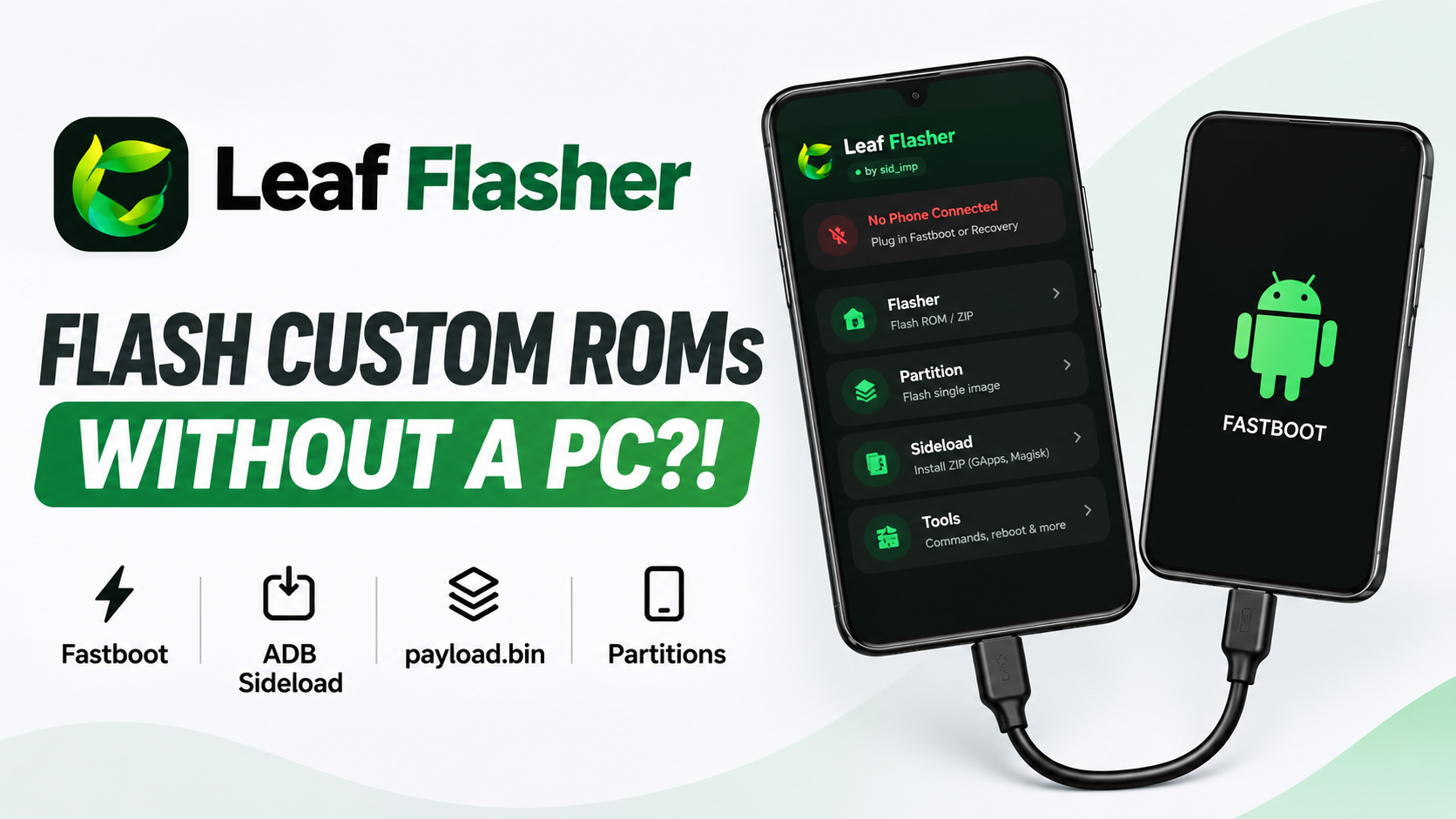
Leaf Flasher is an Android-to-Android flashing utility for people who want to work with Android firmware and custom ROMs without keeping a computer nearby. With a USB OTG connection, one Android phone can act as the flashing device while a second phone is connected in Fastboot or Recovery mode. The app brings several common maintenance and modding tasks together in one mobile interface.
The workflow described for Leaf Flasher covers Fastboot, FastbootD, payload.bin and ADB Sideload operations. This can be useful when travelling, working away from a desk or troubleshooting a device when a PC is unavailable. It does not mean every phone, cable or firmware package will be compatible, so check the target device and package instructions before proceeding.
Privacy and Installation
Leaf Flasher is presented as a lightweight, offline application. The supplied description states that it does not request internet permission and includes no advertisements or trackers. Obtain the APK from the project's trusted release source and make sure you have the intended build.
Locate the downloaded APK in your file manager and tap it. If Android asks for permission to install unknown apps, allow installation for that file manager and return to the installer. Tap Install, wait for Android to finish, and open Leaf Flasher when the installation confirmation appears.
Connect the Second Android Phone
After opening the app, a dark-themed interface presents a short four-step tour. The status card at the top indicates whether the connected device is detected and ready. Connect the target phone to the Android device running Leaf Flasher with a suitable USB OTG cable or adapter. The target device should be in the appropriate Fastboot or Recovery mode for the operation you intend to perform.
The status card is expected to change to green or blue when the connection is recognized. If the device is not detected immediately, use the refresh control in the top-right corner and check the physical connection. Make sure the OTG adapter is firmly connected and that the target phone is in the required mode. A cable that only supports charging may not provide the data connection needed for flashing.
Using the Flasher Tab
The Flasher tab is intended for working with a full ROM package. You can select a ROM ZIP file, which the app unpacks automatically, or choose a ROM folder that has already been extracted. Before flashing begins, Leaf Flasher presents four configuration choices: Boot Slot, Wipe Data, Extra Files and dm-verity verification.
Read each option carefully and make sure it matches the installation instructions for the ROM and target device. Selecting the wrong slot or choosing to wipe data can have serious consequences, including loss of personal files or an unbootable installation. Back up important data before flashing, and do not assume settings suitable for one ROM or device are correct for another.
Flashing Individual Partitions
The Partition tab is for flashing a single image file rather than a complete ROM package. This can be useful when you need to install an image such as a boot image or recovery image. The app also provides a way to extract boot or init_boot images directly from a ROM ZIP and save them to the Downloads folder.
Those extracted images can then be used for workflows such as patching with Magisk or KernelSU. Extraction itself does not root the phone or patch the image; it simply makes the image file available for the next step. Always use an image intended for the exact device and firmware build you are working with.
ADB Sideload and Additional Tools
The Sideload tab is designed to send ZIP packages through recovery using ADB Sideload. Examples include GApps, Magisk and OTA ZIP packages. The tab also includes quick recovery actions, keeping common recovery-related tasks together rather than requiring a separate computer interface.
The Tools tab provides a command runner, data formatting, slot switching and reboot options. A live output area called Leaves Log displays activity as the app works, allowing you to follow the process and inspect the output. Pay attention to the log if a command or flash does not complete as expected; do not disconnect the cable or interrupt an operation while a write is in progress.
Watch the Demonstration
The walkthrough demonstrates installing Leaf Flasher, connecting another Android phone and navigating the Flasher, Partition, Sideload and Tools tabs. Use it alongside these steps to become familiar with the interface before attempting an operation that changes partitions or user data.
Download and Credits
Get the APK from the download link below and refer to the project's GitHub page for project information and available updates. Check the current instructions before flashing, especially if you are using a newer Android build or an unfamiliar device.
Download: Leaf Flasher APK
Credits: Leaf Flasher GitHub
Important Precautions
A phone-based flashing station is convenient, but flashing remains a low-level operation. Confirm the target device model, firmware and partition requirements before selecting files. Keep a reliable backup, use a data-capable OTG connection and make sure both phones have sufficient battery. Never disconnect the target device during an active flash, and avoid commands or formatting options unless you understand their effect.
Leaf Flasher makes several Android flashing workflows accessible from another phone, but it cannot remove the risks associated with incompatible images or incorrect partition choices. Treat the app as a tool for carrying out a verified procedure, not as a guarantee that any ROM can be installed on any device.



Discussion (0)
Post a Comment
No comments yet. Be the first to share your thoughts!