
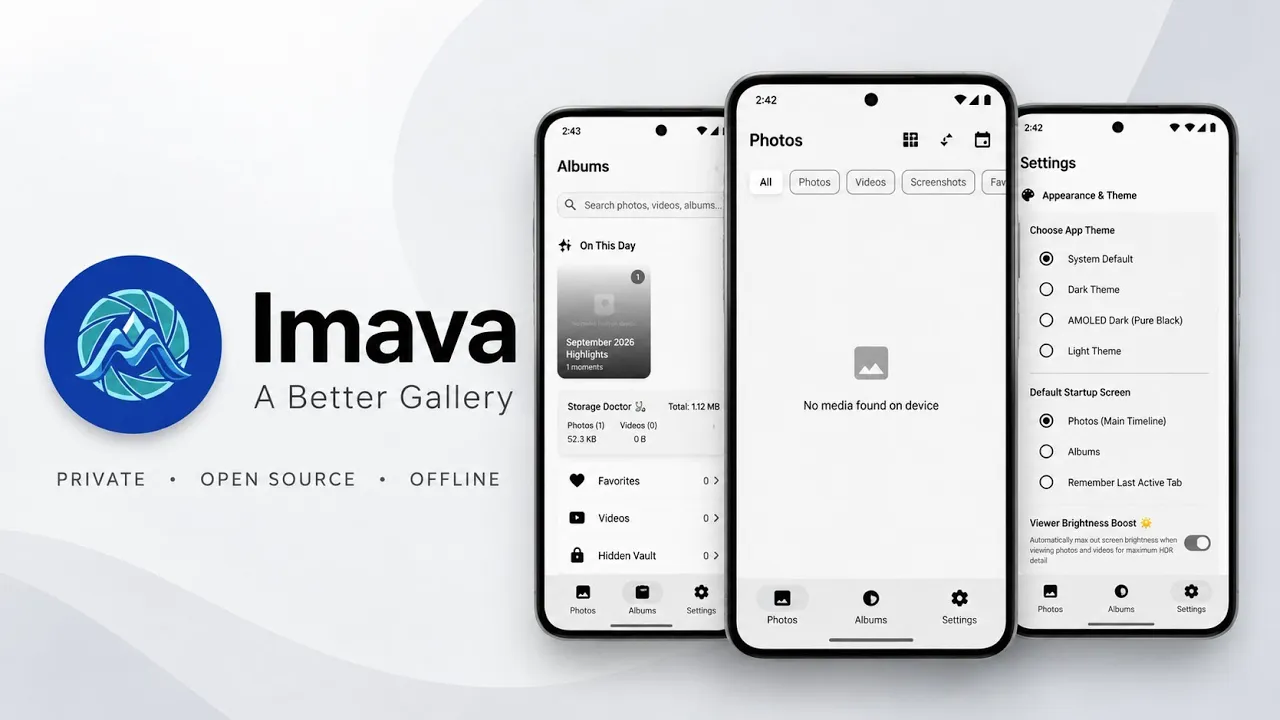
If you want a clean gallery without unnecessary cloud prompts or distracting extras, Imava is an open-source Android gallery worth exploring. It focuses on local media browsing, a modern interface, image viewing, video playback, and useful file information.
What Is Imava?
Imava is an Android gallery application developed by HrshD1eux. It is designed to browse local photos and videos through a minimalist interface. The project uses Jetpack Compose for its interface, Hilt for dependency injection, Room for local database management, Coil for image loading, and Media3 for video playback.
Key Features
Local Media and Privacy
The demonstration describes Imava as keeping its media library on the device, without forced cloud-sync prompts or background analytics. Review app permissions and the current project documentation to understand how your version handles data.
Fast Image Loading
Imava uses Coil for image loading. The demo highlights smooth scrolling when browsing large collections of high-resolution photos. Actual performance depends on device hardware and the size and format of your library.
Local Indexing
Room is used for a local database that indexes media. This helps the app organize and retrieve information without repeatedly rebuilding its entire library.
Immersive Photo Viewer
Tapping a photo opens a distraction-free viewer. Swiping through albums is designed to feel intuitive and keep attention on the images.
Video Playback
Media3 provides video playback. The demonstration shows timeline scrubbing and playback of a local video. Supported formats can vary with device hardware and file encoding.
Dynamic Theming
Imava adapts to system appearance, including light and dark mode, for a more cohesive Android interface.
Media Metadata
The app provides details such as resolution and file paths, which can help when organizing files or checking where a photo or video is stored.
How to Install Imava
Step 1: Download the APK
Use the download link below. The video says the release was obtained from the developer's GitHub repository, while the supplied APK link is hosted separately. Prefer the developer's official release source when available.
Step 2: Locate the File
Open your file manager and navigate to Downloads or the folder where you saved the APK.
Step 3: Install
Tap the APK and follow Android's package-installer prompts. If installation from that source is blocked, verify the file before enabling the required permission.
Step 4: Open Imava
Launch the app and grant only the media permissions needed to display your local photos and videos.
Step 5: Browse Photos and Albums
Let the app index your local media, then browse photos and albums. Tap an image to enter the viewer and swipe between items.
Step 6: Test Video Playback
Open a local video and check whether playback and timeline scrubbing work for your files.
Step 7: Check Metadata and Theme
Open an item's details to inspect information such as resolution and file path. Try light and dark modes to see how the interface follows your system appearance.
Watch the Full Video
Why Choose a Local Gallery?
A local-first gallery can suit people who prefer to manage their own files and do not want cloud synchronization to be central to the experience. It can also be simpler than a gallery built around online services.
Open source alone is not a complete privacy guarantee. Review permissions, updates, and the project's documentation if privacy is a key concern.
Final Thoughts
Imava combines a minimalist gallery interface with local media indexing, image viewing, video playback, dynamic theming, and metadata access. If you want an alternative gallery app for Android, try it on your own device and check its compatibility with your media library.
Discussion (0)
Post a Comment
No comments yet. Be the first to share your thoughts!