
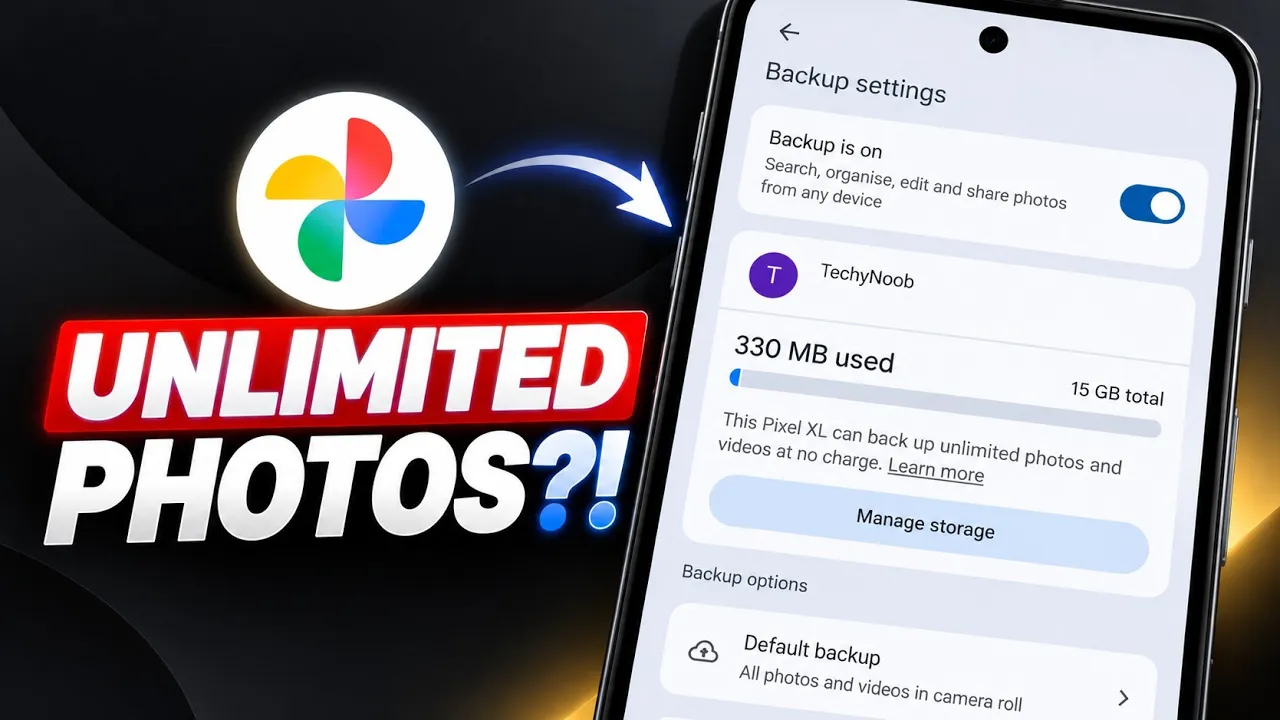
This guide follows the rooted-device method shown in my YouTube video, using a Magisk module ZIP to modify the Google Photos setup systemlessly. After installation, the tutorial checks the app's backup settings for the unlimited-storage message.
Important: This is an unofficial modification, not an official Google storage plan. Google can change server-side behavior or eligibility at any time, and the method may stop working. Keep independent backups of important photos and review the project's current documentation before installing.
Requirements
- Android device with root access and Magisk installed.
- ReVanced Google Photos Magisk module ZIP.
- File manager and a rollback plan in case of problems.
- Separate backup of important photos and files.
The script describes this method as rooted-device-only. If your phone is not rooted, use the non-root guide linked below.
Watch the Full Video
Step-by-Step Installation
1. Download the module
Download the ZIP from the link below and save it to internal storage. Open your file manager, locate the file in Downloads, and confirm it has downloaded completely. Check the package and project source before flashing it.
2. Install through Magisk
Open Magisk and go to Modules. Tap Install from storage, browse to the ZIP, and select it. Let the installation finish without interrupting the process. If Magisk reports an error, stop and check the project's current instructions.
3. Reboot
When flashing completes, tap the reboot option and allow the phone to restart fully before opening Google Photos.
4. Check backup settings
Open Google Photos, tap your profile picture, and go to backup settings. The demonstration shows a message stating that the Pixel device can back up unlimited photos and videos at no charge. Check what your own app displays; the message is not a guarantee of permanent eligibility.
Important Considerations
- This is an unofficial third-party modification, not an official Google feature for non-Pixel devices.
- Compatibility can vary by Android, Magisk, and Google Photos versions.
- Keep another copy of important media; do not delete originals just because the setting appears.
- If Photos crashes or backup stops, consult the project's release notes and follow its documented disable/removal procedure.
Download
Non Root Method Video
🔗 Credits / Official Developer
Final Thoughts
The rooted method uses a Magisk module and then checks Google Photos backup settings. Verify the current project status, back up your media independently, and remember that unofficial workarounds may change or stop working.
Discussion (0)
Post a Comment
No comments yet. Be the first to share your thoughts!