
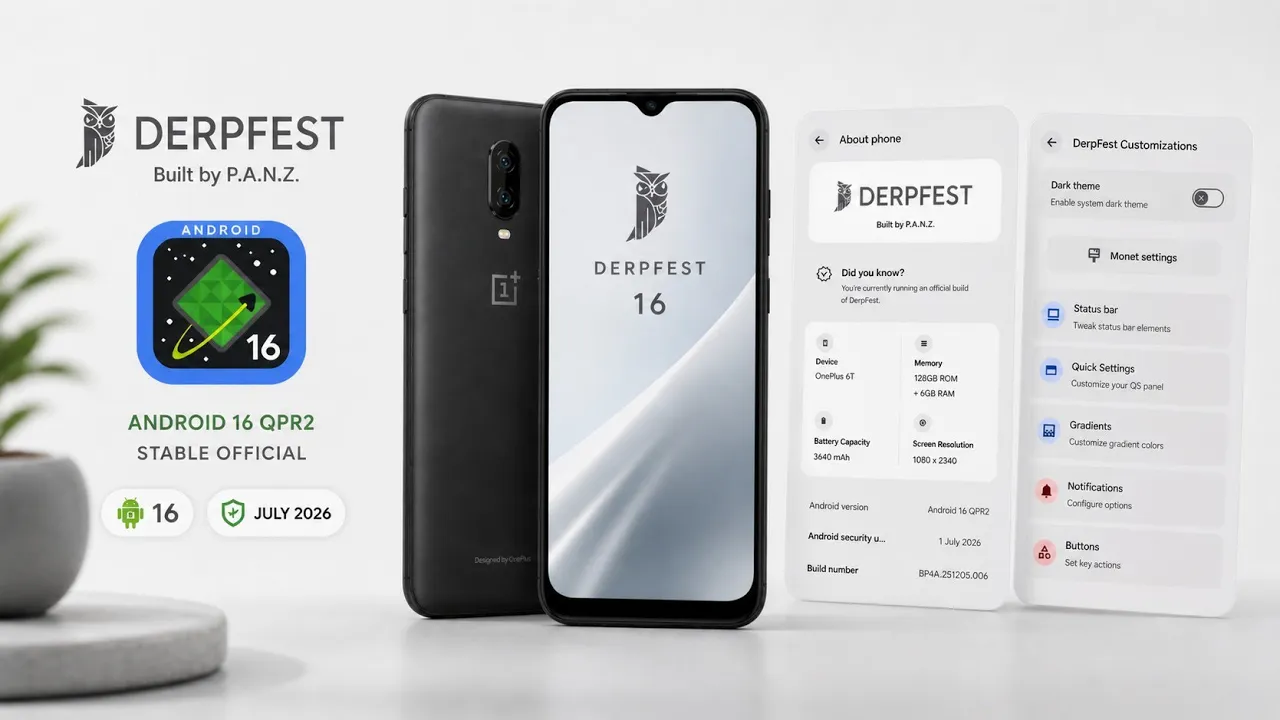
The OnePlus 6T may be an older phone now, but custom ROMs continue to give devices like this a surprisingly long life.
In this guide, I’m updating the OnePlus 6T to DerpFest 16 Stable Official, based on Android 16 QPR2 with the July security update.
The important part here isn’t installing the ROM from scratch. I already had the previous June DerpFest build running, so the goal was to update to the newer release without formatting the internal storage or losing my existing apps, files and settings.
That’s a very different process from doing a clean custom ROM installation.
What You Need Before Starting
You’ll need a few files ready on your computer.
For this update, the script uses:
- Boot image
- Latest DerpFest ROM ZIP
- DTBO image
There are also additional files for users who want to use KernelSU, including the KernelSU Next APK, patched kernel ZIP and an unroot ZIP.
For this particular installation, however, I continued with Magisk, so the KernelSU-patched kernel wasn’t required.
I’m using Linux for the demonstration, but the basic ADB commands work from Windows as well. The main requirement is having Android Platform Tools correctly installed.
YouTube:
Getting Into Recovery
One convenient thing about DerpFest is its advanced reboot menu.
Instead of relying on a physical-button combination, you can open the power menu, select Restart, and then choose Recovery.
The phone will reboot directly into the installed custom recovery.
Once you’re inside recovery, select:
Apply Update → Apply update from ADB
This puts the OnePlus 6T into ADB sideload mode.
Connecting the Phone
Now connect the phone to your computer using a USB cable.
Open a terminal or command prompt in your Platform Tools directory and run:
adb devices
The phone should appear with a sideload status.
This is a small step, but it’s worth checking before attempting the actual update. If ADB doesn’t recognize the phone here, there’s no point moving forward with the ROM transfer yet.
The script demonstrates this verification before beginning the sideload.
Sideloading DerpFest
Once the device is recognized, use:
adb sideload
followed by the path to the DerpFest ROM ZIP.
You can also drag the ZIP file directly into the terminal window to populate the file path.
Press Enter and the transfer will begin.
You’ll see the progress on your computer while the recovery screen on the OnePlus 6T processes and verifies the update package.
Don’t disconnect the cable while this is happening.
A failed transfer is one thing; interrupting a flashing operation unnecessarily is another.
Rebooting Into the Updated System
After the sideload completes successfully, return to the recovery’s main menu and select Reboot to system.
The phone should then boot back into DerpFest.
The important part is that this update process doesn’t involve formatting the internal storage, so your existing applications, settings and personal data remain in place as demonstrated in the video.
That is exactly why this type of update is useful for users who are already running the ROM and simply want to move from an older build to a newer one.
Checking the New Build
After the phone boots, head into Settings → About Phone.
The video confirms that the device is now running DerpFest 16 Stable Official, based on Android 16, with the July QPR2 security update.
You can use this screen to verify that the update actually completed before assuming everything went correctly.
It’s also a good idea to check your important applications and any root-related tools after a major ROM update.
What About KernelSU?
The guide also mentions a KernelSU-based setup.
If you prefer KernelSU instead of Magisk, the required KernelSU Next APK and patched kernel ZIP can be used as part of the update workflow.
The important point is that the guide itself is using Magisk, so the KernelSU files aren’t part of the actual installation demonstrated here.
This is worth clarifying because mixing instructions from different root solutions can create unnecessary confusion.
Choose the setup you’re actually using and follow the appropriate files for that setup.
A Word About Backups
Even when an update is designed to preserve user data, I’d still recommend making a backup before flashing anything.
Custom ROM updates aren’t the same as installing a normal application update.
Your device’s boot image, system components and other partitions are involved, so having an external backup gives you an escape route if something doesn’t go as planned.
Also make sure the ROM you’re flashing is intended for the exact device variant you’re using.
Download and Resources
The download resource supplied with the video is:
For ROM-related community support, the video provides:
DerpFest / OnePlus 6T ROM Support Group
Final Thoughts
Updating an existing custom ROM doesn’t always require wiping everything and starting again.
In this case, the OnePlus 6T was already running the June DerpFest build, and the process shown in the video updates it to the newer DerpFest 16 Stable Official Android 16 QPR2 July build while keeping the existing user data intact.
The important parts are making sure the required files are ready, verifying the ADB connection, entering recovery correctly and allowing the sideload process to finish without interruption.
If you’re already running DerpFest on the OnePlus 6T, this is a much more practical approach than treating every update as a completely new ROM installation.
Device: OnePlus 6T
ROM: DerpFest 16 Stable Official
Android: Android 16 QPR2
Download: DerpFest Files
Support: OnePlus 6T ROM Support Group


Discussion (0)
Post a Comment
No comments yet. Be the first to share your thoughts!