
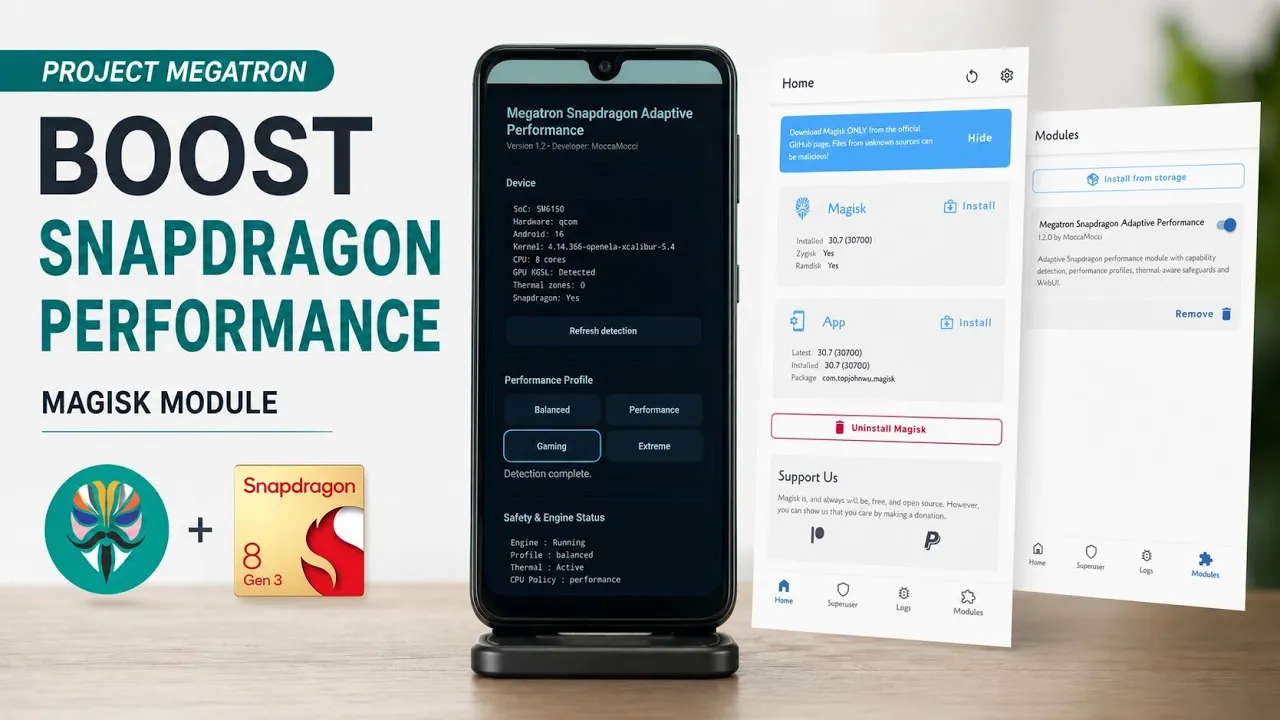
Rooting an Android phone opens up a lot of possibilities, but there’s also a downside: once you start looking at kernel tweaks, CPU governors, GPU settings and thermal configuration, things can become complicated very quickly.
Project Megatron takes a more user-friendly approach by putting its performance controls behind a WebUI.
Instead of manually changing a collection of system parameters, the module provides a dashboard where you can choose different operating profiles and access CPU and GPU-related settings.
For this video, I looked at how the module is installed and how its WebUI is used to configure the available profiles.
First, Check Your Chipset
There is one requirement you absolutely shouldn’t overlook.
Project Megatron is intended specifically for Qualcomm Snapdragon devices.
The supplied script explicitly warns against installing it on devices using another chipset.
So before doing anything else, check your phone’s processor.
This isn’t a situation where you should install the module just because another Android phone happens to run the same ROM or Android version.
Hardware compatibility matters.
There’s another warning in the script that is equally important: don’t stack Project Megatron with other performance-tuning or third-party thermal modules.
Multiple modules trying to control the same parts of the system can conflict with each other and potentially cause instability.
Installing Project Megatron
Installation is handled through Magisk.
Open Magisk, go to the modules section and choose the option to install a module from storage.
Select the Project Megatron ZIP and allow the installer to complete.
Once the installation has finished, reboot the phone so the changes can take effect.
That’s essentially the flashing portion of the process.
After the reboot, open Magisk again and check the installed modules list.
Project Megatron should appear as active if everything went correctly.
The Megatron WebUI
This is where the module becomes more interesting.
Instead of opening a terminal and entering commands, you can launch the Megatron WebUI.
The interface is designed to provide access to the module’s supported performance controls from a graphical dashboard.
The script describes the WebUI as using an adaptive detection process that checks the device and kernel capabilities before applying supported parameters.
That is a useful idea because Android devices aren’t all built the same way.
A Snapdragon phone can have a completely different kernel configuration from another Snapdragon phone, even when the chipset family is similar.
Still, you shouldn’t interpret adaptive detection as a guarantee that every configuration will be optimal for your device.
YouTube:
Four Performance Profiles
The WebUI provides four main operating profiles.
Balanced
Balanced mode is intended for normal day-to-day use.
The idea is to maintain responsive operation without constantly prioritizing maximum performance.
For someone using the phone for messaging, browsing, social media and general applications, this is the profile that makes the most sense as a starting point.
Performance
Performance mode is aimed at heavier workloads.
The script describes it as increasing performance behaviour for tasks such as multitasking.
The important thing to remember is that higher performance can come with trade-offs, particularly around power consumption and heat.
Gaming
Gaming mode is designed specifically around demanding gameplay.
The module’s interface describes optimizations involving frame pacing and thread scheduling.
Whether those changes produce a noticeable improvement depends on the particular game, kernel and hardware combination.
I wouldn’t treat a performance profile as an automatic guarantee of higher FPS.
Extreme
Extreme mode is the most aggressive option available in the interface.
It’s intended for users who want to push the Snapdragon platform harder.
This is also where I’d recommend being the most cautious.
More aggressive settings aren’t automatically better for everyday use. They can increase power consumption or heat depending on what the module changes.
Thermal Protection
One of the claims made in the script is that thermal protection remains active across the different profiles.
That’s important because thermal management isn’t something I would recommend disabling casually.
Smartphones deliberately reduce performance when temperatures become too high. That behaviour is there to protect the hardware.
A performance module should therefore be evaluated not only by how aggressively it pushes the CPU or GPU, but also by how it handles thermal conditions.
Don’t Combine Performance Modules
This deserves repeating.
If you’re already running another CPU tuner, thermal module, governor manager or similar performance modification, don’t simply add Project Megatron on top.
The script specifically warns against stacking performance tweaks and third-party thermal modifications.
If two different modules attempt to control the same kernel parameters, you may not know which configuration is actually being applied.
It also makes troubleshooting much harder.
If you’re experimenting, change one major component at a time.
Is It Actually Faster?
This is where I’d avoid the usual Android-modification hype.
A Magisk module cannot change the physical capabilities of your phone.
It can change how the operating system and kernel make use of those capabilities.
That can affect responsiveness, workload behaviour and potentially gaming performance, but the result depends on the hardware and software environment.
So rather than expecting a fixed percentage improvement, use your own workload as the measurement.
Play the games you normally play. Open the applications you normally use. Check temperature and battery behaviour.
Then decide whether the configuration actually helps you.
Who Should Try Project Megatron?
I’d say this module is aimed squarely at Android enthusiasts.
If you’re completely happy with your phone’s stock performance and don’t know what Magisk modules or kernel parameters do, there isn’t much reason to install it.
But if you already have a rooted Snapdragon phone and enjoy experimenting with different performance configurations, the WebUI makes the process considerably more approachable.
It gives you a visual way to switch between profiles rather than requiring you to manually edit configuration files or run commands.
Download
The Project Megatron ZIP used in the video is available here:
The supplied script does not include an official GitHub/developer credit, so I have intentionally not invented one.
Final Thoughts
Project Megatron is an interesting example of how rooted Android customization is becoming more accessible.
The underlying concepts CPU tuning, GPU behaviour, thermal management and kernel parameters can be intimidating if you’re expected to manage everything from a terminal.
Putting those controls behind a WebUI makes experimentation much easier.
But the same rule applies here as with practically every root-based performance modification: don’t assume the most aggressive setting is the best setting.
Start with Balanced, understand what each profile changes, avoid stacking conflicting modules and pay attention to temperature and battery behaviour.
And before you even install it, check that your device uses a Qualcomm Snapdragon processor, because that’s an explicit requirement of the module described in the video.
For the right rooted Snapdragon device, Project Megatron can be an interesting tool to experiment with. Just approach it as a tuning utility rather than a magic performance upgrade.
Download: Download Project Megatron
Requirement: Qualcomm Snapdragon device
Root: Magisk




Discussion (0)
Post a Comment
No comments yet. Be the first to share your thoughts!