
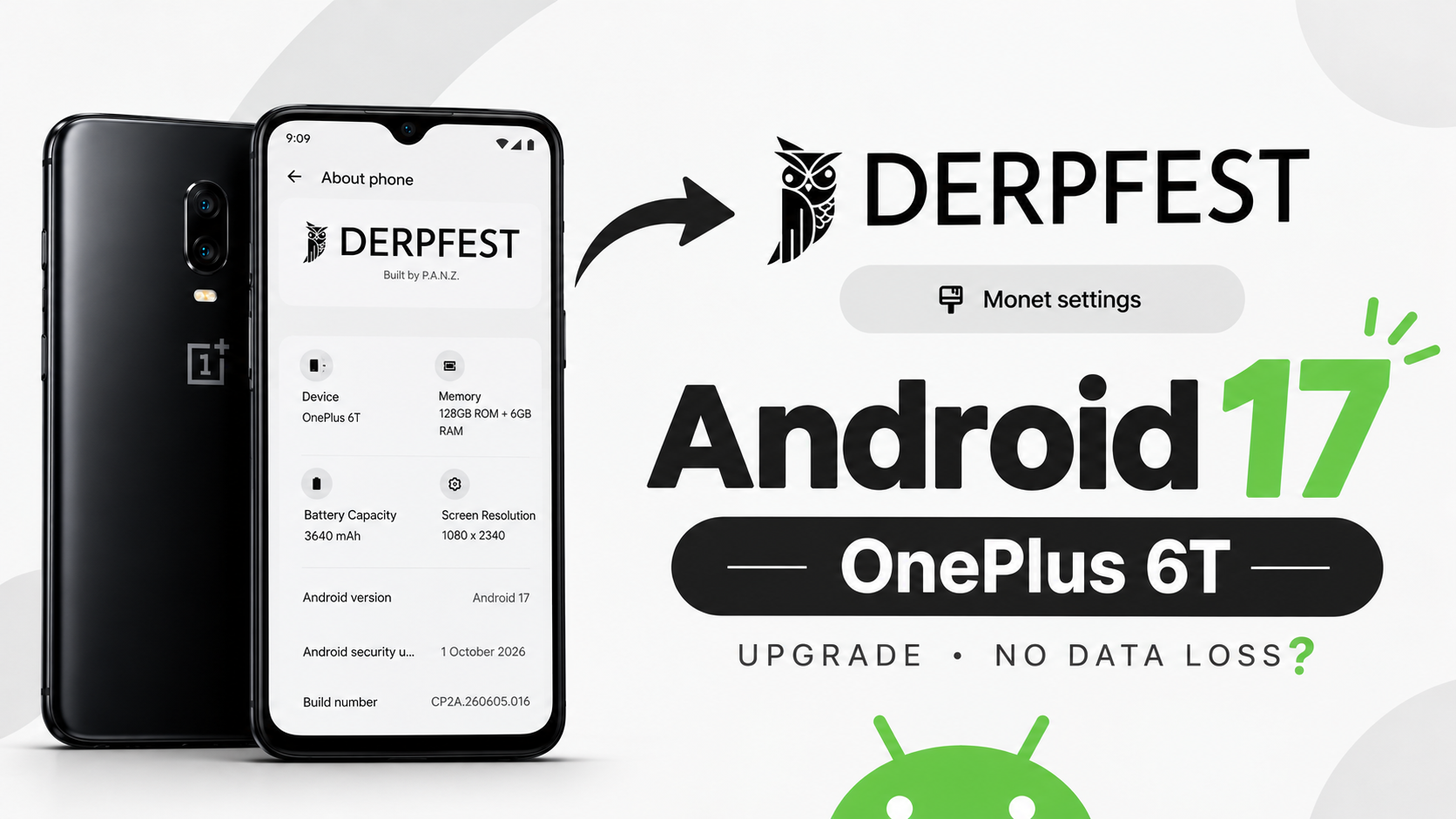
DerpFest 17 on OnePlus 6T: Android 17 Upgrade and Installation Guide
The OnePlus 6T continues to benefit from custom ROM development. DerpFest 17 brings Android 17 to the device, with the initial build reporting the October security patch. The upgrade path described here is specifically from the final DerpFest Android 16 build.
Before You Begin
- Use the ROM and boot image intended specifically for the OnePlus 6T. Keep both files available on your computer.
- Back up important data even when following a dirty-flash path. A dirty flash does not guarantee data will always be preserved.
- Install Android platform-tools. Windows users can use the standard platform-tools package; Linux users can use platform-tools or their distribution's adb and fastboot packages.
- This dirty-flash process is intended for the final DerpFest Android 16 build. Switching from a different ROM may require a data format, which erases user data.
1. Boot into Fastboot
From the final DerpFest Android 16 build, use the advanced power menu to reboot to fastboot. On another ROM, power off the device and hold Power, Volume Up and Volume Down together until the fastboot screen appears.
2. Connect and Verify
Connect the phone by USB, open a terminal in the platform-tools directory, and run the command below. A device identifier should appear. If not, check the cable, drivers, permissions and fastboot mode.
fastboot devices
3. Flash the Boot Image
Place the correct boot image in the working directory and run:
fastboot flash boot boot.img
Wait for fastboot to confirm the image was sent and written. Do not disconnect the cable during the operation.
4. Enter Recovery
Use Volume Down to navigate to Recovery Mode and press Power to select it. Wait for recovery to load.
5. Sideload the ROM
In recovery, select Apply Update, then Apply Update from ADB. On the computer, run the command below, replacing rom.zip with the exact package filename:
adb sideload rom.zip
Allow the installation to finish without disturbing the USB connection. If coming from a different ROM, follow the maintainer's instructions for formatting data before continuing.
6. Reboot
After installation completes, return to the recovery main menu and reboot to system. If you want to install Magisk or KernelSU, follow their current instructions and the ROM maintainer's guidance before rebooting. Root is optional.
What’s New in DerpFest 17
- Android 17 base with the October security patch reported by the initial build.
- Updated recovery interface with Apply Update and ADB sideload options.
- A two-way notification shade: swiping down from the left opens notifications, while swiping down from the right opens full Quick Settings.
- The first build had some noticeable interface lag. Give the system time to settle and assess performance after normal use.
Early Build Notes and Troubleshooting
- A hotfix was reportedly released to address games failing to launch. Check the maintainer's latest release information before installing.
- If fastboot does not detect the device, troubleshoot the USB connection and platform-tools setup before flashing.
- If sideload fails, confirm recovery is in ADB sideload mode and the package name/path is correct.
- The first boot after a major update may take around two to three minutes. Avoid interrupting normal startup.
- Custom ROM installation can cause boot loops, data loss or an unusable device if incompatible files are flashed. Follow device-specific instructions and keep backups.
Useful Links
- ROM download: https://drive.google.com/open?id=19nGYt6iW2j9nMZ5obYj_az68ntE_WyGY
- ROM support group: https://t.me/+8EZUXlLhzlk4M2Y0
- Installation video:
Discussion (0)
Post a Comment
No comments yet. Be the first to share your thoughts!